End‑of‑Rotation Assessments

End-of-Rotation Assessments
The End-of-Rotation Assessment is completed by the Clerkship Director at the conclusion of a student's rotation. Unlike Weekly, Ad-Hoc, and Mid-Rotation Assessments, the End-of-Rotation Assessment consolidates information gathered throughout the rotation, including faculty feedback, preceptor evaluations, and completed assessments.
The assessment provides a comprehensive evaluation of the student's performance across multiple competency domains and generates the final rotation evaluation.
Accessing End-of-Rotation Assessments
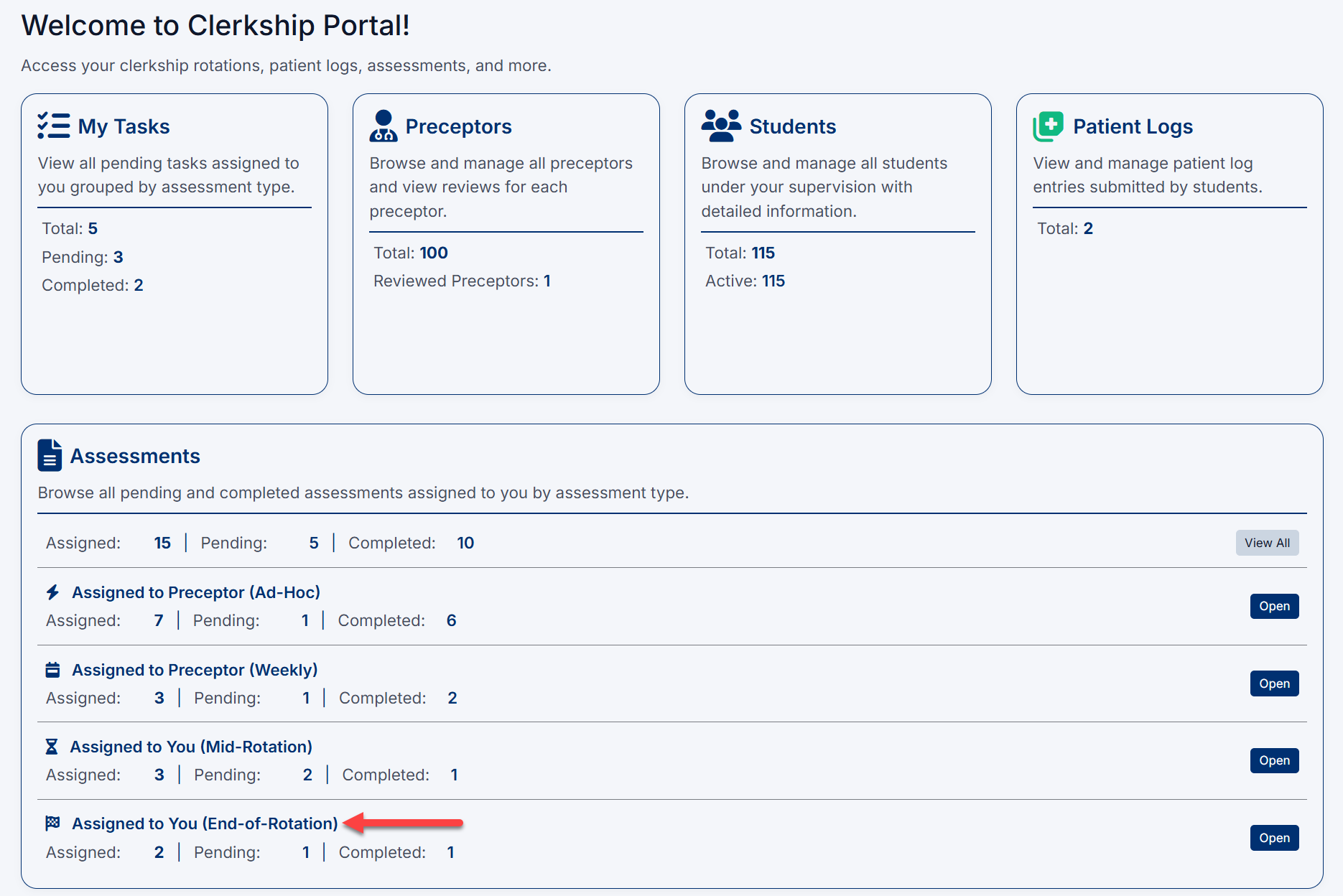
You can access End-of-Rotation Assessments from either:
Home Dashboard
- Navigate to the Home page.
- Locate the Assigned to You (End-of-Rotation) section within the Assessments panel.
- Select Open.
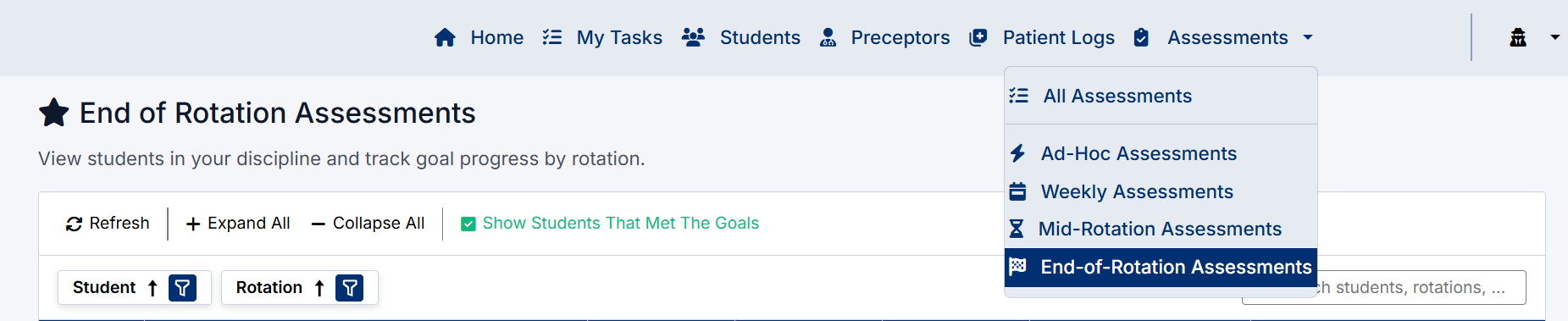
Assessments Menu
- Select Assessments from the navigation menu.
- Select End-of-Rotation Assessments.
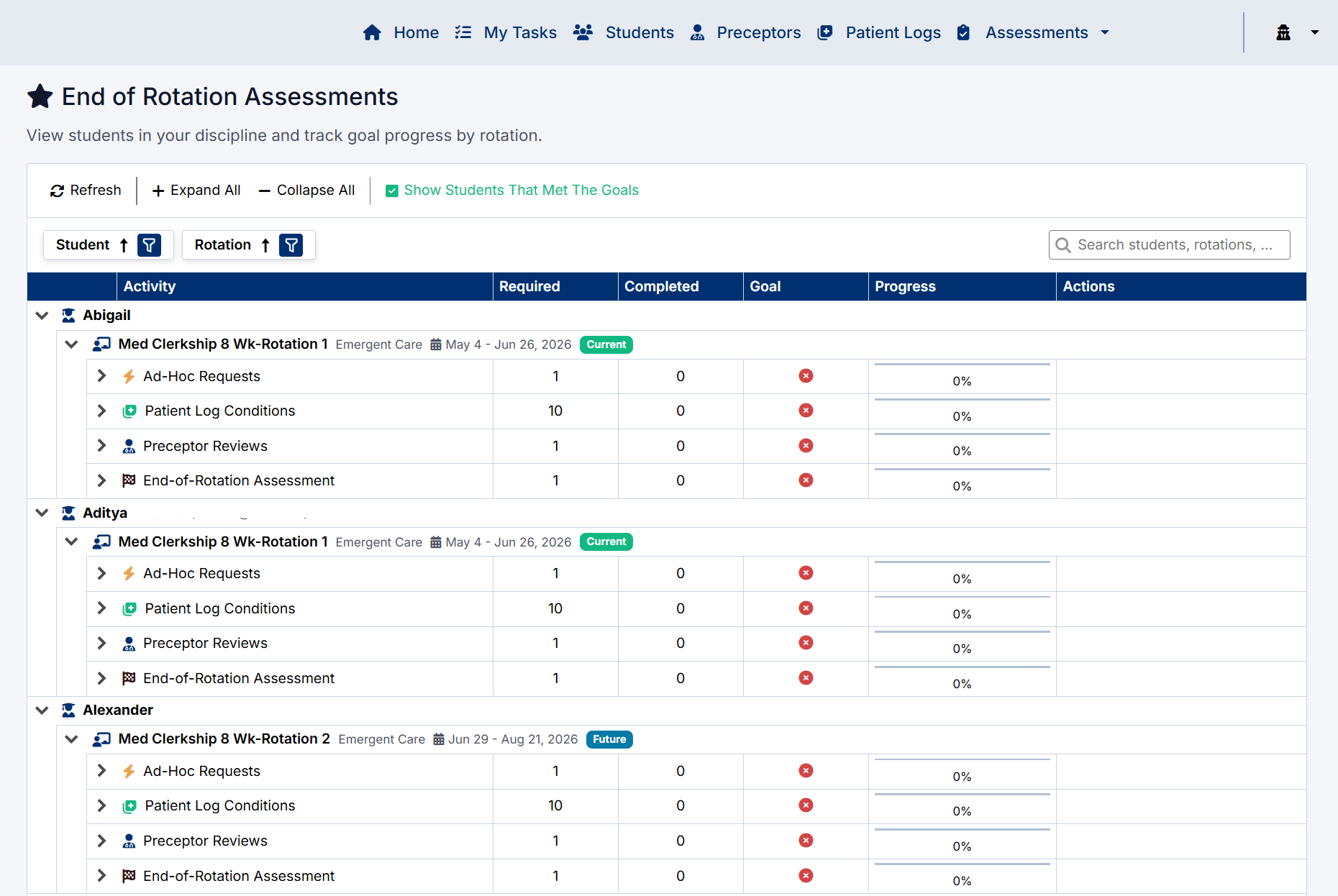
End-of-Rotation Assessments Screen
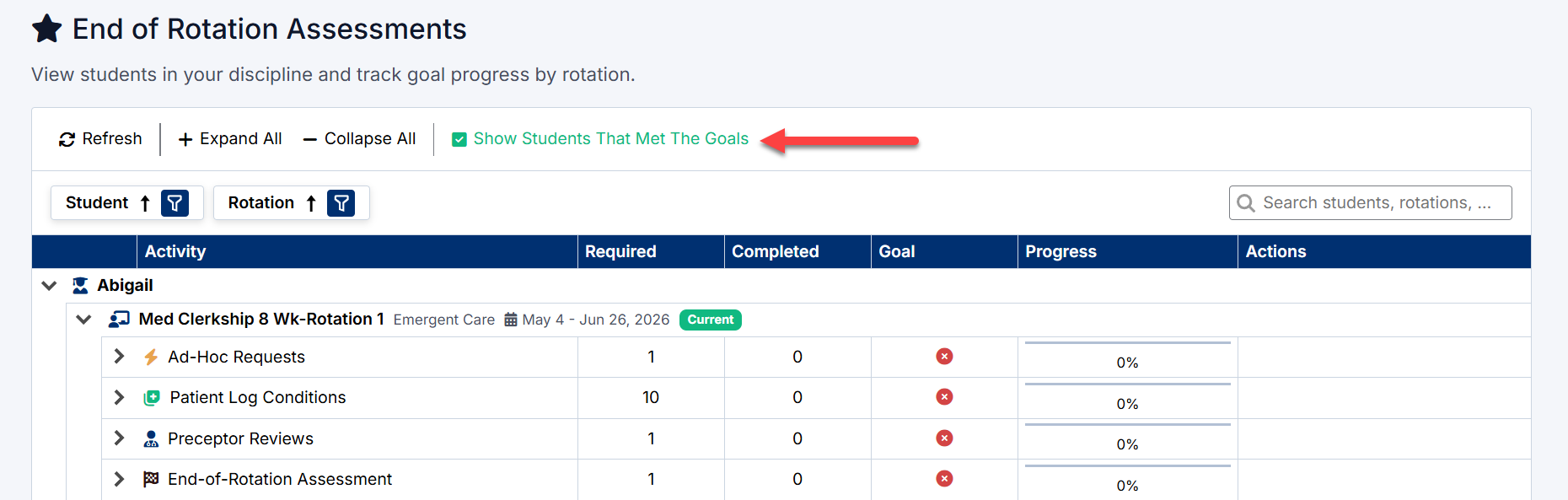
The End-of-Rotation Assessments page displays all students within your discipline and their progress toward rotation completion requirements.
The screen includes:
- Student and rotation hierarchy
- Progress tracking by activity type
- Goal completion indicators
- Progress percentages
- Assessment status
- Available actions
Understanding Progress Requirements
Each rotation displays progress against required activities:
|
Activity |
Description |
|
Ad-Hoc Requests |
Completed Ad-Hoc Assessments |
|
Patient Log Conditions |
Required patient log entries |
|
Preceptor Reviews |
Completed preceptor evaluations |
|
End-of-Rotation Assessment |
Final clerkship evaluation |
For each activity the system displays:
- Required count
- Completed count
- Goal status
- Completion percentage
Green indicators identify completed requirements while red indicators identify outstanding requirements.

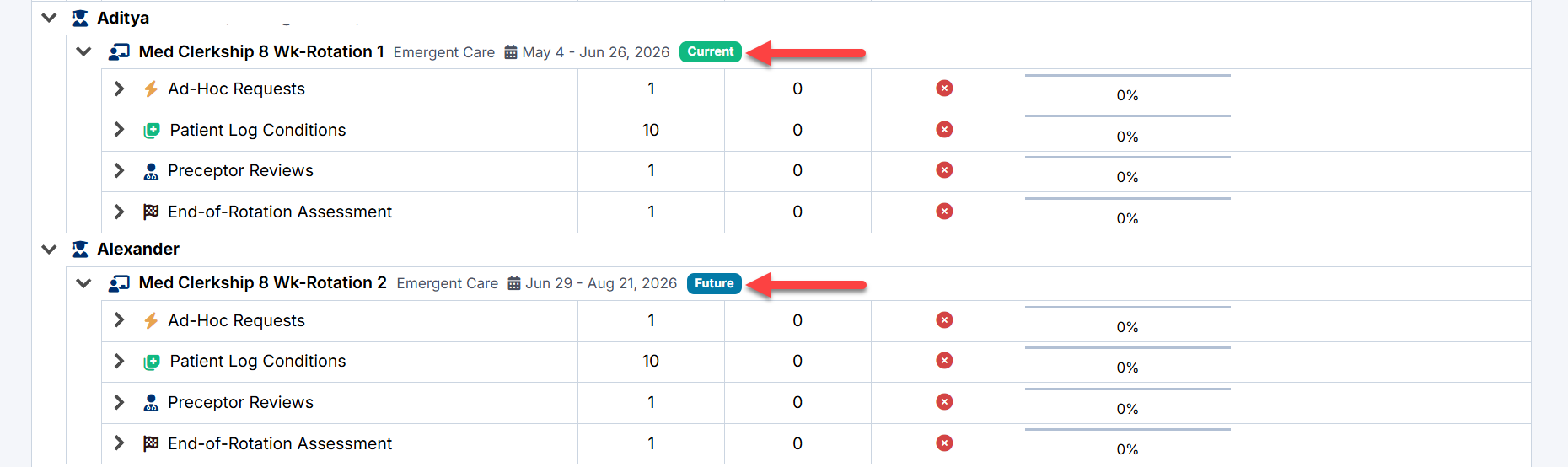
Current and Future Rotations
Rotations are identified using status badges:
|
Badge |
Meaning |
|
Current |
Active rotation |
|
Future |
Rotation has not yet started |
Show Students That Met the Goals
The Show Students That Met the Goals toggle allows you to quickly identify students who have completed all required rotation activities and are ready for final evaluation.
How It Works
The toggle appears at the top of the End-of-Rotation Assessments page.
- Green Checkmark (✓) Show Students That Met the Goals
- Displays students who have met all required rotation goals.
- Includes students who are ready for End-of-Rotation evaluation or have already completed the evaluation.
- Red X (✗) Show Students That Met the Goals
- Hides students who have met all goals.
- Displays only students who still have outstanding requirements.
This feature helps Clerkship Directors focus on students who still need to complete rotation requirements before a final evaluation can be submitted.
Identifying Students Ready for Evaluation
A student is considered ready for End-of-Rotation evaluation when all required rotation activities have been completed.
This includes:
- Required Ad-Hoc Assessments
- Required Patient Log Conditions
- Required Preceptor Reviews
- Any other discipline-specific requirements
When all requirements are met:
- The Goal column displays a green checkmark.
- The Progress column displays 100%.
- The End-of-Rotation Assessment row becomes available for review or completion.
Filtering Students Ready for Evaluation
To view only students who have completed all requirements:
- Select Show Students That Met the Goals.
- Expand the student and rotation records as needed.
- Review students with:
- Green goal indicators
- 100% completion progress
- Available End-of-Rotation Assessment actions
This provides a quick way to identify students whose final evaluations are ready to be completed.
Starting an End-of-Rotation Assessment
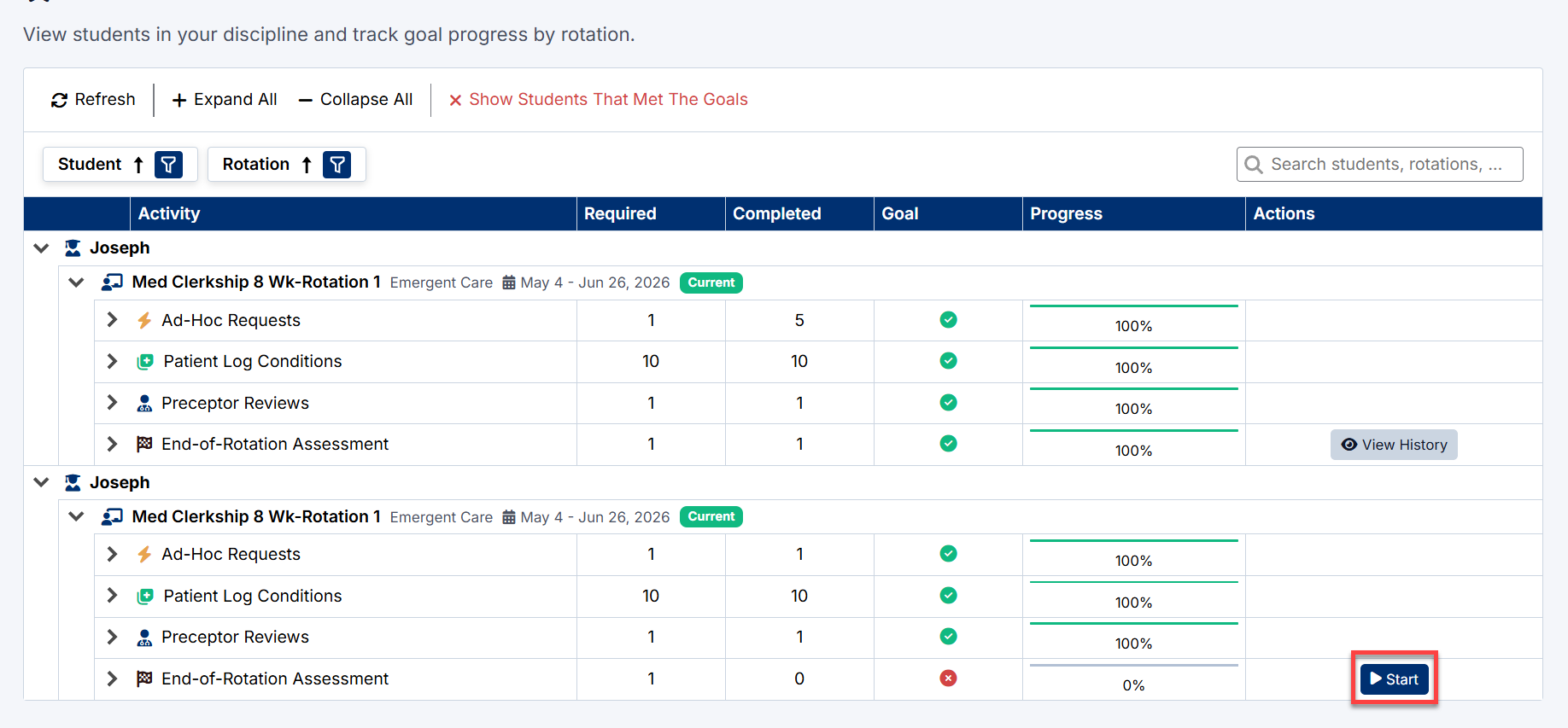
When all required information has been collected, the End-of-Rotation Assessment becomes available.
- Expand the student.
- Expand the rotation.
- Locate End-of-Rotation Assessment.
- Select Start.
The End-of-Rotation Assessment form opens.
Completing the Assessment
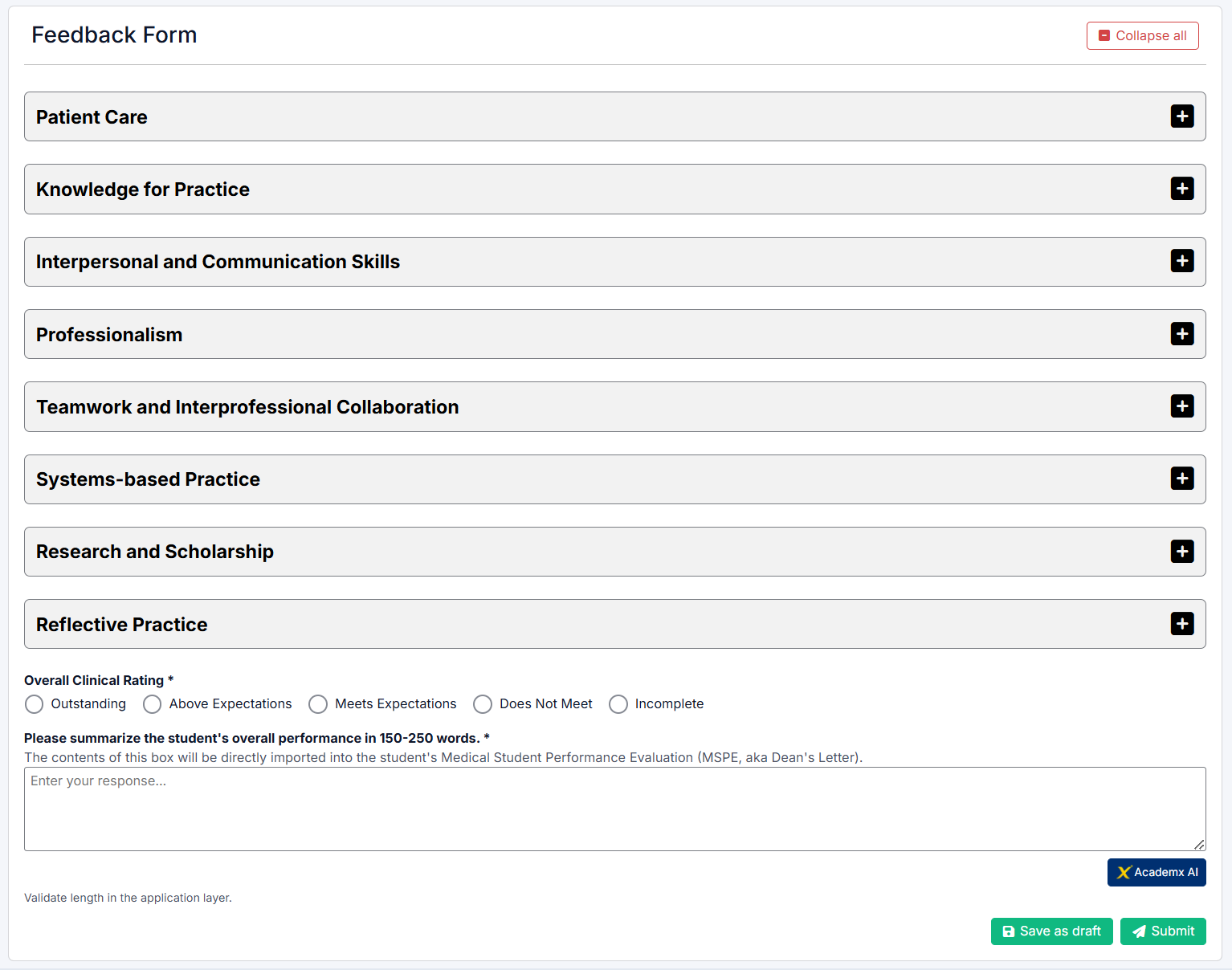
The assessment is organized into competency-based sections.
Typical domains include:
- Patient Care
- Knowledge for Practice
- Interpersonal and Communication Skills
- Professionalism
- Teamwork and Interprofessional Collaboration
- Systems-Based Practice
- Research and Scholarship
- Reflective Practice
Select the + icon beside a section to expand it.
Using Prior Evaluation Data
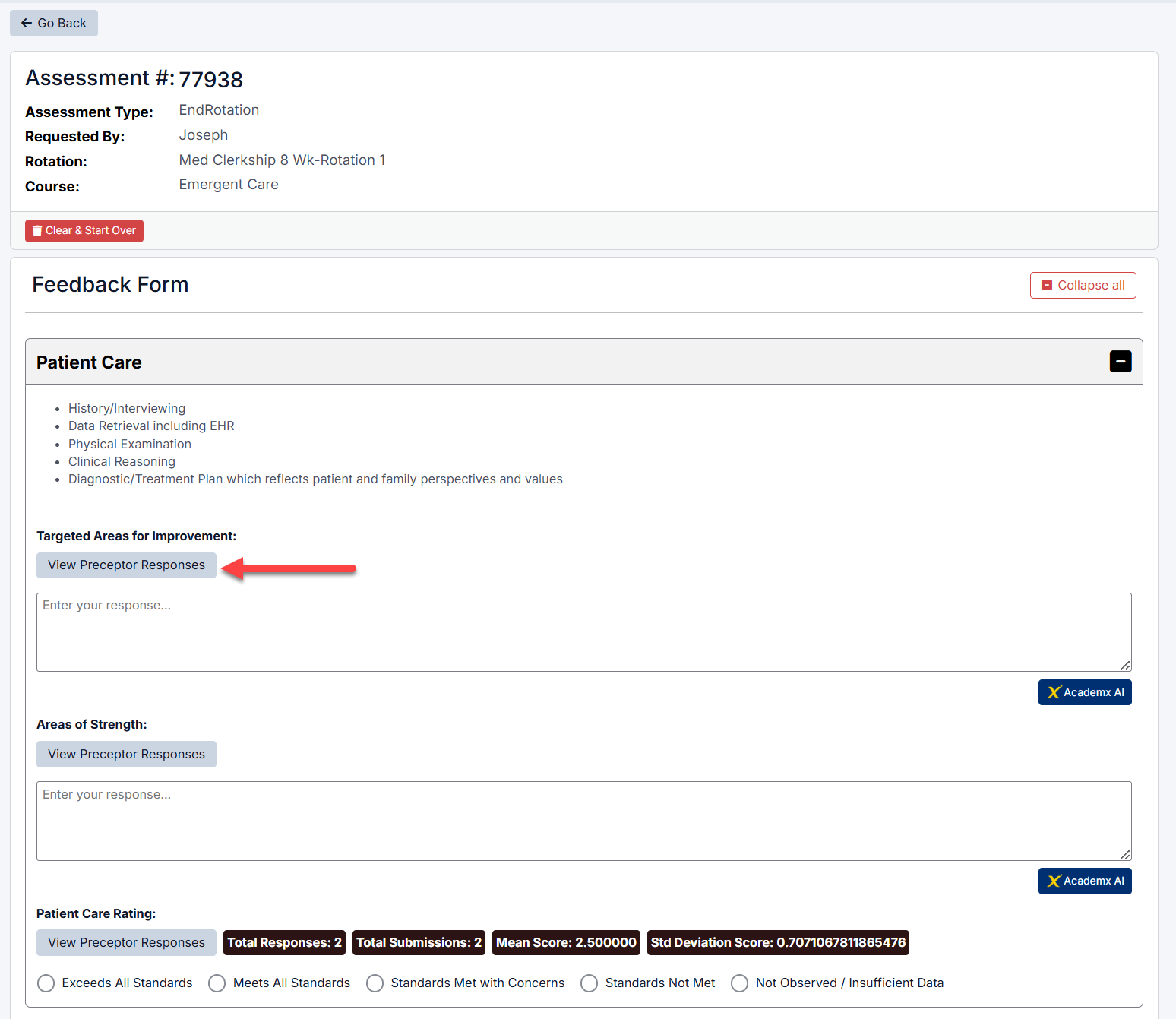
Each competency area includes information gathered from previous evaluations completed during the rotation.
Select View Preceptor Responses to review:
- Weekly Assessment comments
- Ad-Hoc Assessment comments
- Faculty observations
- Narrative feedback
This information helps inform the final evaluation.
Reviewing Narrative Feedback
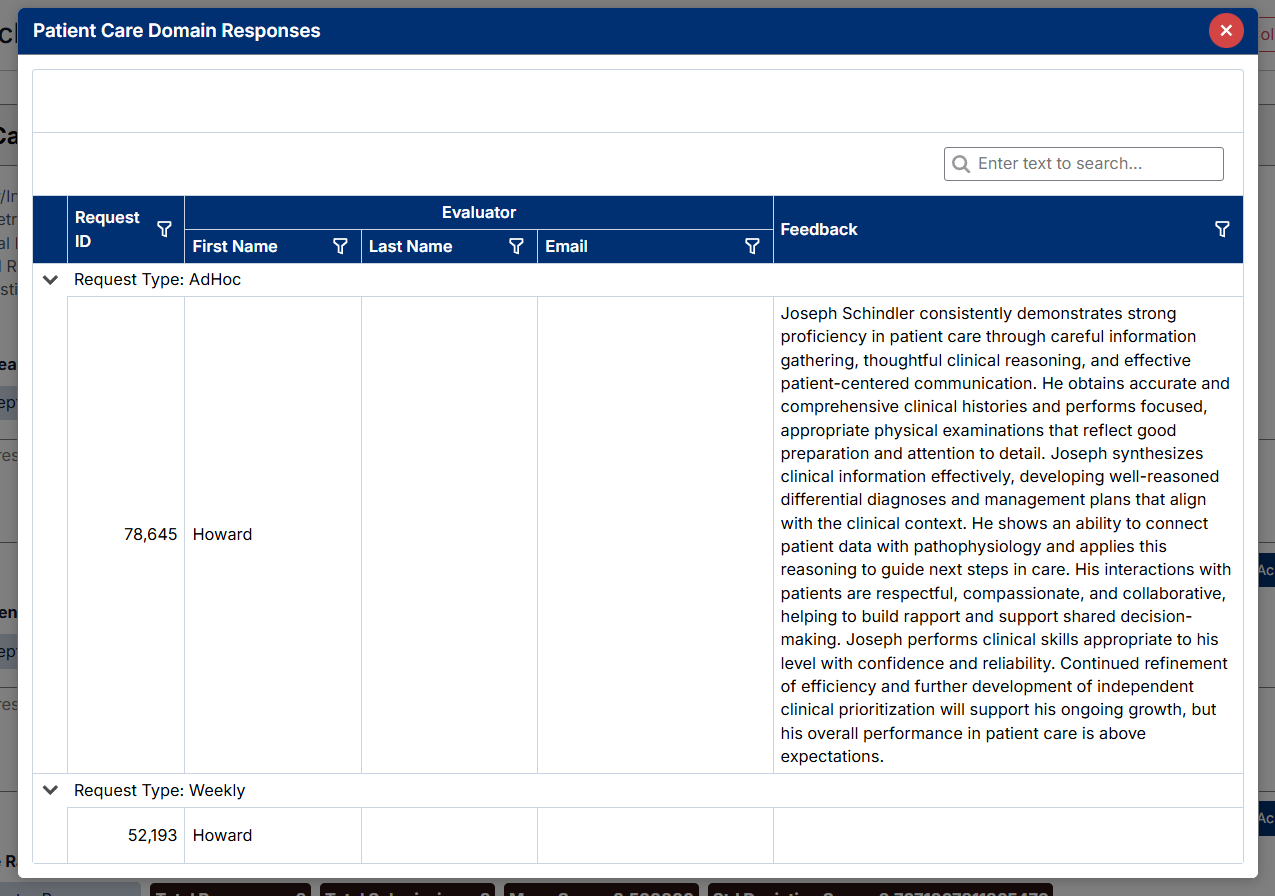
Selecting View Preceptor Responses displays all comments submitted for the selected competency.
The response window includes:
- Assessment type
- Evaluator information
- Feedback comments
- Search and filtering tools
Use this information to identify recurring strengths, concerns, and performance trends throughout the rotation.
Reviewing Rating History
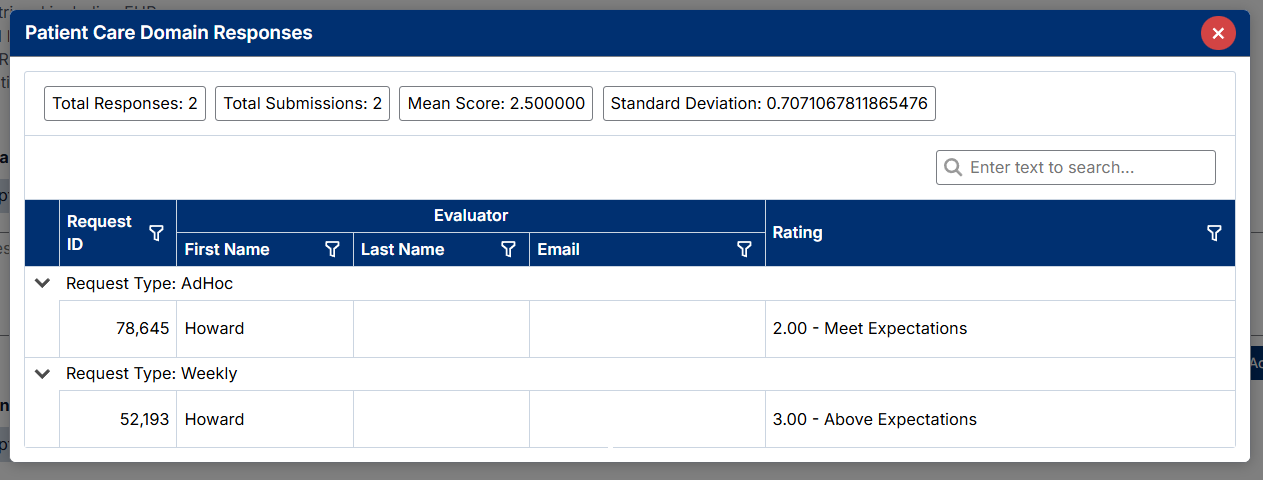
For rating-based sections, selecting View Preceptor Responses displays:
- Individual ratings submitted by evaluators
- Total responses received
- Total submissions
- Mean score
- Standard deviation
These statistics provide a summary of overall evaluator performance ratings and can be used to support final scoring decisions.
Completing Competency Sections
Within each competency domain you may be asked to provide:
Areas for Improvement
Document specific areas where the student should continue developing skills, knowledge, or professional behaviors.
Areas of Strength
Identify notable strengths demonstrated throughout the rotation.
Competency Rating
Assign a final rating based on:
- Preceptor feedback
- Faculty observations
- Weekly assessments
- Ad-Hoc assessments
- Student performance throughout the rotation
Overall Clinical Rating
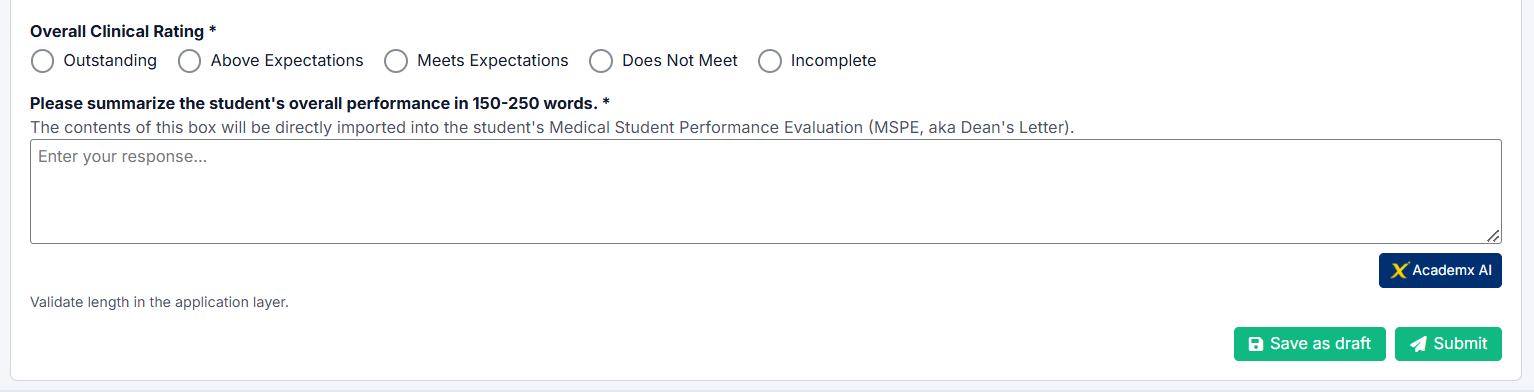
At the end of the assessment, select an overall clinical performance rating.
Available options may include:
- Outstanding
- Above Expectations
- Meets Expectations
- Does Not Meet Expectations
- Incomplete
The selected rating should reflect the student's overall performance during the rotation.
Final Narrative Summary
The assessment includes a required summary section.
Enter a comprehensive evaluation of the student's overall performance.
Important: The contents of this summary are imported directly into the student's Medical Student Performance Evaluation (MSPE), also known as the Dean's Letter.
Provide a clear and professional summary that reflects:
- Clinical performance
- Professionalism
- Communication skills
- Areas of strength
- Areas for continued growth
- Overall readiness for advancement
The narrative should generally be between 150 and 250 words.
Using AI Assistance
AI assistance is available throughout the End-of-Rotation Assessment for narrative comment fields.
You can:
- Generate draft comments automatically
- Refine existing comments
- Rewrite text for clarity
- Apply professional tone adjustments
For detailed instructions, see Using the AI Assistant.
Saving and Submitting
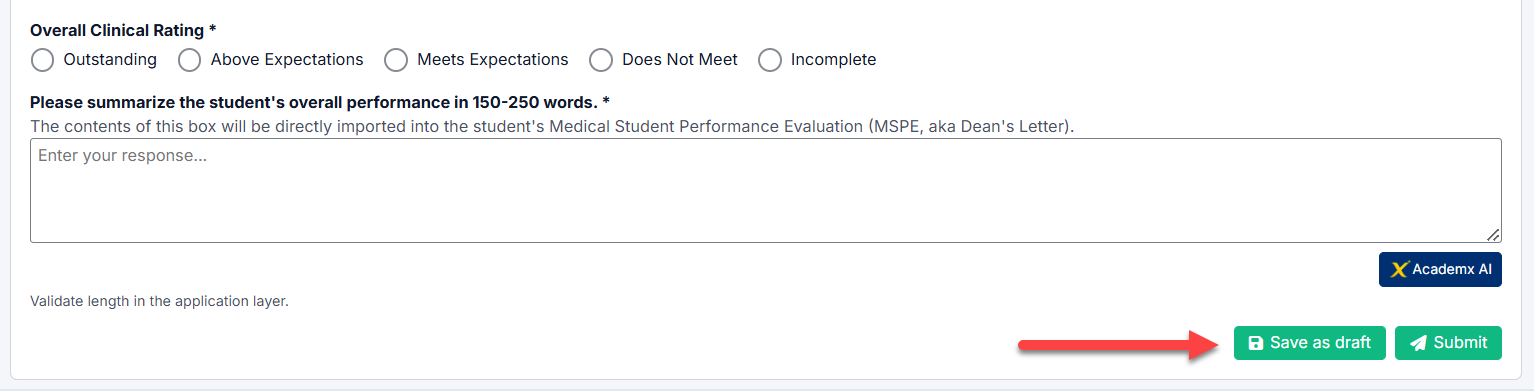
Save as Draft
Select Save as Draft to save your progress and return later.
Draft assessments remain editable until submitted.
Submit
When all required sections are complete:
- Review all ratings and comments.
- Select Submit.
- Confirm submission.
Once submitted, the assessment is finalized and recorded in the student's rotation history.
Viewing Assessment History
Completed End-of-Rotation Assessments display a View History option.
Select View History to review workflow activity, including:
- Assessment assignment
- Faculty notification
- Completion date and time
- Submission history
The workflow history provides a complete audit trail of the assessment lifecycle.
Created with the Personal Edition of HelpNDoc: Single source CHM, PDF, DOC and HTML Help creation