Mid‑Rotation Assessments

Mid-Rotation Assessments
The Mid-Rotation Assessments page allows Clerkship Directors to review and complete mid-rotation evaluations submitted by students during an active rotation.
Unlike Ad-Hoc and Weekly Assessments, the Mid-Rotation Assessment process begins with the student completing a self-assessment in the Student Portal. Once submitted, the assessment is routed to the assigned Clerkship Director for review and completion.
Mid-Rotation Assessments provide an opportunity to:
- Review student self-reflection and progress
- Conduct a mid-rotation feedback discussion
- Document concerns or performance issues early
- Provide guidance and goals for the remainder of the rotation
- Track assessment completion and workflow history
Accessing Mid-Rotation Assessments
To access Mid-Rotation Assessments:
- Sign in to the Clerkship Director Portal.
- Select Assessments from the navigation menu.
- Select Mid-Rotation Assessments.

Alternatively, pending Mid-Rotation Assessments can be opened directly from:
Home → Assessments → Assigned to You (Mid-Rotation)
Selecting Open displays all mid-rotation assessments awaiting your review.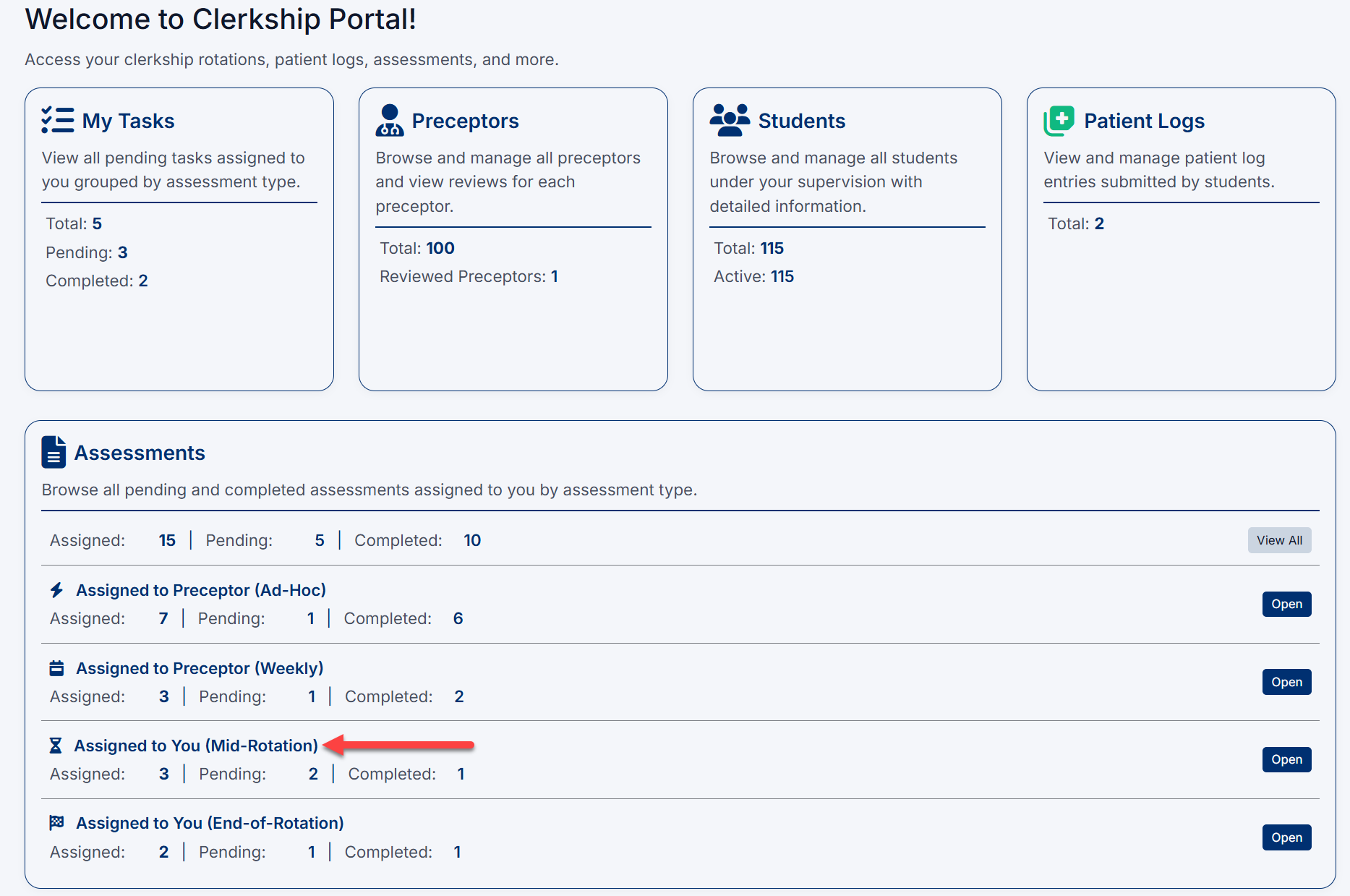
Understanding the Mid-Rotation Assessments Page
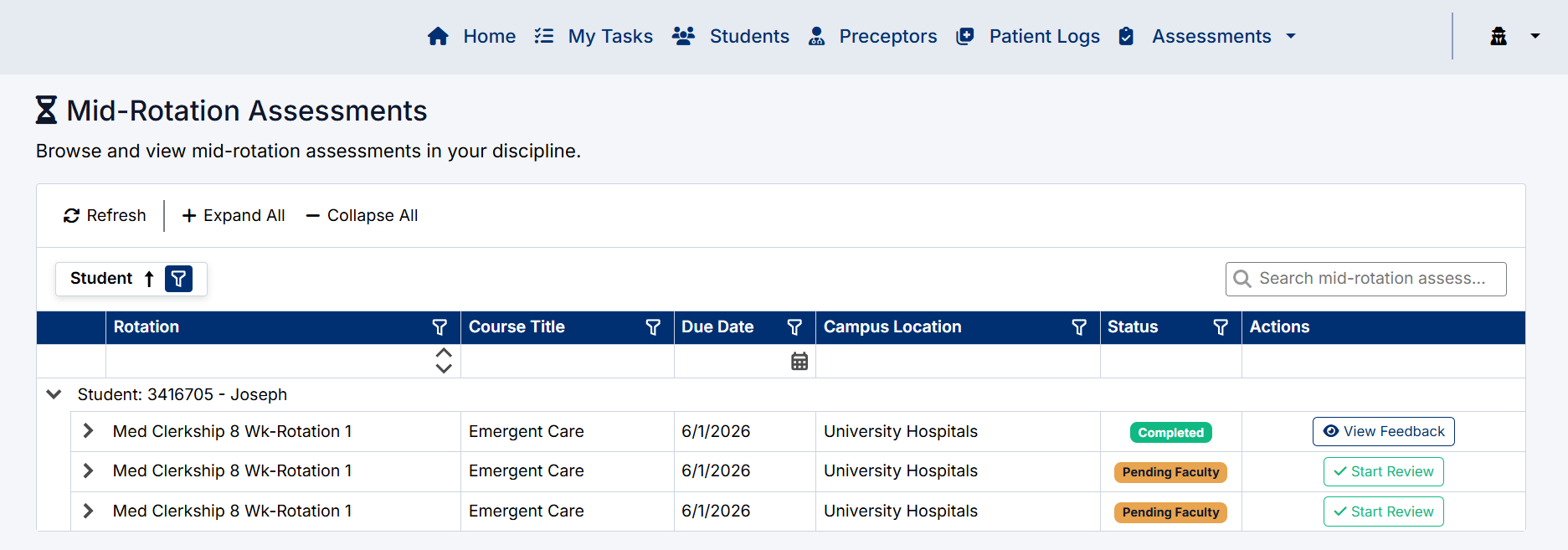
The Mid-Rotation Assessments page displays all mid-rotation assessment requests for students within your discipline.
Assessments are grouped by student and include:
- Rotation
- Course Title
- Due Date
- Campus Location
- Status
- Available Actions
Assessment Statuses
The Status column displays the current stage of the assessment workflow.
Common statuses include:
Pending Faculty
The student has completed and submitted their self-assessment and the assessment is awaiting Clerkship Director review.
A Start Review button will be available.
Completed
The Clerkship Director review has been submitted and the assessment process is complete.
A View Feedback button will be available.

Starting a Mid-Rotation Review
When an assessment is awaiting review:
- Locate the assessment with a Pending Faculty status.
- Select Start Review.

The Mid-Rotation Feedback Form opens for completion.
Completing the Mid-Rotation Feedback Form
The feedback form contains the student's submitted self-assessment information along with Clerkship Director review sections.
Typical areas include:
- Student progress evaluation
- Faculty observations
- Discussion points from the mid-rotation meeting
- Strengths and areas for improvement
- Performance concerns or remediation discussions
- Rotation goals for the remainder of the experience
Depending on institutional configuration, form content may vary.
Student Progress Evaluation
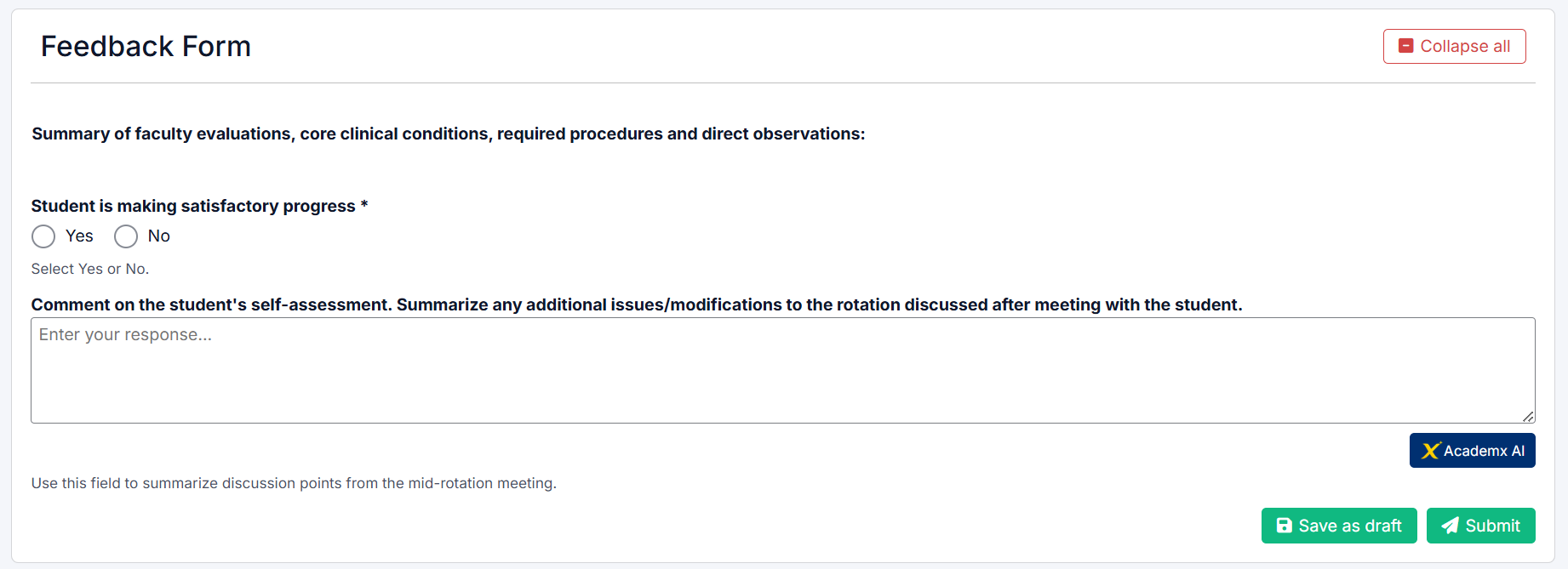
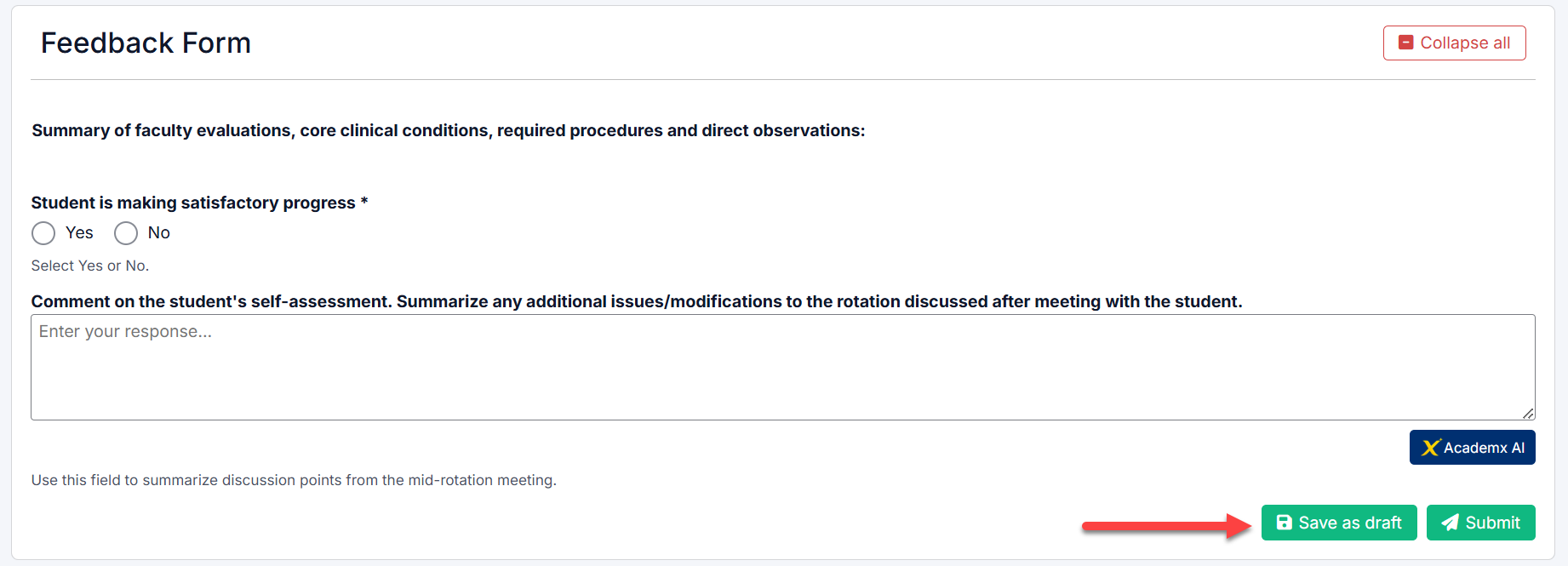
The Mid-Rotation Assessment includes a required progress indicator.
Student is making satisfactory progress
Select:
- Yes – Student is progressing appropriately through the rotation.
- No – Additional concerns or interventions may be required.
This response becomes part of the student's official mid-rotation evaluation.
Commenting on the Student Self-Assessment
The Clerkship Director should review the student's self-assessment before providing feedback.
Use the narrative comment section to:
- Respond to the student's reflections
- Summarize discussion points from the mid-rotation meeting
- Document strengths and achievements
- Identify areas requiring improvement
- Record any agreed-upon goals or action plans
The comments entered become part of the final Mid-Rotation Assessment record.
Using AI Assistance
AI assistance is available within narrative comment sections of the Mid-Rotation Assessment form.
Select the AcademX AI button to generate or refine feedback comments.
AI can assist with:
- Drafting professional feedback
- Improving clarity and tone
- Summarizing discussion points
- Expanding brief notes into complete comments
The AI Assistant can be used to help draft or refine narrative comments within assessment forms.
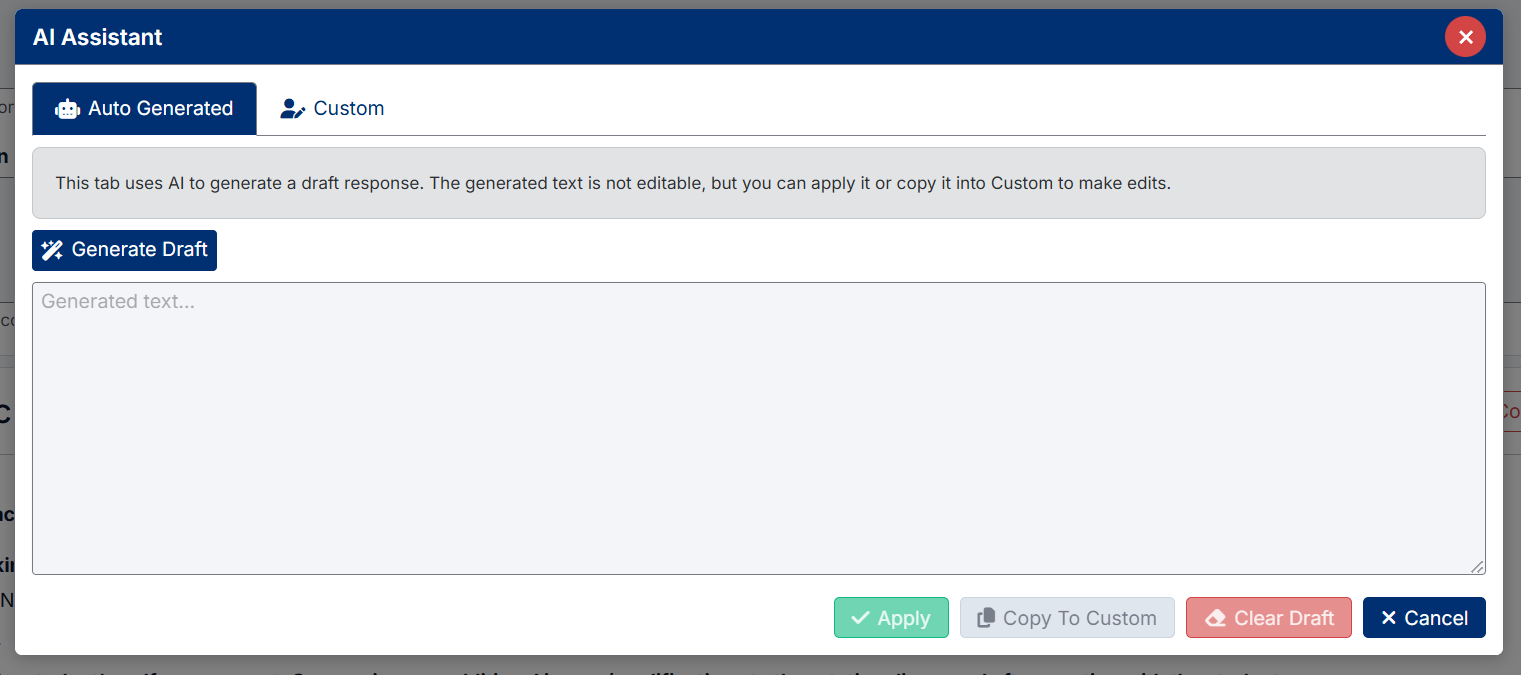
Auto Generated
Use Auto Generated to have the system create a draft response.
- Select AcademX AI beside the comment field.
- Select the Auto Generated tab.
- Select Generate Draft.
- Review the generated text.
- Select Apply to insert the text into the assessment field.
The generated text is not editable in the Auto Generated tab. To make changes, select Copy to Custom and edit the text in the Custom tab.
Custom
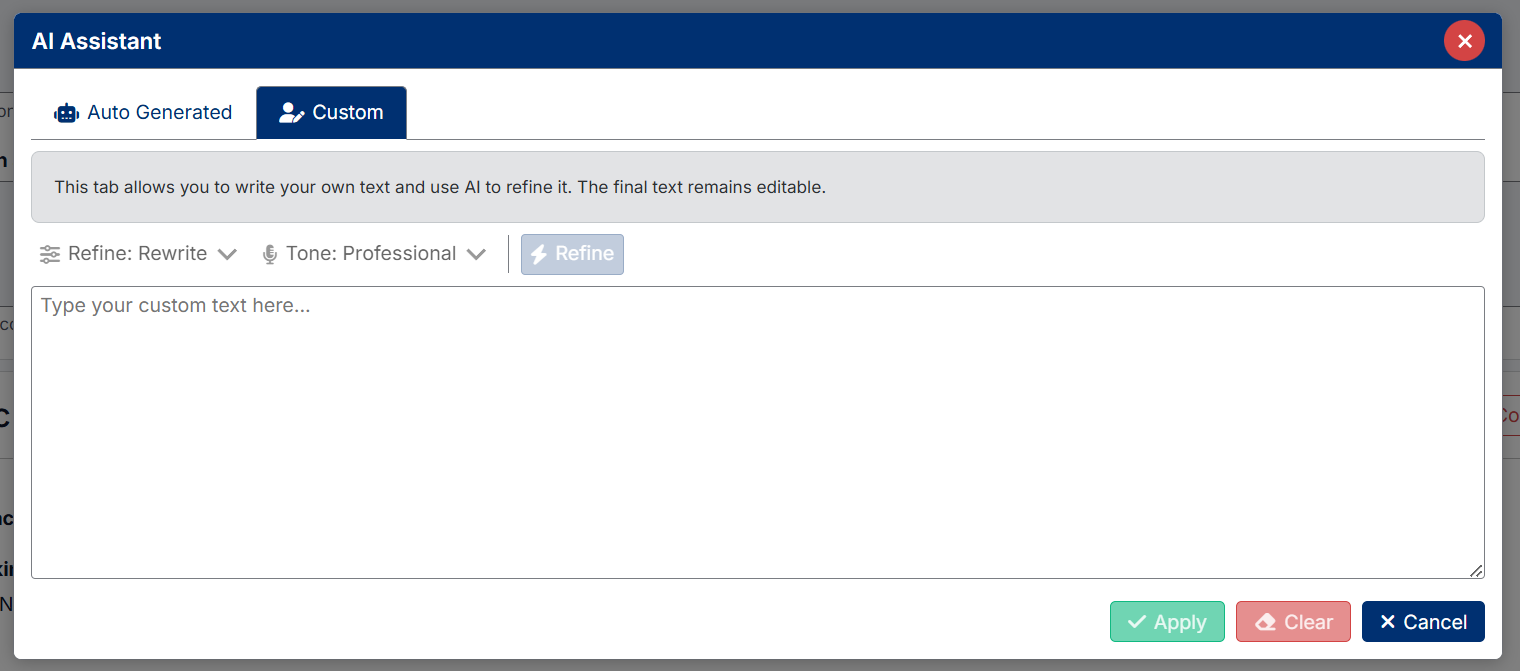
Use Custom when you want to write your own comment and use AI to improve it.
- Select the Custom tab.
- Type your comment in the text box.
- Choose a refinement option, such as Rewrite.
- Choose a tone, such as Professional.
- Select Refine.
- Review the updated text.
- Select Apply to insert the final text into the assessment field.
The Custom tab keeps the text editable, allowing you to make changes before applying it.
Additional Options
- Apply inserts the AI text into the assessment comment field.
- Clear or Clear Draft removes the current AI-generated text.
- Copy to Custom moves generated text into the Custom tab for editing.
- Cancel closes the AI Assistant without applying changes.
Always review AI-generated text before applying or submitting the assessment.
Saving Your Work
If additional review is required before submission:
- Select Save as Draft.
- The assessment remains in progress and can be completed later.
Draft assessments remain available until submitted.
Submitting the Assessment
Once the review is complete:
- Verify all required responses have been entered.
- Select Submit.
After submission:
- The assessment status changes to Completed.
- The workflow is finalized.
- Feedback becomes available for review.
Submitted assessments can no longer be edited unless reopened by an administrator.
Viewing Completed Feedback
Completed Mid-Rotation Assessments can be reviewed at any time.
To view completed feedback:
- Locate an assessment with a Completed status.
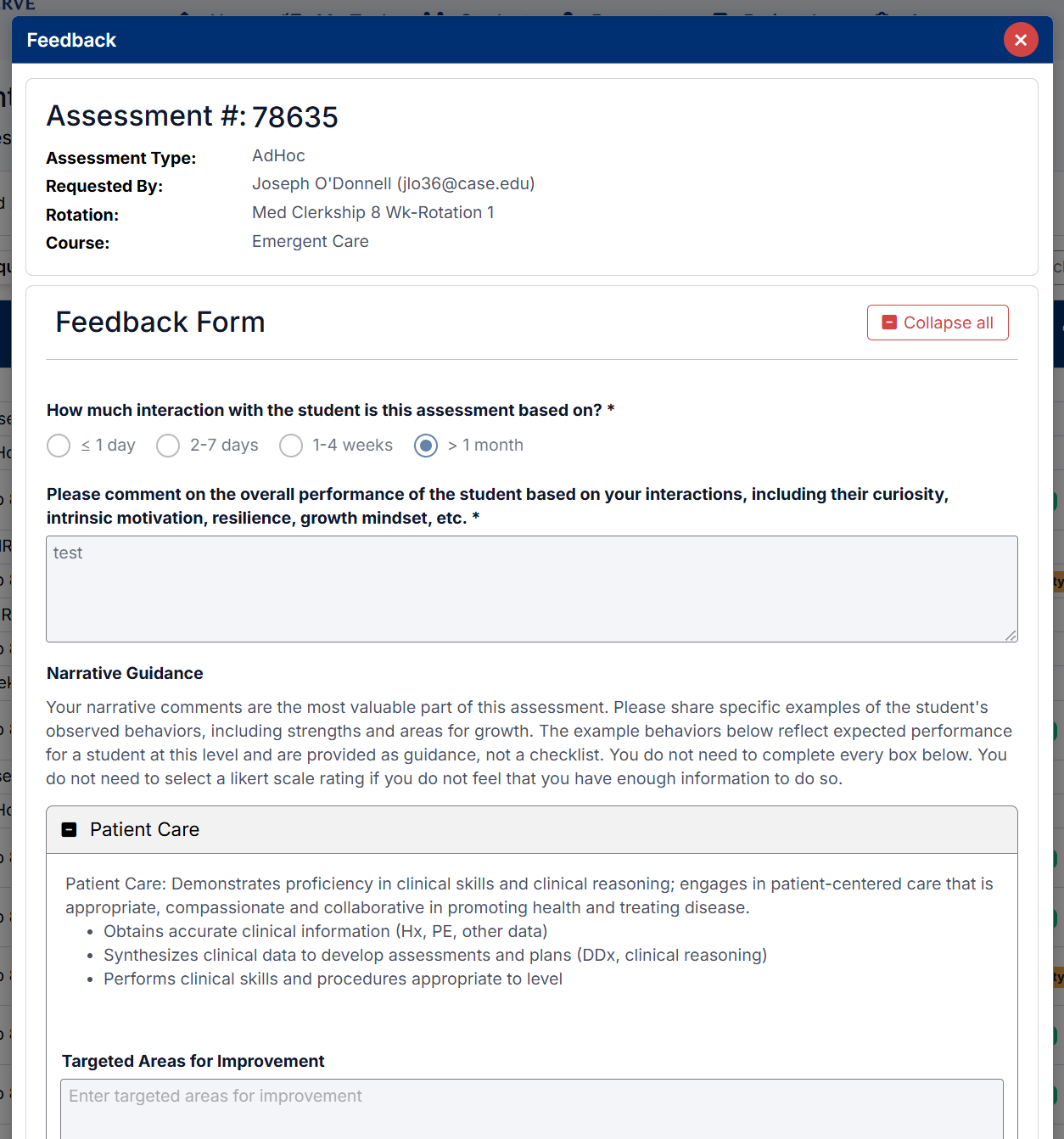
- Select View Feedback.

The Feedback window displays:
- Assessment details
- Student information
- Rotation information
- Submitted responses
- Narrative comments
- Faculty review information
This view is read-only.
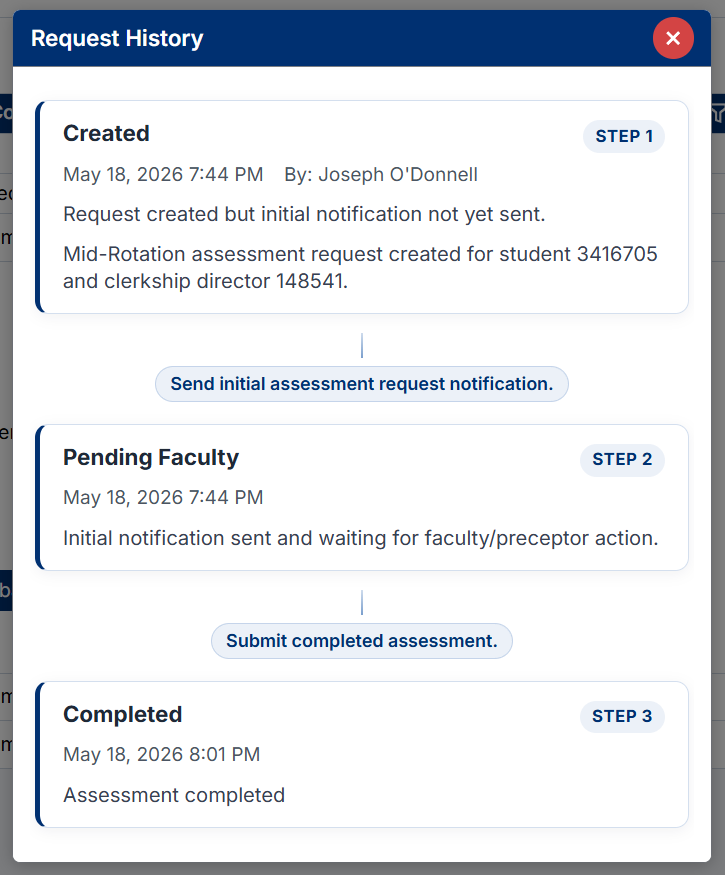
Viewing Workflow History
Workflow history provides a complete audit trail of the assessment process.
To view workflow history:
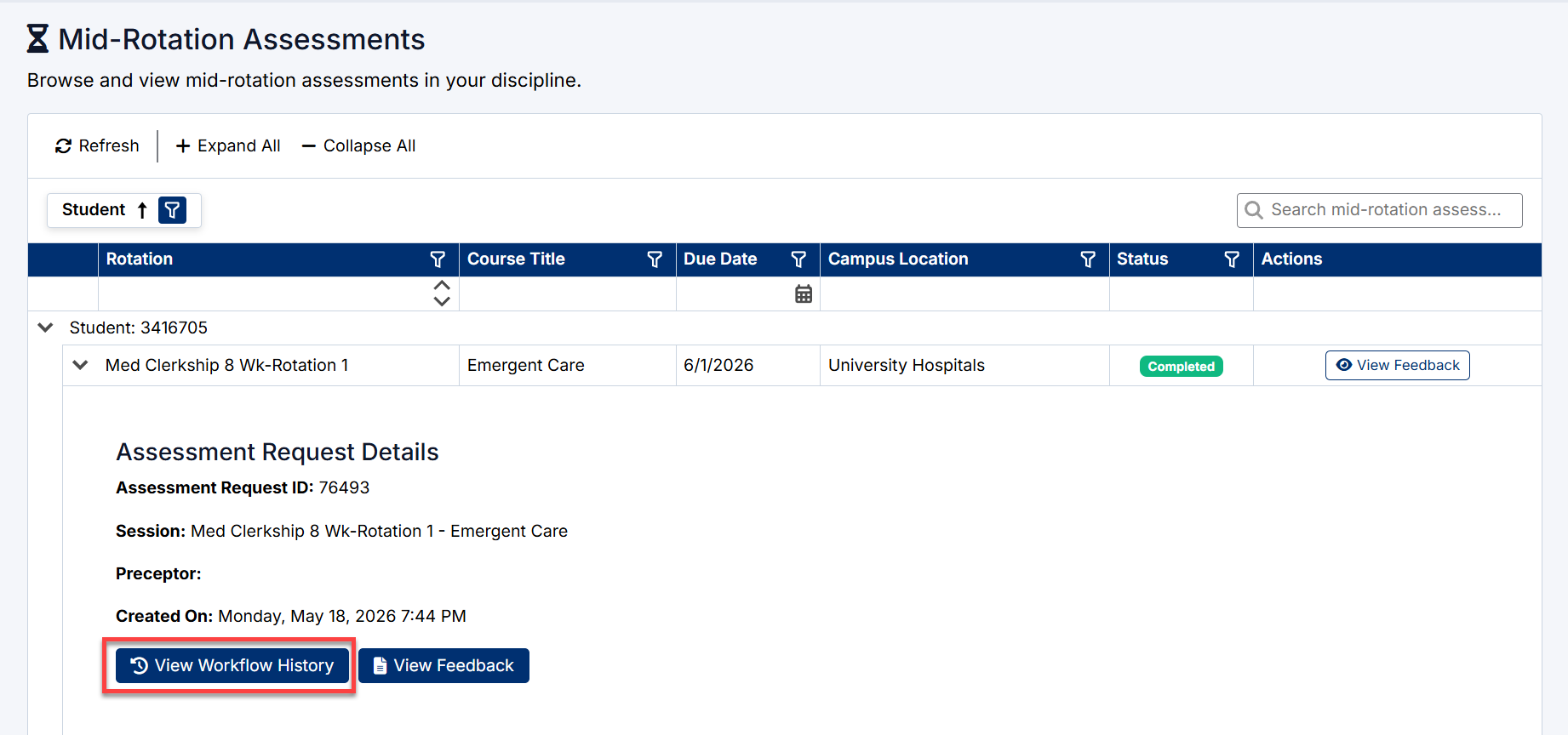
- Expand the assessment record.
- Select View Workflow History.
The workflow history displays:
Step 1 – Created
The student initiated and submitted the Mid-Rotation Assessment.
Step 2 – Pending Faculty
The assessment was routed to the Clerkship Director for review.
Step 3 – Completed
The Clerkship Director submitted the final review and feedback.
Workflow history also records:
- Dates and times
- User actions
- Status changes
- Assessment progression
Expanding Assessment Records
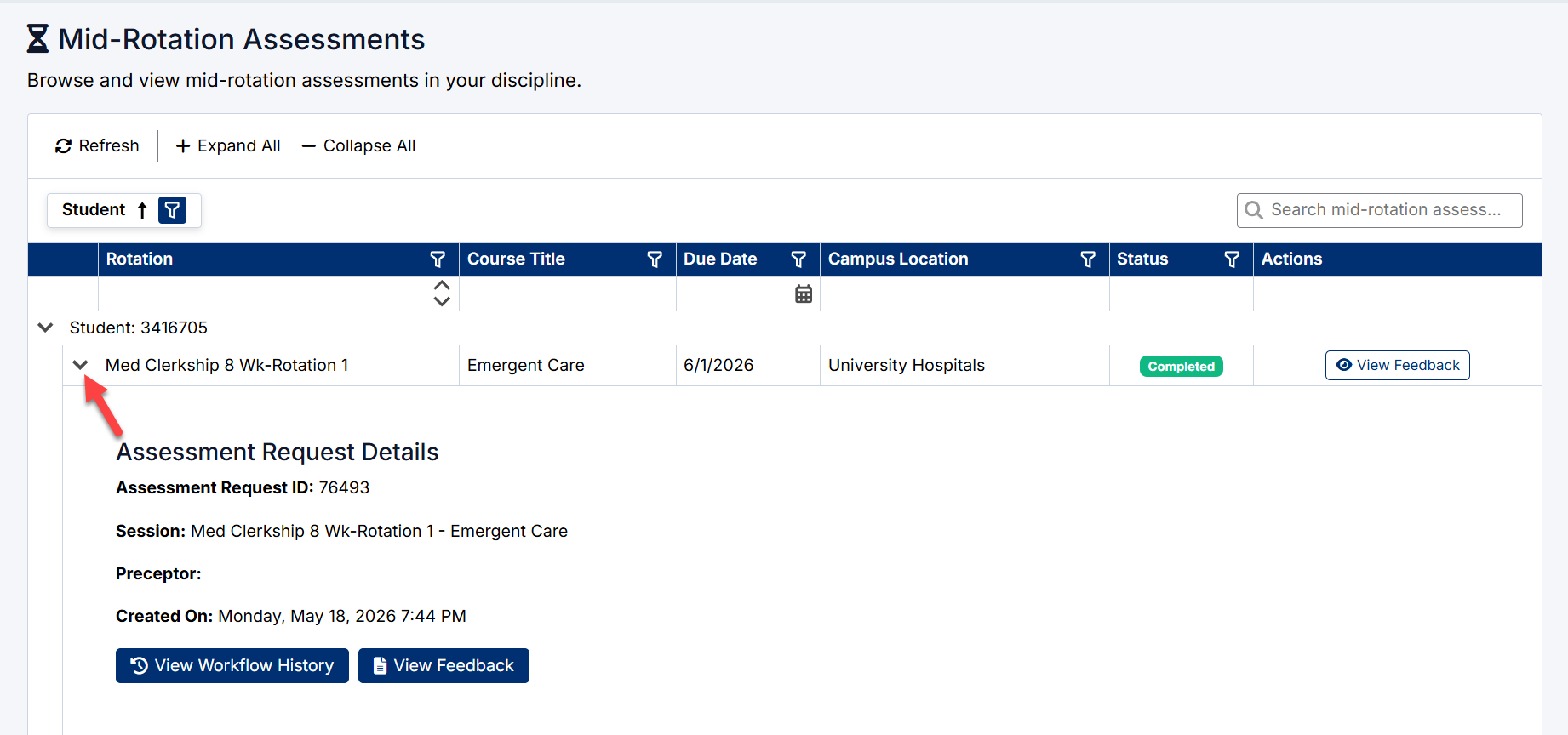
Assessment rows can be expanded to display additional information.
To expand an assessment:
- Select the arrow beside the assessment row.
- Review the Assessment Request Details section.
Expanded information may include:
- Assessment Request ID
- Session information
- Rotation details
- Creation date
- Workflow History access
- Feedback access
Student Filter
The Student filter allows assessment records to be limited to specific students.
To filter by student:
- Select the Student Filter icon.
- Search for a student.
- Select the student.
- Select Apply.
Only matching assessment records are displayed.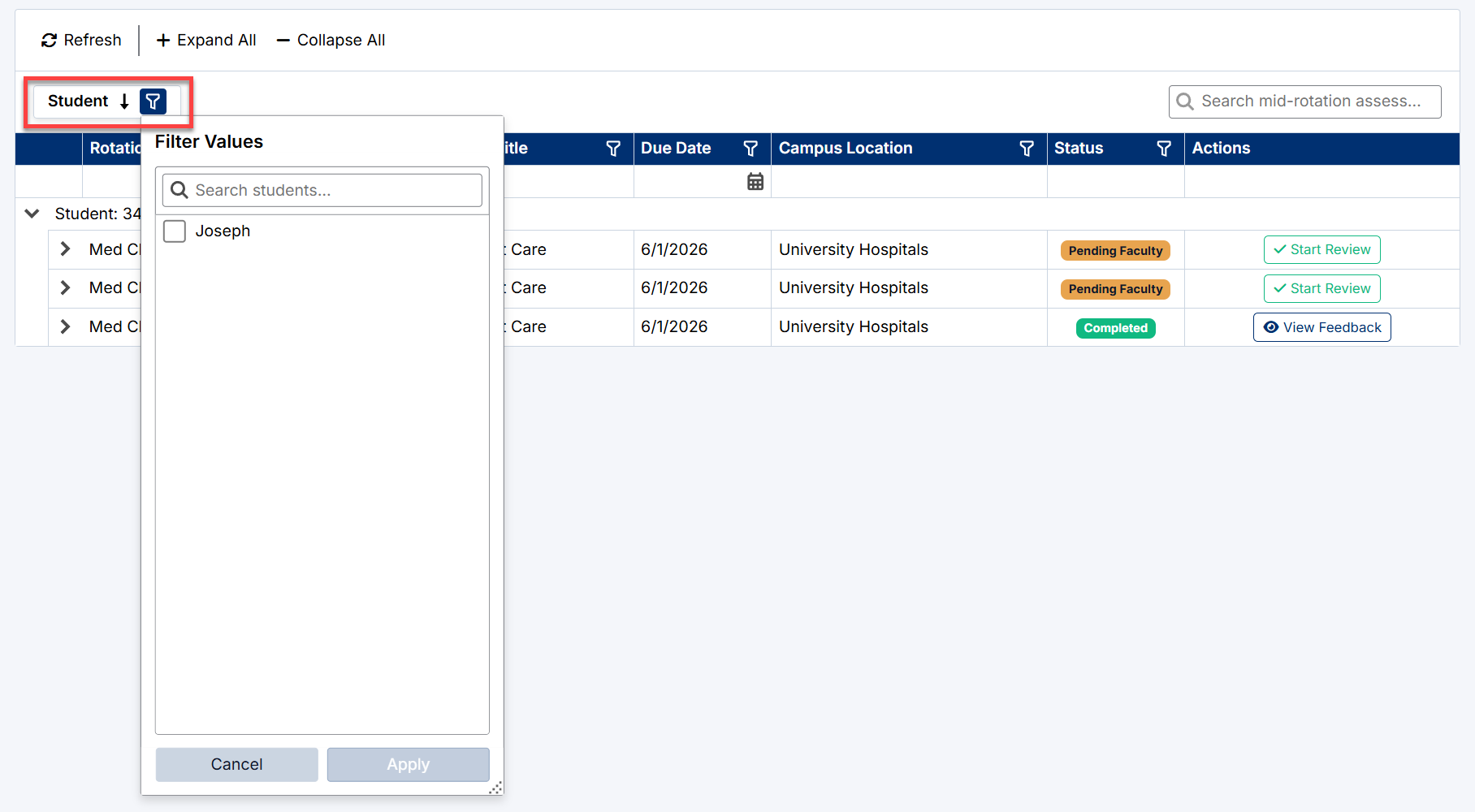
Search Mid-Rotation Assessments
Use the Search Mid-Rotation Assessments field to quickly locate records.
The search can locate:
- Students
- Rotations
- Courses
- Campus locations
- Statuses
Results update automatically as text is entered.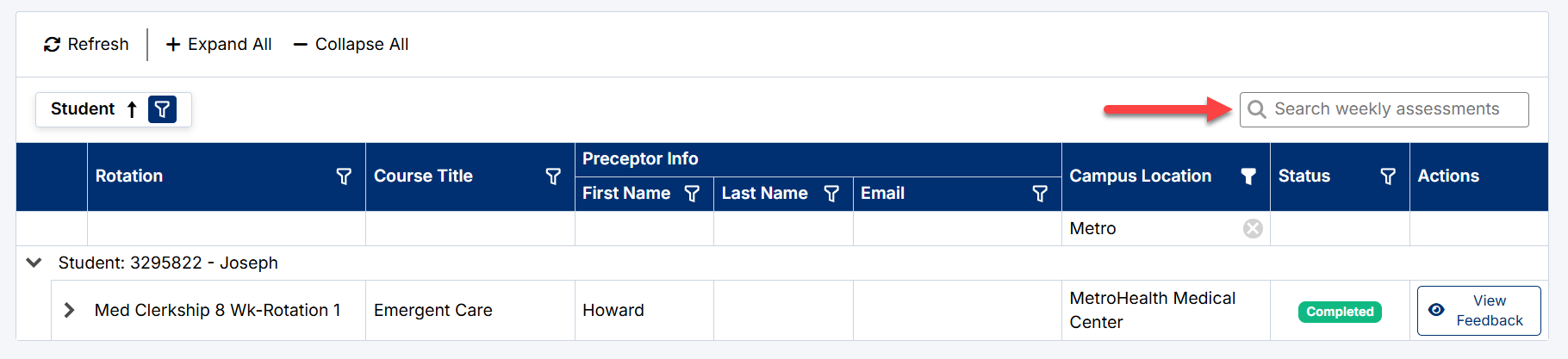
Column Filters
Additional filters are available throughout the grid.
Filterable columns may include:
- Rotation
- Course Title
- Due Date
- Campus Location
- Status
To apply a filter:
- Select the filter icon in the desired column.
- Select one or more values.
- Select Apply.
The grid refreshes to display matching records.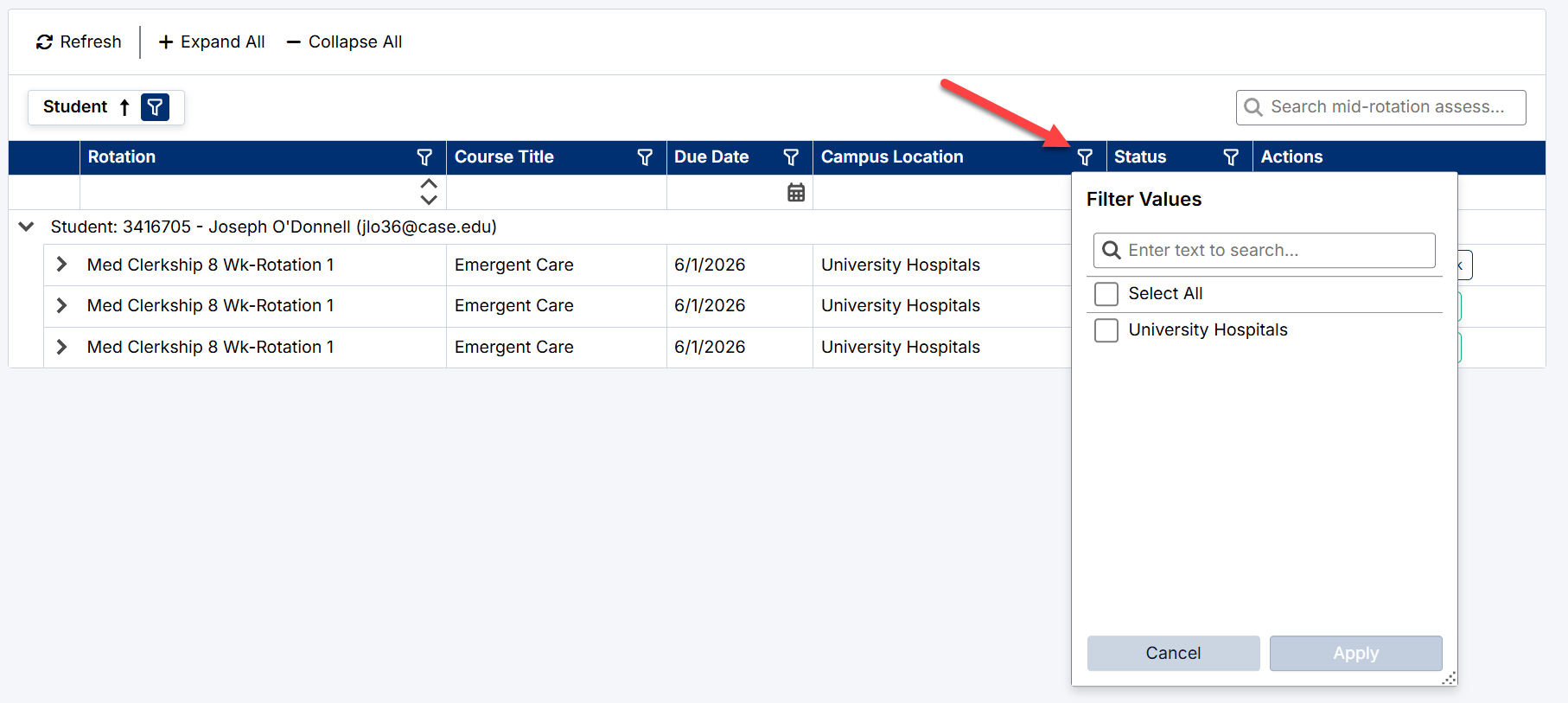
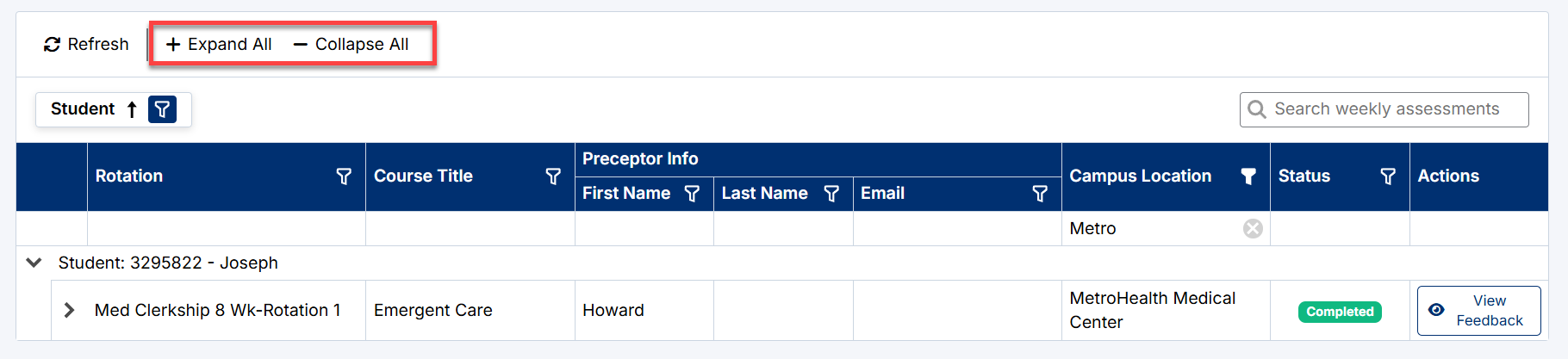
Expand and Collapse Options
Expand All
Expands all student and assessment records.
Collapse All
Collapses all expanded records.
Individual Expansion
Use the arrow beside a student or assessment record to expand only the desired section.
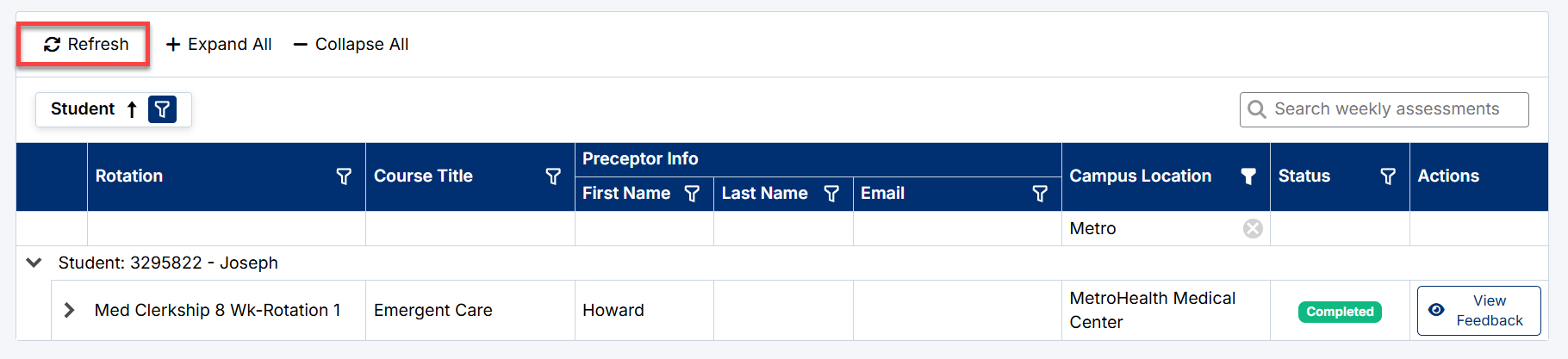
Refreshing the Assessment List
Select Refresh to retrieve the latest assessment information.
Refreshing may update:
- Newly submitted student self-assessments
- Pending review assignments
- Completed assessments
- Workflow statuses
Best Practices
When reviewing Mid-Rotation Assessments:
- Complete reviews promptly after student submission.
- Review the student's self-assessment before providing feedback.
- Use narrative comments to document meaningful discussion points.
- Clearly identify concerns while there is still time for improvement.
- Use AI assistance to improve the quality and consistency of feedback.
- Regularly review Pending Faculty assessments to ensure timely completion.
The Mid-Rotation Assessment process serves as an important checkpoint, helping students receive meaningful feedback and guidance while there is still time to improve performance during the rotation.
Created with the Personal Edition of HelpNDoc: Free Kindle producer