Ad-Hoc Assessments

Ad-Hoc Assessments
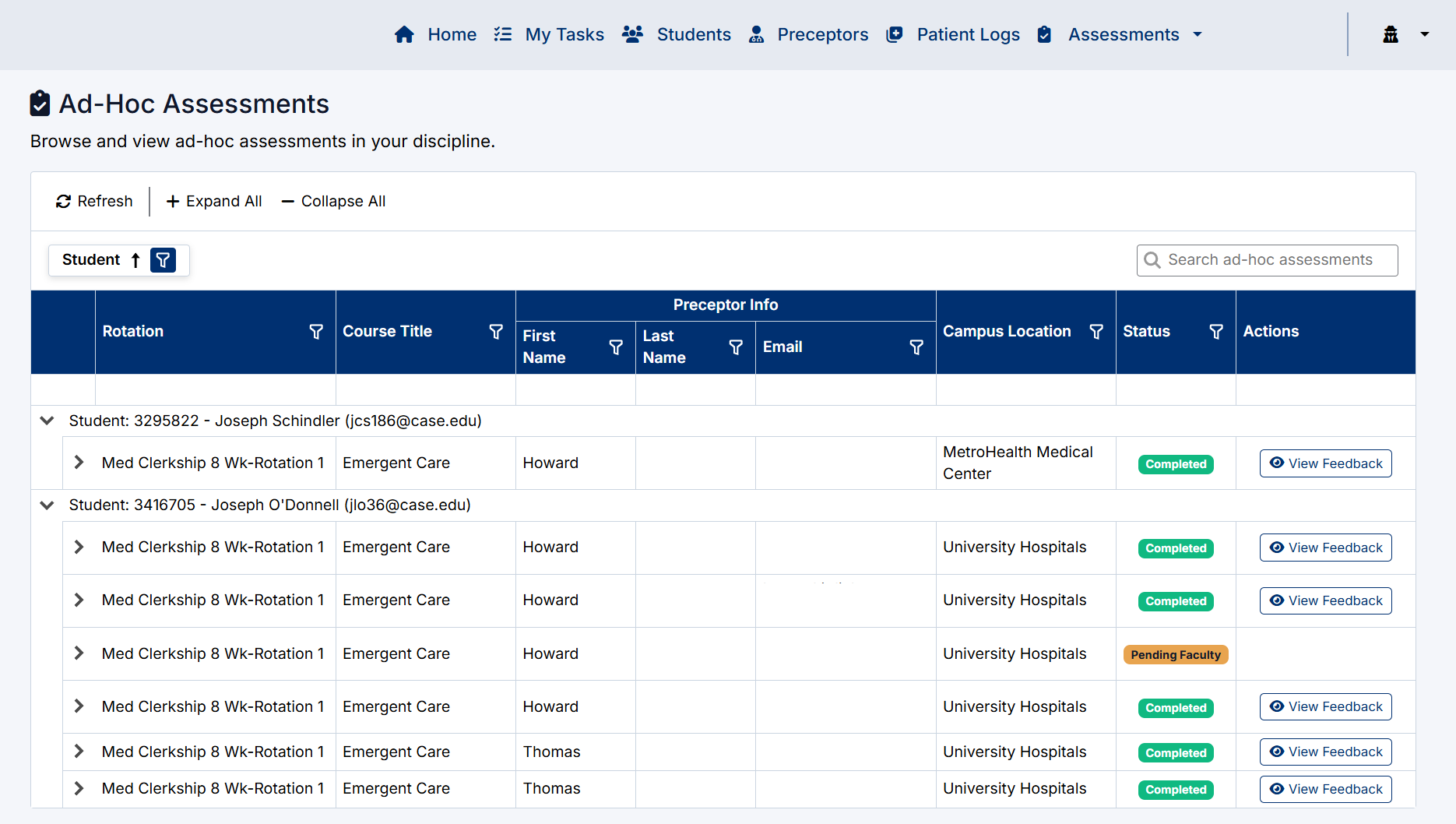
The Ad-Hoc Assessments page provides Clerkship Directors with visibility into all ad-hoc assessment activity within their assigned discipline or rotation.
Ad-hoc assessments are assessment requests created outside the standard scheduled workflow to provide additional feedback, targeted evaluations, or supplemental performance reviews.
The Ad-Hoc Assessments page allows Clerkship Directors to:
- Review submitted ad-hoc assessments
- Monitor assessment statuses
- View submitted feedback
- Review workflow history
- Search and filter assessment activity
Accessing the Ad-Hoc Assessments Page
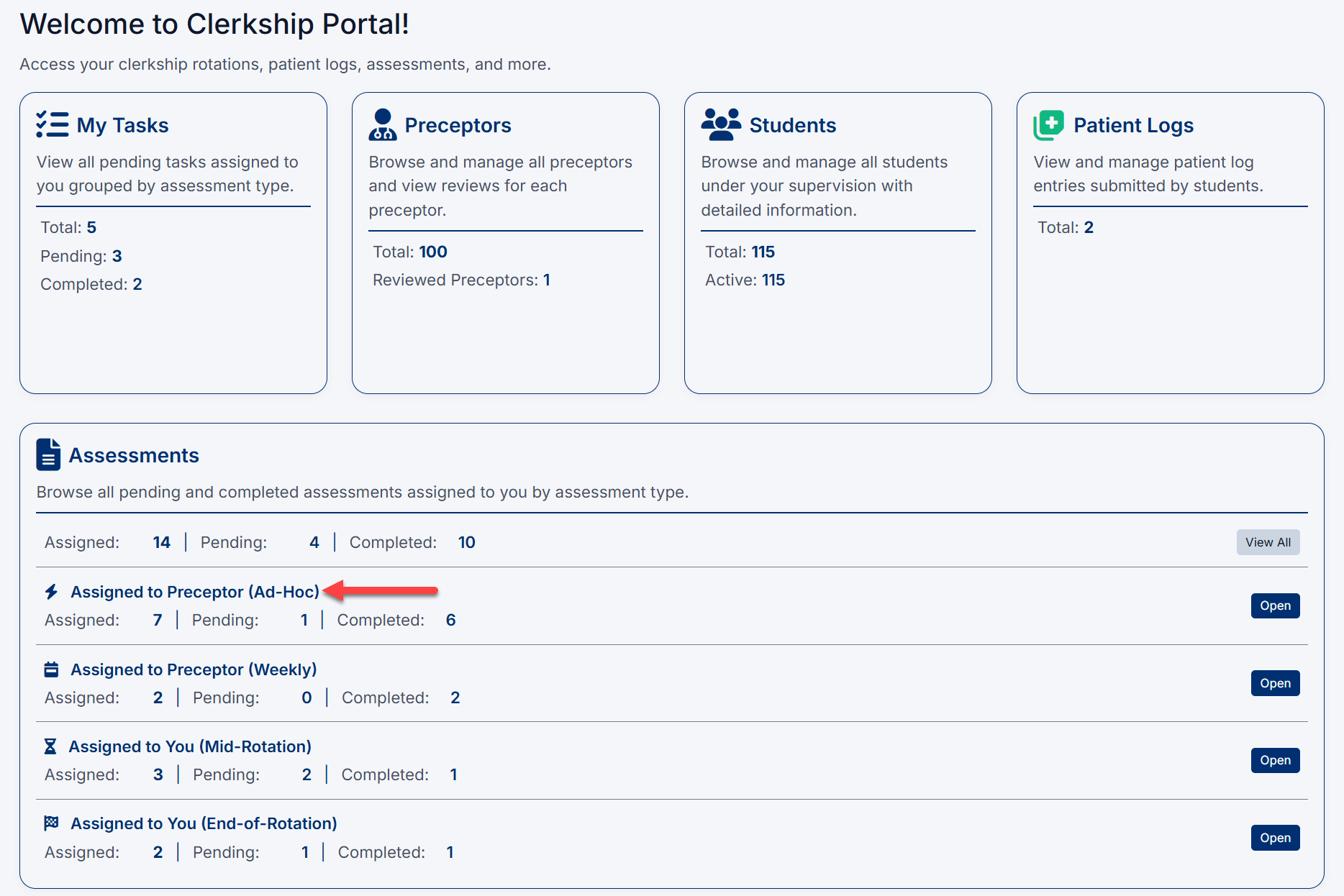
To access the Ad-Hoc Assessments page:
- Sign in to the Clerkship Director Portal.
- Select Assessments from the top navigation menu.
- Select Ad-Hoc Assessments.
The Ad-Hoc Assessments screen will open displaying all ad-hoc assessment activity.

The Ad-Hoc Assessments page can also be accessed directly from the Ad-Hoc section on the main dashboard.
Understanding the Ad-Hoc Assessments Page
Assessments are grouped by student and displayed in expandable sections.
Each assessment row may display:
- Rotation
- Course title
- Preceptor information
- Campus location
- Assessment status
- Available actions
Assessment Information
The assessment grid provides summary information for each ad-hoc assessment.
Rotation
Displays the associated rotation or session.
Course Title
Displays the discipline or course associated with the assessment.
Preceptor Information
Displays the assigned preceptor details, including:
- First Name
- Last Name
- Email Address
Campus Location
Displays the clinical site or campus associated with the assessment.
Status
Displays the current workflow status of the assessment.
Common statuses may include:
- Completed
- Pending Faculty
- Created
- In Progress
Actions
Displays available workflow actions for the assessment.
Available actions may include:
- View Feedback
- View Workflow History

Expanding Assessment Records
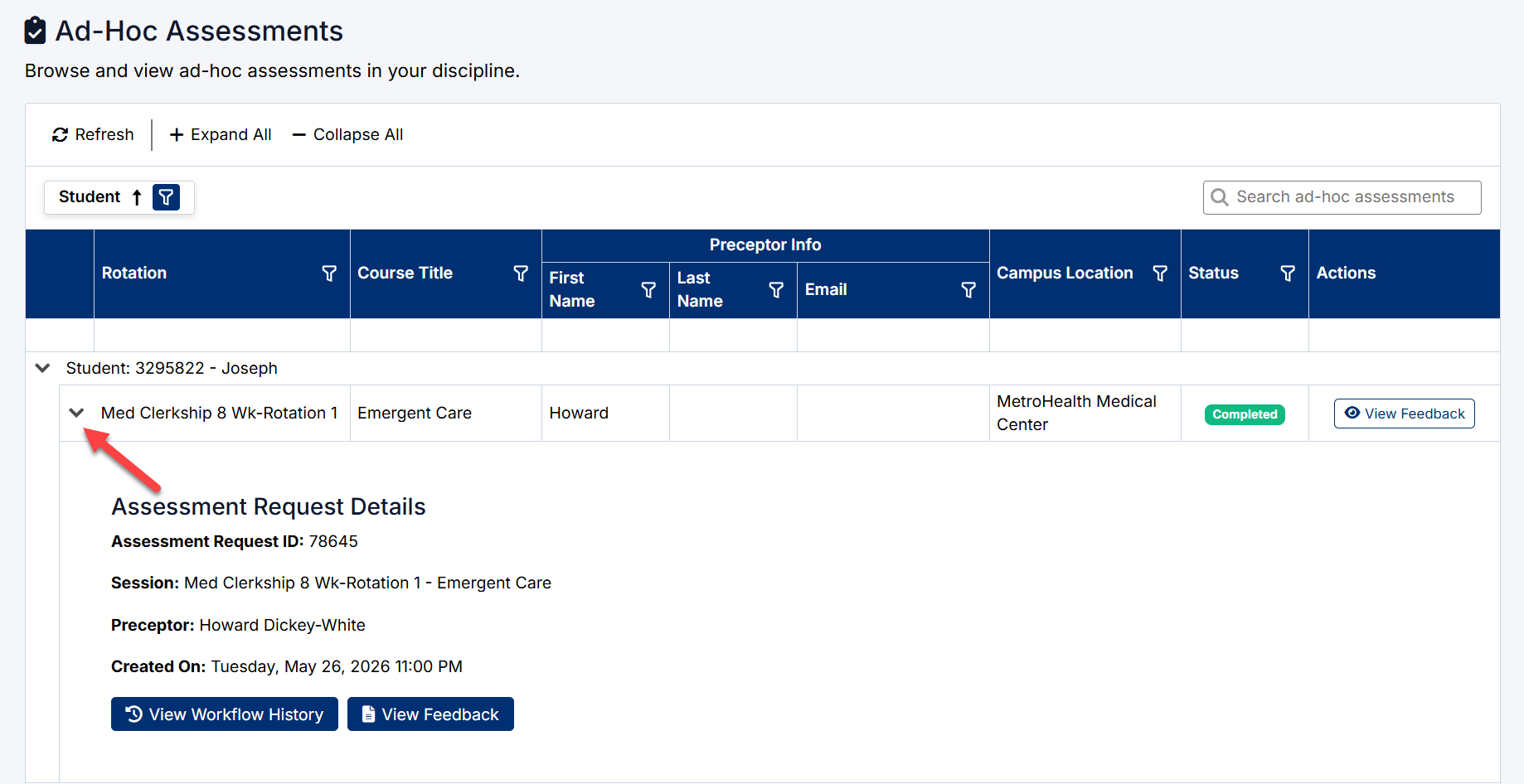
Assessment rows can be expanded to display additional details.
To expand an assessment:
- Select the arrow icon beside the assessment row.
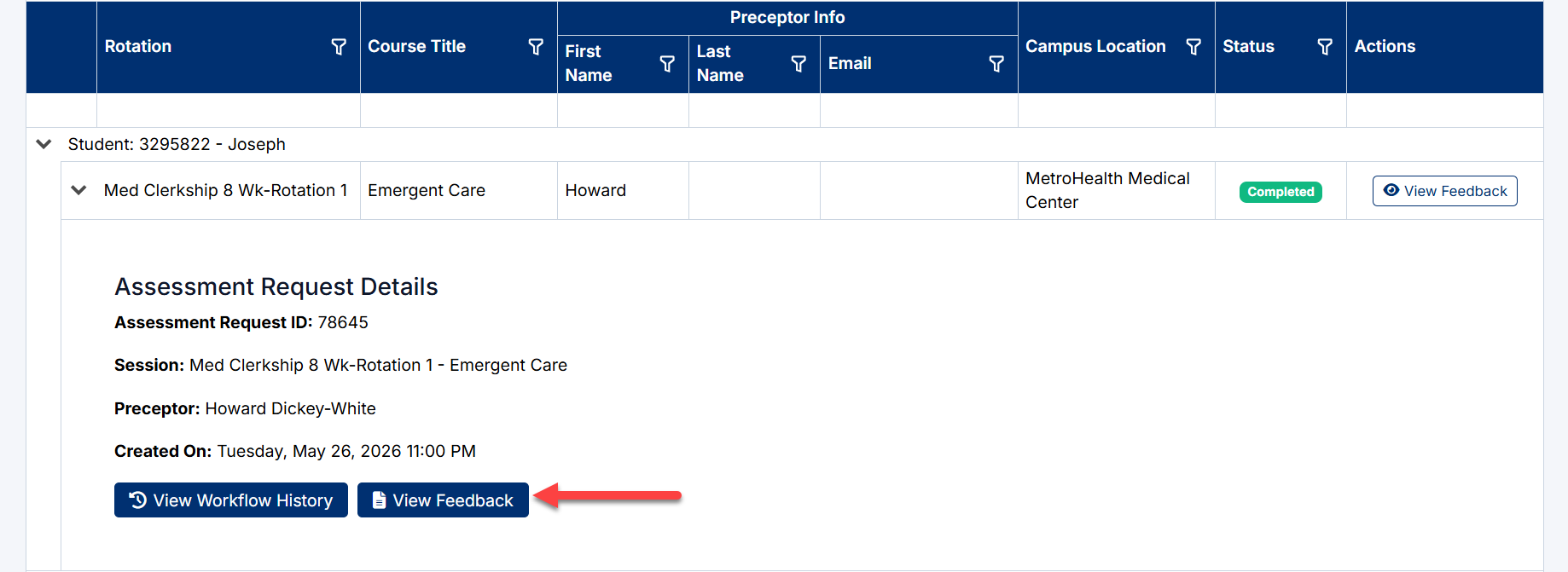
- The Assessment Request Details section will appear.
Expanded details may include:
- Assessment Request ID
- Session information
- Preceptor details
- Assessment creation date
- Workflow action buttons
Adhoc expanding
Assessment Request Details
Expanded assessment records display detailed workflow information including:
- Assessment Request ID
- Session or rotation name
- Assigned preceptor
- Assessment creation date
This section provides additional visibility into the assessment workflow and submission activity.
Viewing Workflow History
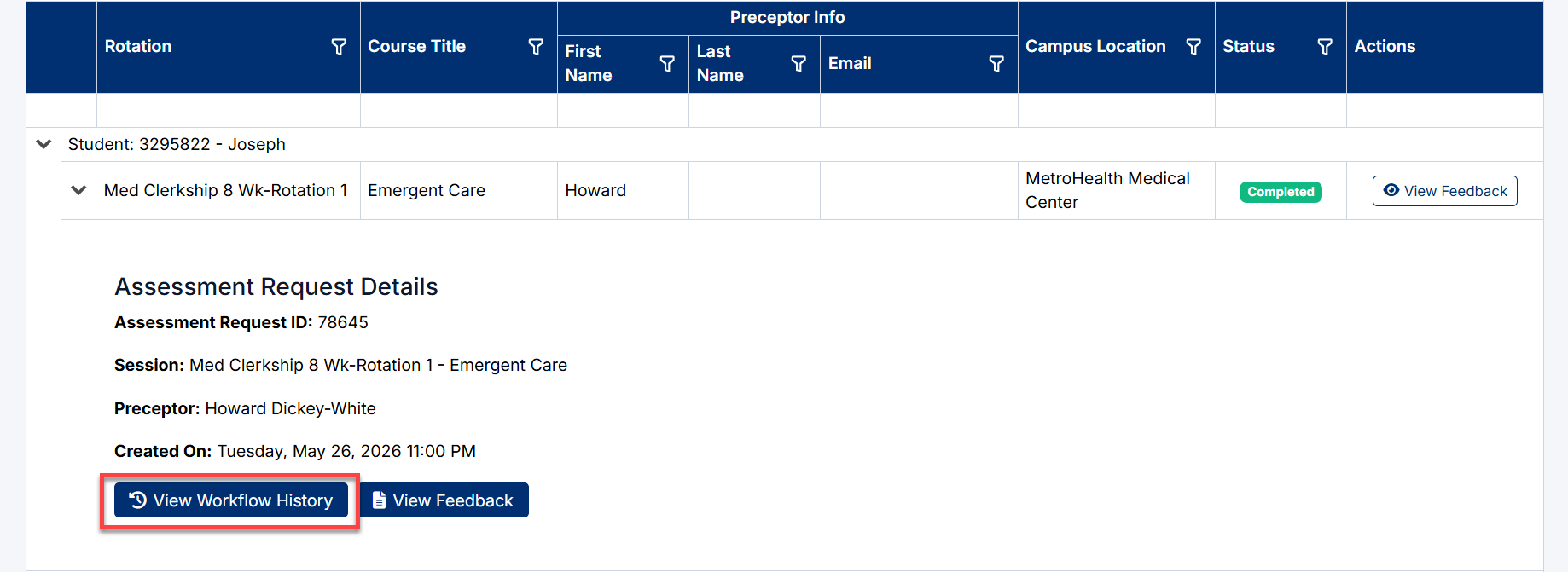
To review workflow activity for an assessment:
- Expand the assessment record.
- Select View Workflow History.
The workflow history may display:
- Submission events
- Workflow progression
- Reviewer actions
- Status changes
- Completion activity
Viewing Feedback
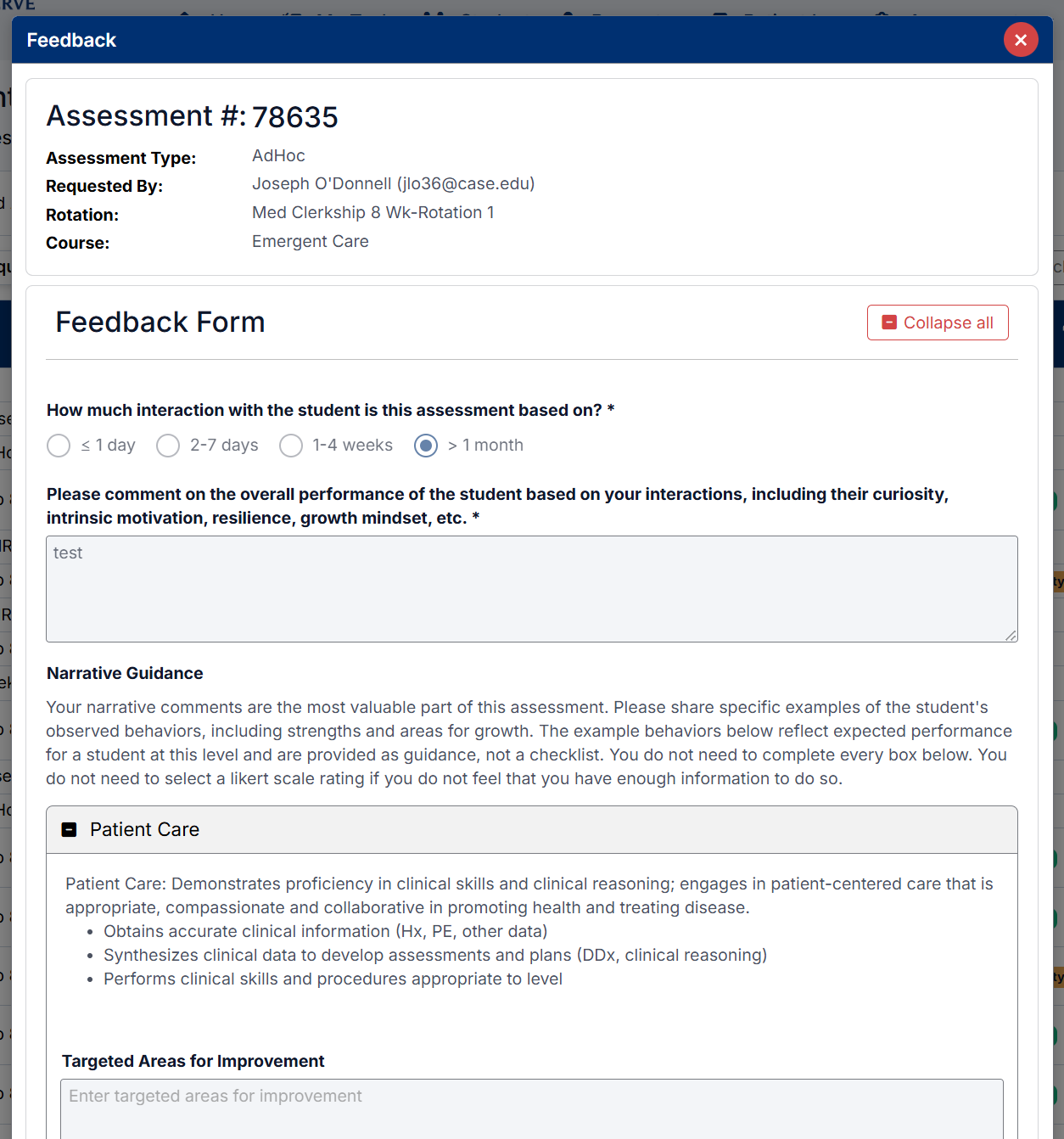
Completed assessments may provide access to submitted feedback.
To review assessment feedback:
- Locate the completed assessment.
- Select View Feedback.
The feedback view may include:
- Submitted evaluation responses
- Narrative comments
- Reviewer feedback
- Assessment scoring information
Available feedback details may vary depending on institutional configuration.
Searching Ad-Hoc Assessments
Use the Search Ad-Hoc Assessments field to quickly locate assessment records.
The search can help locate:
- Rotations
- Courses
- Preceptors
- Campus locations
- Assessment details
- Workflow statuses
As text is entered, the grid automatically filters matching results.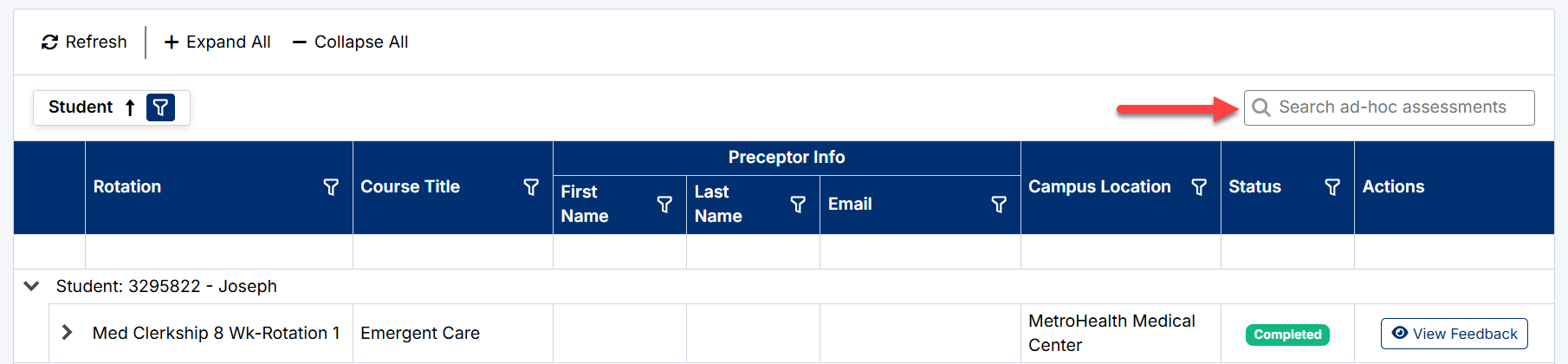
Grid Search and Column Filters
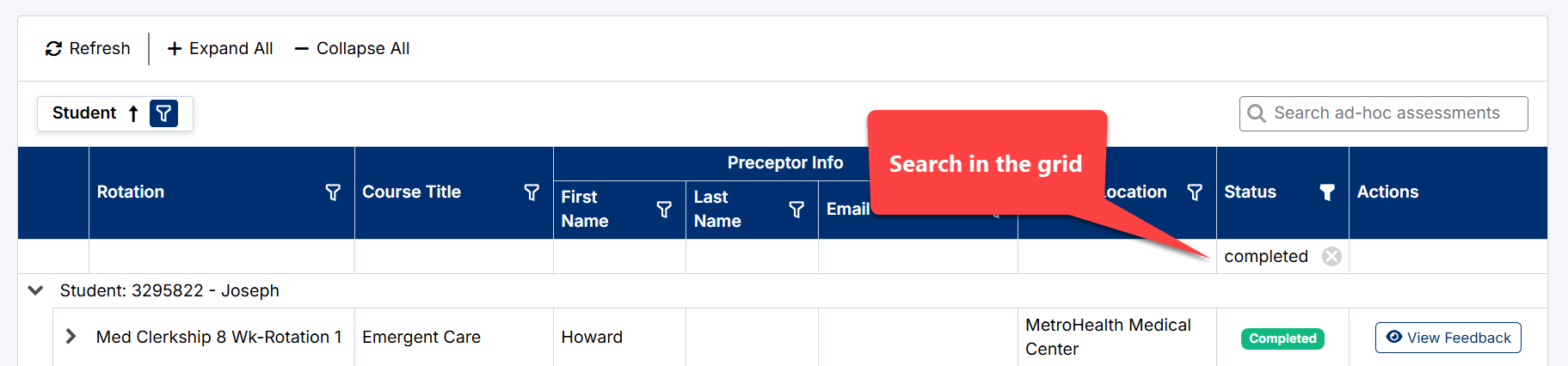
The Ad-Hoc Assessments page supports advanced filtering and searching within the assessment grid.
Filter icons are available within several columns, including:
- Student
- Rotation
- Course Title
- Preceptor information
- Campus Location
- Status
These filters help Clerkship Directors narrow results and review specific assessment activity.
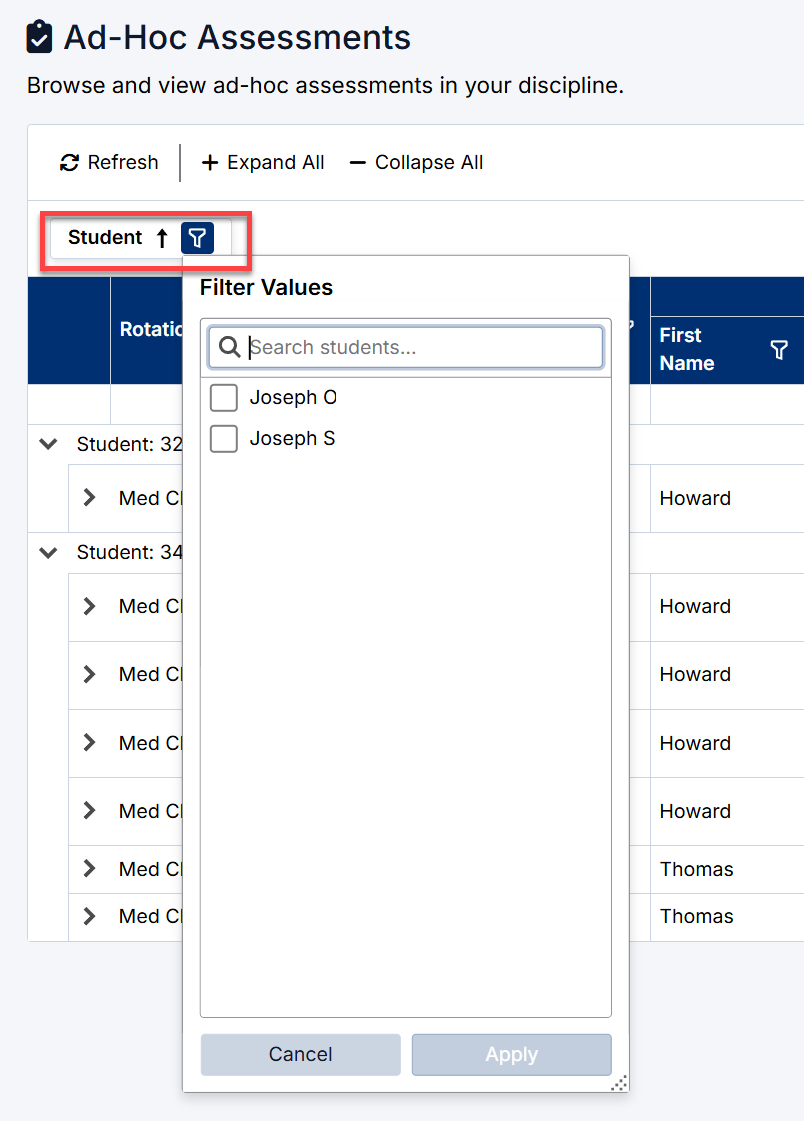
Student Filter
The Student filter allows users to display assessments for specific students.
To apply a student filter:
- Select the Filter icon beside Student.
- Search for or select one or more students.
- Select Apply.
The assessment grid will refresh and display only records for the selected students.
This is useful when reviewing:
- A specific student’s assessment activity
- Pending evaluations for a learner
- Completed ad-hoc feedback
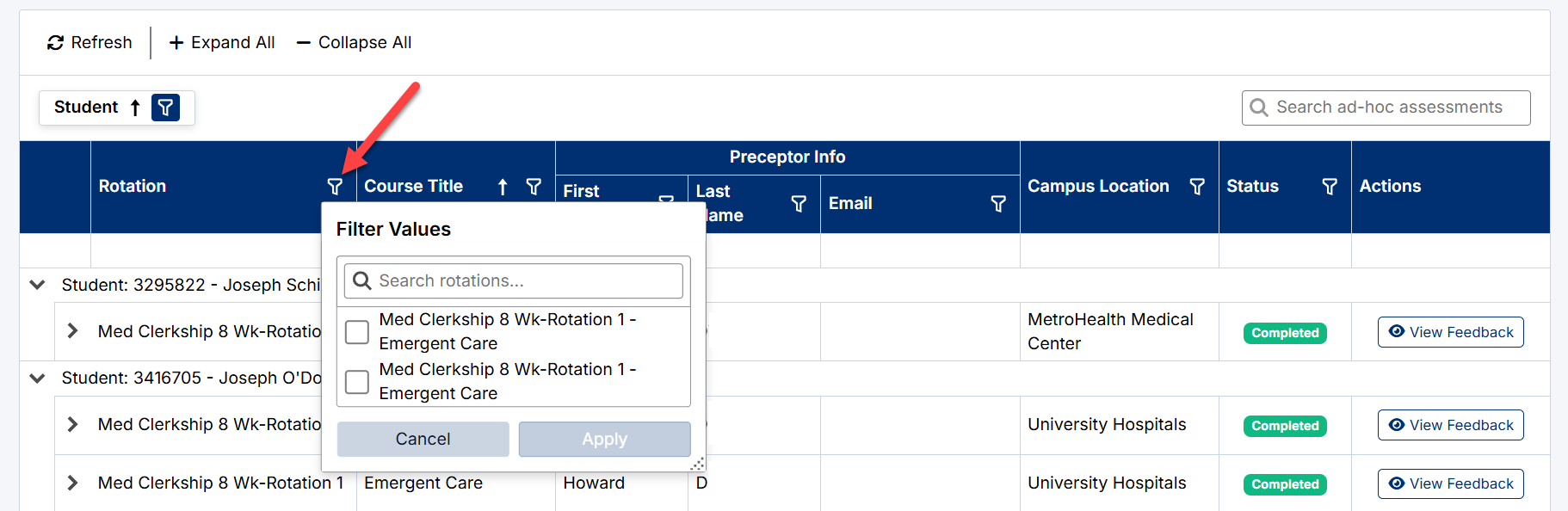
Column Filters
Additional column filters allow users to narrow results by:
- Rotation
- Course Title
- Preceptor information
- Campus location
- Workflow status
To apply a column filter:
- Select the Filter icon within the required column.
- Search for or select filter values.
- Select Apply.
The grid will refresh and display matching results only.
Sorting Columns
Some columns support sorting.
To sort a column:
- Select the column header.
- The grid will sort in ascending or descending order.
Sorting may be available for:
- Student names
- Rotations
- Statuses
- Course titles
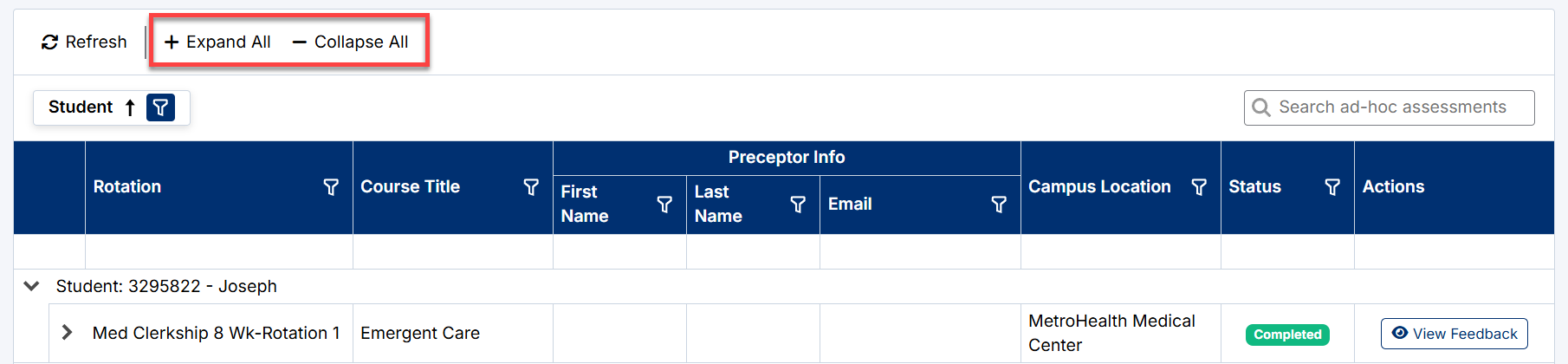
Expand and Collapse Options
The page supports expandable sections for easier navigation.
Expand All
Select Expand All to open all student and assessment sections.
Collapse All
Select Collapse All to minimize all sections.
Individual Expansion
Use the arrow icons beside rows to expand or collapse specific records.
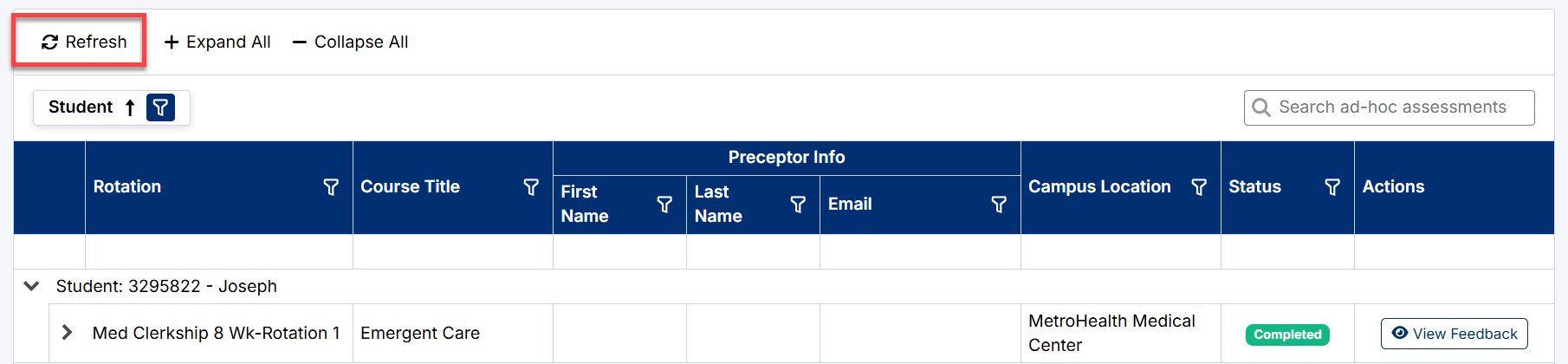
Refreshing the Assessment List
Select Refresh to reload the latest assessment activity.
This is useful when:
- New assessments have been submitted
- Workflow statuses have changed
- Feedback has been completed
- Additional workflow activity has occurred
Reviewing Assessment Activity
The Ad-Hoc Assessments page helps Clerkship Directors:
- Monitor supplemental assessment activity
- Track pending workflow items
- Review submitted evaluations
- Monitor preceptor participation
- Review assessment feedback
Best Practices
To effectively manage ad-hoc assessments:
- Review Pending Faculty items regularly
- Monitor completed feedback throughout the rotation
- Use filters and search tools to narrow large result sets
- Refresh the page periodically for updated workflow activity
- Expand assessment records to review detailed workflow information
The Ad-Hoc Assessments page acts as the primary location for reviewing and monitoring all ad-hoc assessment activity within the Clerkship Director Portal.
Created with the Personal Edition of HelpNDoc: Easily create Web Help sites