All Assessments

All Assessments
The All Assessments page provides Clerkship Directors with centralized visibility into all assessment activity across students, preceptors, rotations, and disciplines.
This page allows users to review the status and progress of:
The All Assessments page is designed to help Clerkship Directors monitor assessment workflows, review feedback activity, and track assessment completion across the clerkship program.
Accessing the All Assessments Page
To access the All Assessments page:
- Sign in to the Clerkship Director Portal.
- Select Assessments from the top navigation menu.
- Select All Assessments.
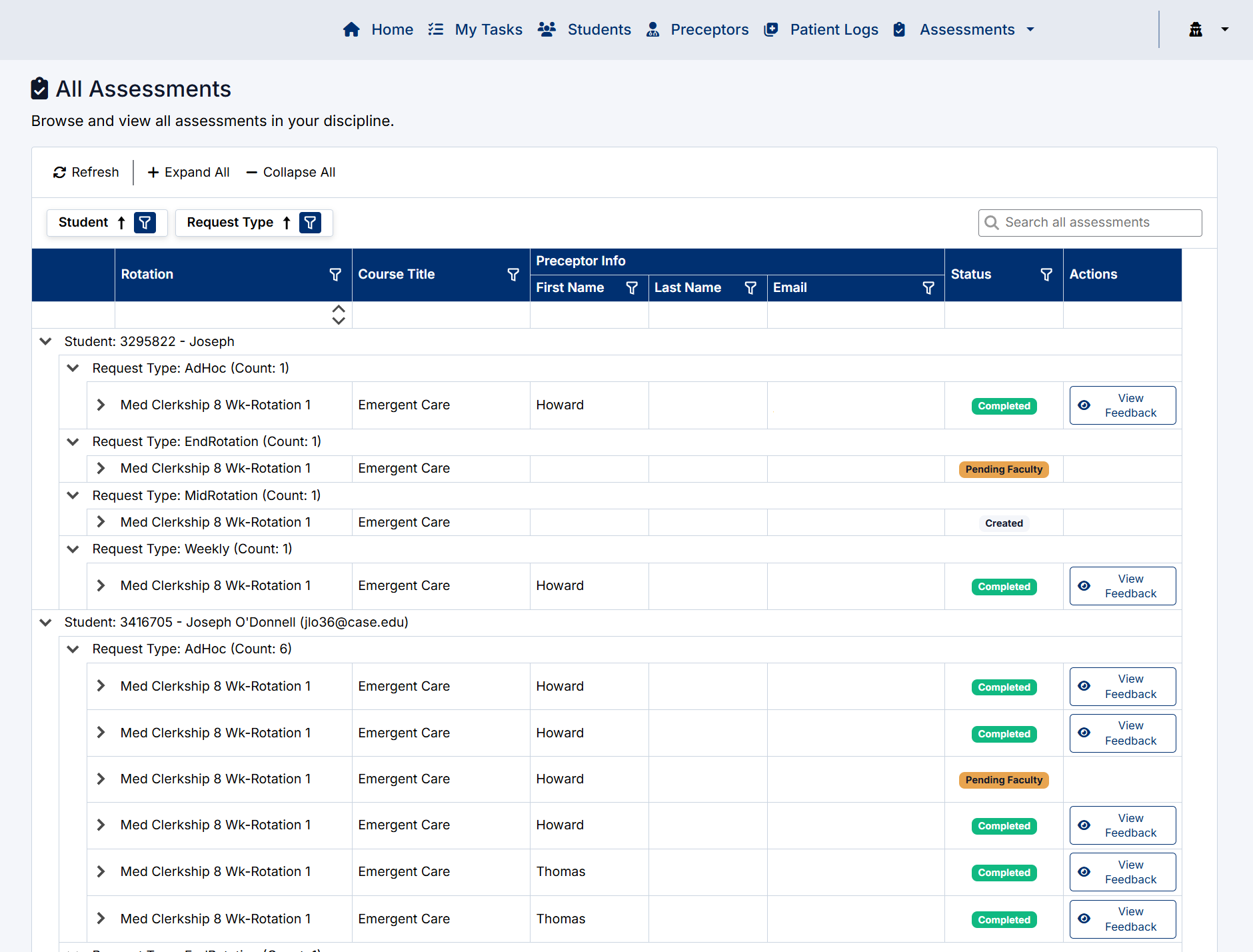
The All Assessments screen will open displaying assessment activity grouped by student and assessment type.

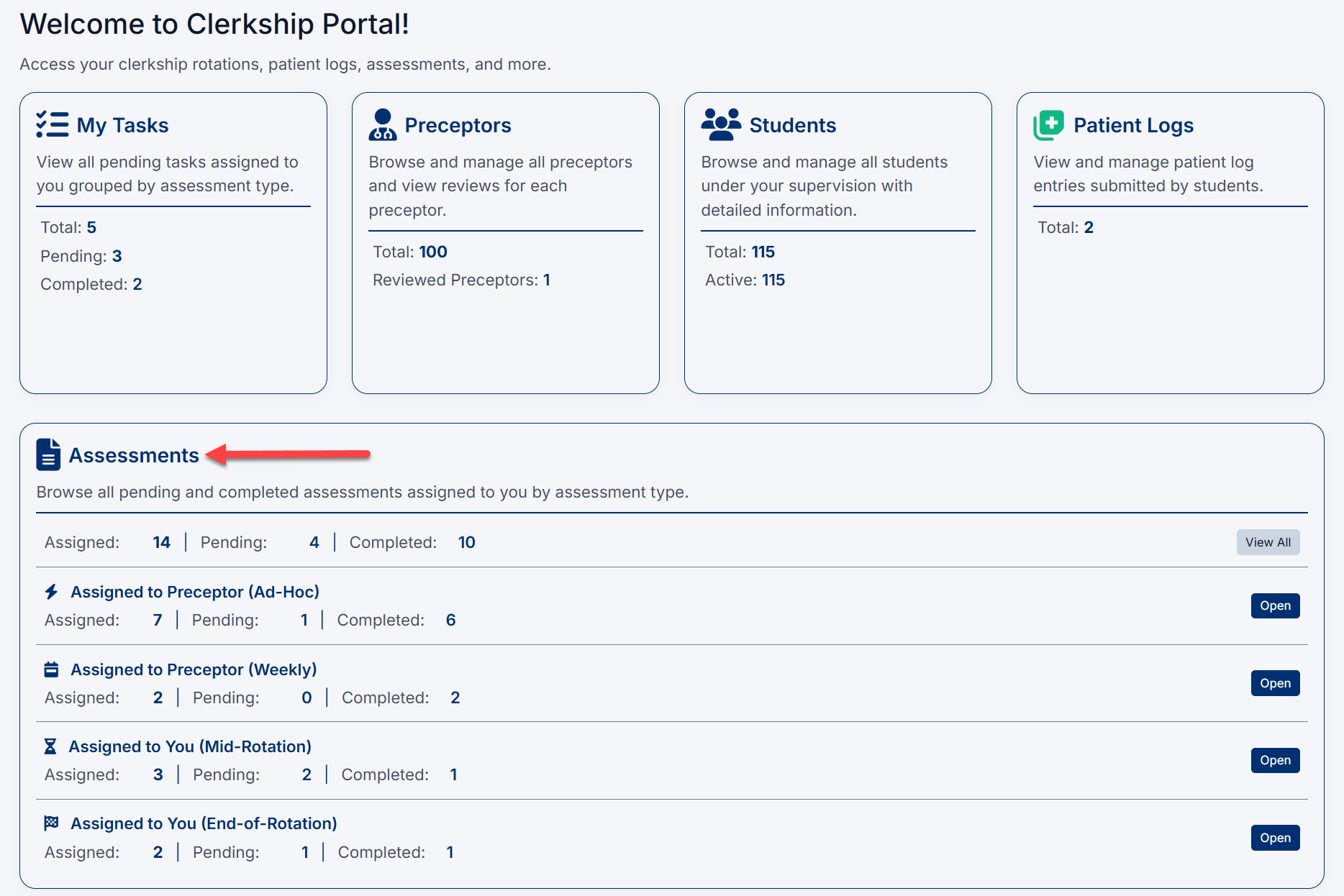
The All Assessments page can also be accessed directly from the Assessments section on the main dashboard.
Understanding the All Assessments Page
Assessments are grouped in the following hierarchy:
- Student
- Request Type
- Rotation
This structure allows Clerkship Directors to quickly review all assessment activity associated with a specific student or workflow type.
Assessment Types
The All Assessments page may contain the following assessment categories:
Weekly Assessments
Ongoing assessments completed during the rotation to evaluate student progress and participation, these are linked to patient logs and patient encounters.
Ad-Hoc Assessments
Additional assessments created outside the standard workflow for targeted feedback or evaluation.
Mid-Rotation Assessments
Assessments completed during the middle of a rotation to provide formative feedback and identify areas for improvement.
End-of-Rotation Assessments
Final assessments completed at the end of the rotation to evaluate overall student performance and competency achievement.
Assessment Information
Each assessment entry may display:
|
Column |
Description |
|
Rotation |
Rotation or session name |
|
Course Title |
Associated discipline or course |
|
Preceptor Info |
Assigned preceptor information |
|
Status |
Current workflow status |
|
Actions |
Available workflow actions |
Preceptor information may include:
- First Name
- Last Name
- Email Address
Assessment Statuses
The Status column displays the current stage of the assessment workflow.
Common statuses include:
|
Status |
Description |
|
Completed |
Assessment has been submitted and finalized |
|
Pending Faculty |
Waiting for faculty or Clerkship Director completion |
|
Created |
Assessment request has been created but not yet completed |
|
In Progress |
Assessment has been started but not submitted |
Available statuses may vary depending on institutional workflow configuration.

Expanding Assessment Sections
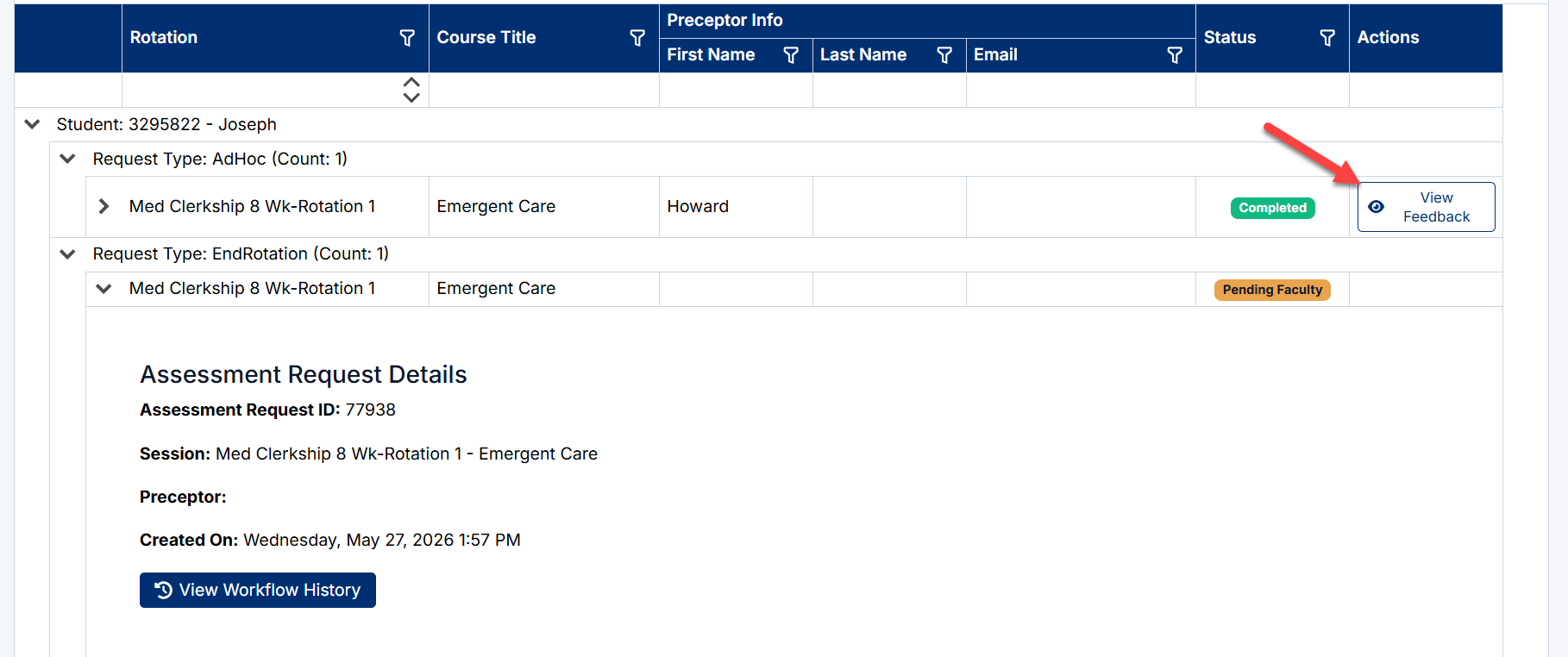
Assessment groups can be expanded to display additional details.
To expand a section:
- Select the arrow icon beside the student, request type, or assessment row.
- Additional workflow and assessment information will appear.
Expanded assessment details may include:
- Assessment Request ID
- Session information
- Preceptor details
- Creation date
- Workflow actions
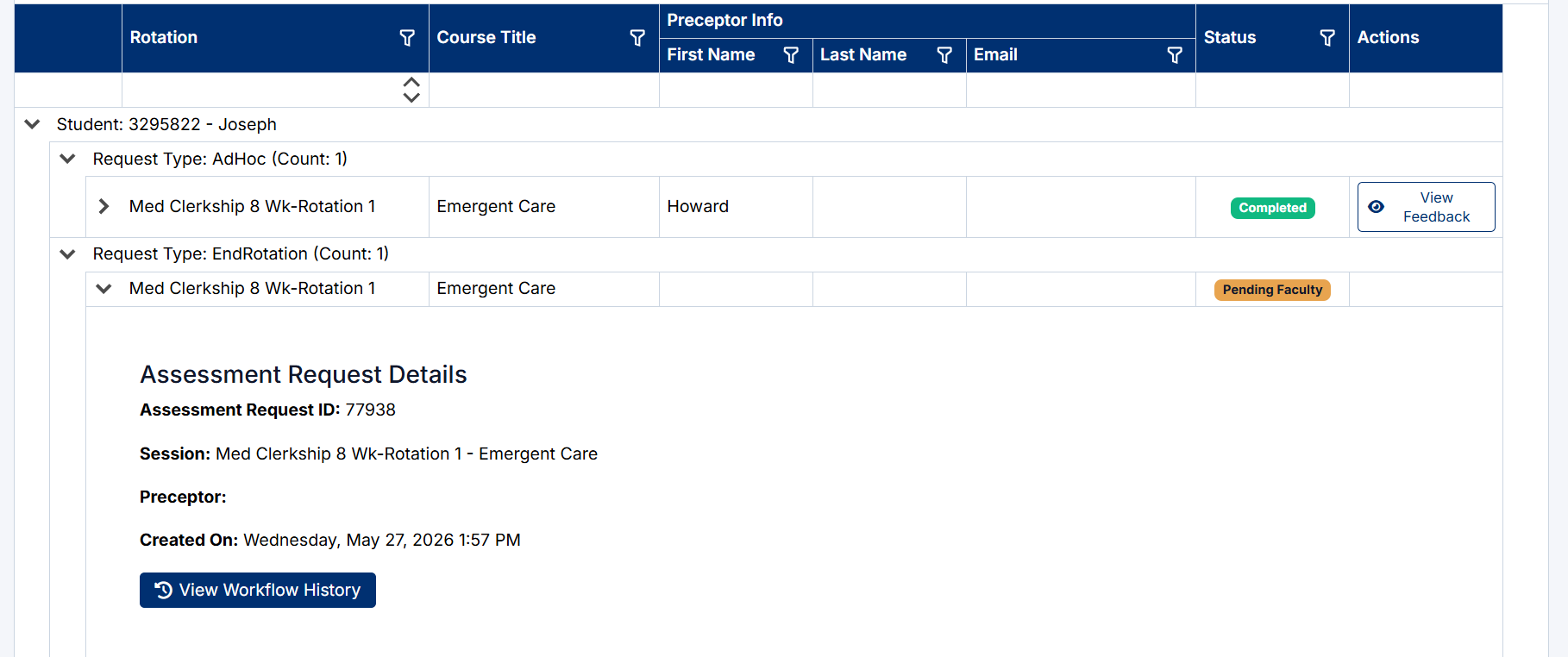
Assessment Request Details
Expanded assessment rows display additional request information including:
- Assessment Request ID
- Session or rotation name
- Preceptor assignment
- Assessment creation date
- Workflow actions
This information helps Clerkship Directors track assessment progress and workflow history.
Viewing Workflow History
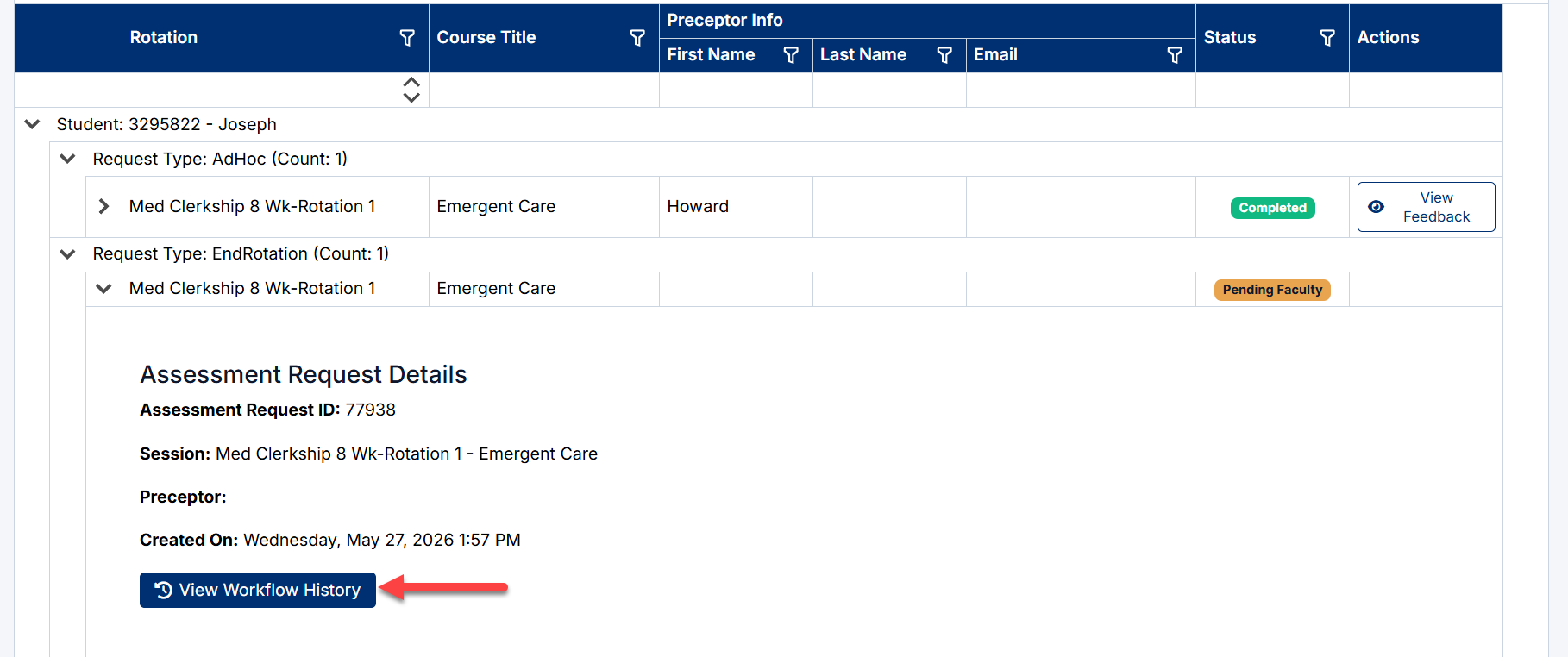
To review workflow activity for an assessment:
- Expand the assessment row.
- Select View Workflow History.
The workflow history may include:
- Submission events
- Status changes
- Reviewer actions
- Workflow progression
- Completion activity
Viewing Feedback
Completed assessments may provide access to submitted feedback.
To review assessment feedback:
- Locate the completed assessment.
- Select View Feedback.
The feedback view may display:
- Submitted evaluation responses
- Narrative comments
- Assessment scoring
- Reviewer feedback
Available feedback details depend on institutional configuration and assessment type.
Searching Within the Assessment Grid
The All Assessments page supports both quick searching and advanced column filtering to help Clerkship Directors quickly locate assessment records.
Global Assessment Search
Use the Search All Assessments field in the upper-right corner of the page to search across the assessment grid.
The search can locate records based on:
- Student names
- Rotation names
- Course titles
- Preceptor information
- Email addresses
- Assessment details
- Workflow statuses
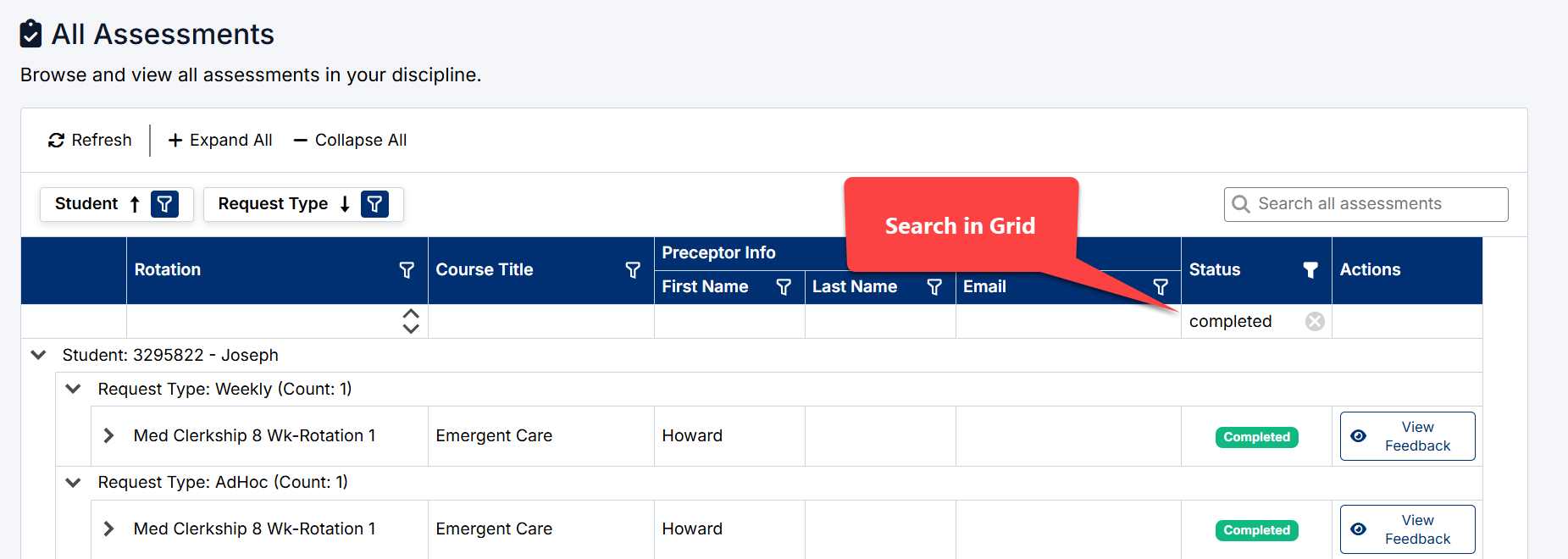
As text is entered, the grid automatically filters matching records.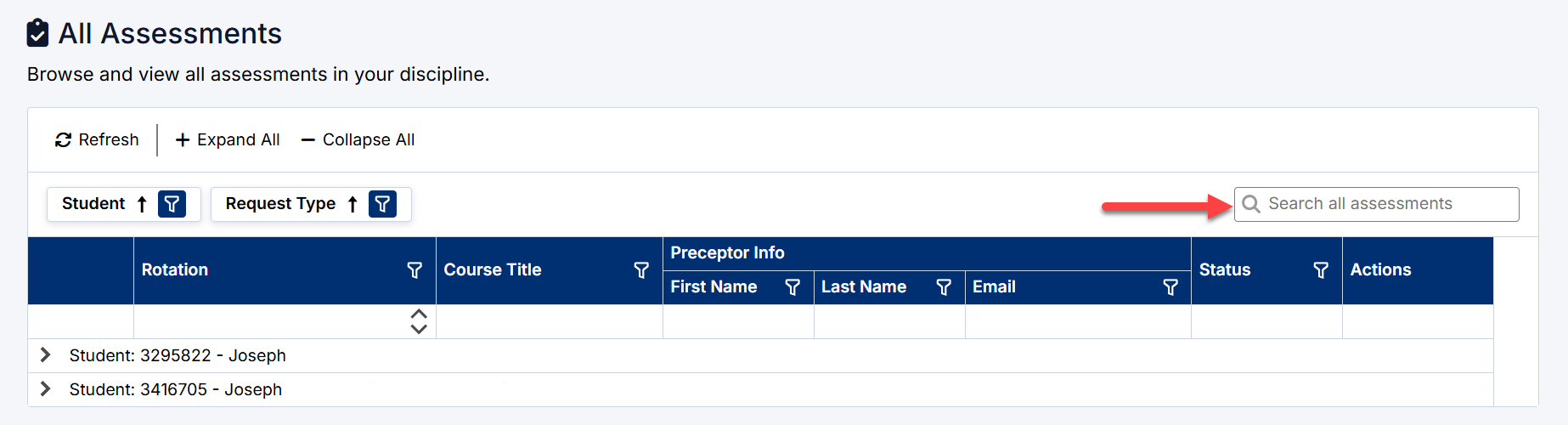
Column Search and Filtering
Individual columns within the assessment grid also support filtering and search functionality.
Filter icons are available within many columns, including:
- Rotation
- Course Title
- Preceptor Information
- Status
- Actions
These filters allow Clerkship Directors to narrow results and focus on specific assessment activity.
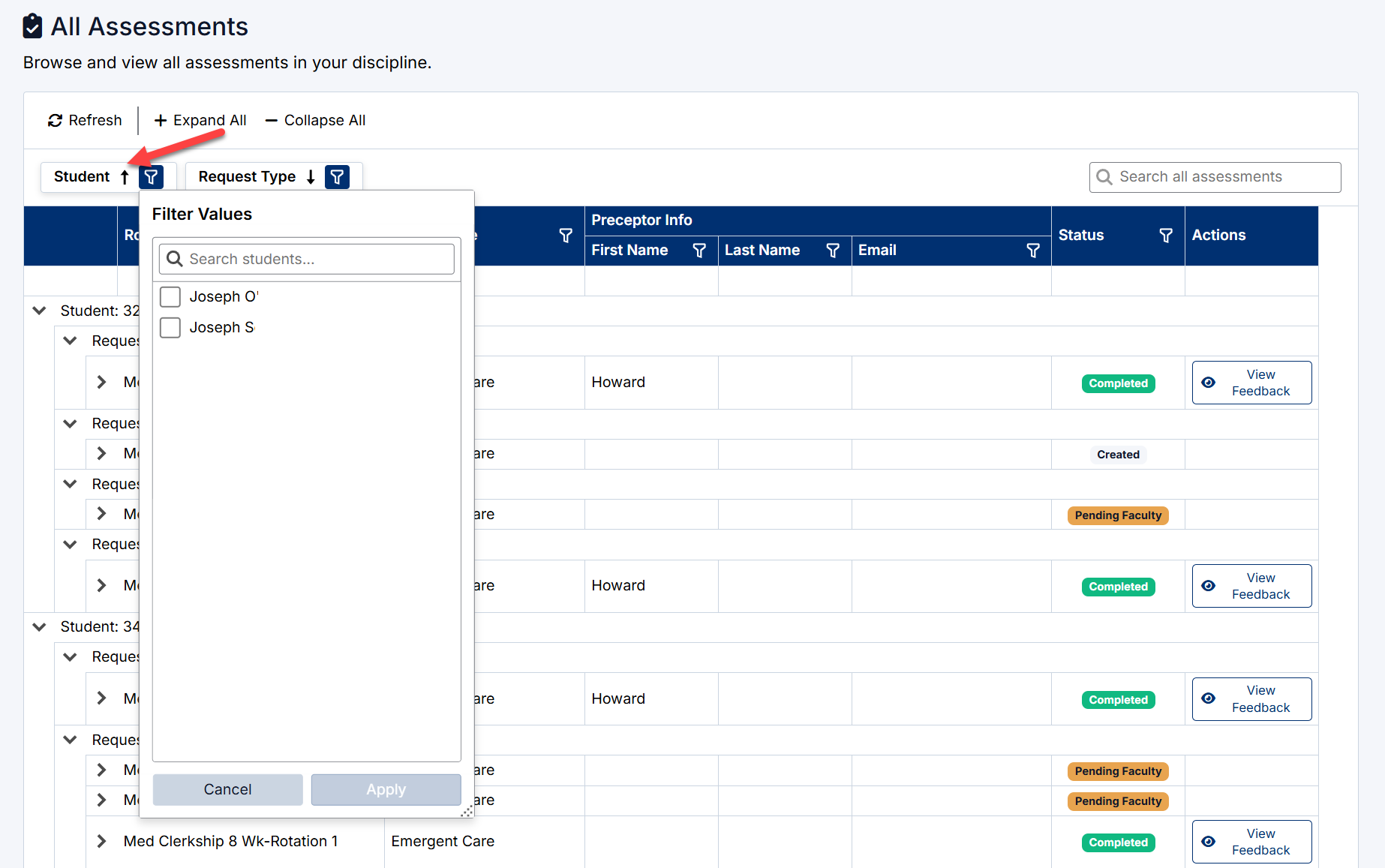
Filtering by Column Values
To filter a column:
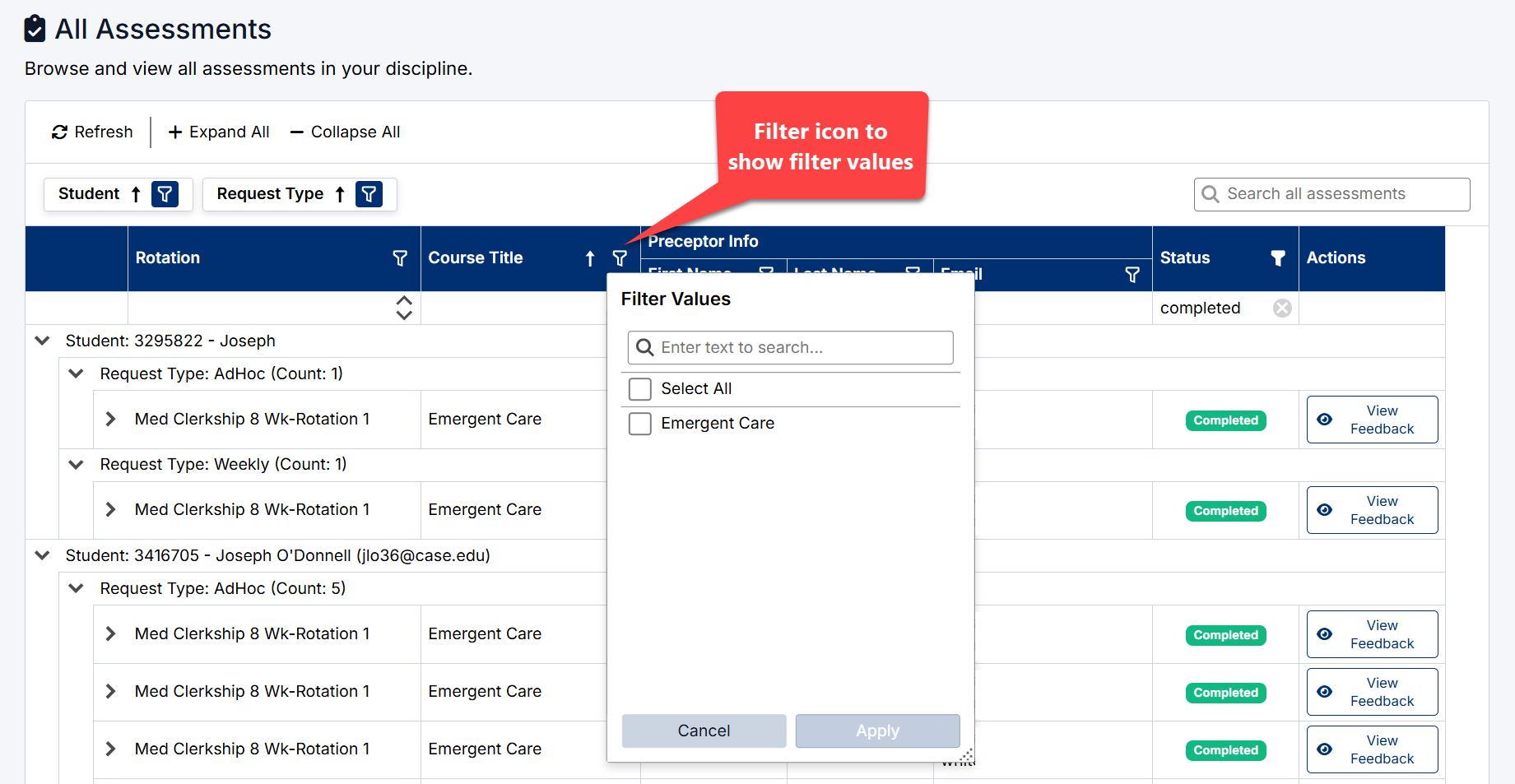
- Select the Filter icon beside the column name.
- The Filter Values window will open.
- Use the search box to locate available filter values.
- Select one or more values.
- Select Apply.
The grid will refresh and display only matching records.
Example Filter Uses
Filters can be used to:
- View assessments for a specific student
- Display only Weekly or Ad-Hoc Assessments
- Show assessments with a status of Completed or Pending Faculty
- Filter by preceptor
- Review assessments for a specific rotation or course
Grid Search Indicators
When a column filter is active:
- The filtered values appear within the grid
- Only matching records remain visible
- Multiple filters may be combined to narrow results further
To remove a filter:
- Select the clear (X) icon beside the filter value
- Or reopen the filter window and clear selections
Sorting Columns
Some columns support sorting.
To sort a column:
- Select the column header.
- The grid will sort in ascending or descending order.
Sorting may be applied to:
- Student names
- Request types
- Statuses
- Rotation information
Student and Request Type Filters
The Student and Request Type filter boxes allow Clerkship Directors to quickly narrow the assessment grid and display only relevant assessment records.
These filters are located at the top of the All Assessments page and can be used individually or together.
Student Filter
The Student filter allows users to display assessments for specific students.
Selecting the filter icon opens the Filter Values window, where users can:
- Search for students by name or email address
- Select one or multiple students
- Display only assessments associated with the selected students
This is useful when reviewing:
- A specific student’s assessment activity
- Pending assessments for an individual learner
- Completed evaluations for a student
Request Type Filter
The Request Type filter allows users to display assessments by assessment category.
Available request types may include:
- Weekly
- AdHoc
- MidRotation
- EndRotation
This filter is useful when:
- Reviewing only Mid-Rotation Assessments
- Monitoring End-of-Rotation completion
- Checking Ad-Hoc Assessment activity
- Focusing on Weekly Assessment workflows
Applying Filters
To apply a filter:
- Select the Filter icon beside the required filter box.
- Search for or select one or more values.
- Select Apply.
The assessment grid will refresh and display only matching records.
Multiple filters can be combined to further narrow assessment results.
Best Practices for Searching and Filtering
To efficiently manage large volumes of assessment activity:
- Use the global search for quick lookups
- Use column filters for detailed workflow review
- Combine filters to narrow large result sets
- Filter by status to identify pending work
- Clear filters after completing reviews to restore the full assessment list
Search and filtering tools help Clerkship Directors quickly locate and manage assessment workflows across all rotations and disciplines.
Expand and Collapse Options
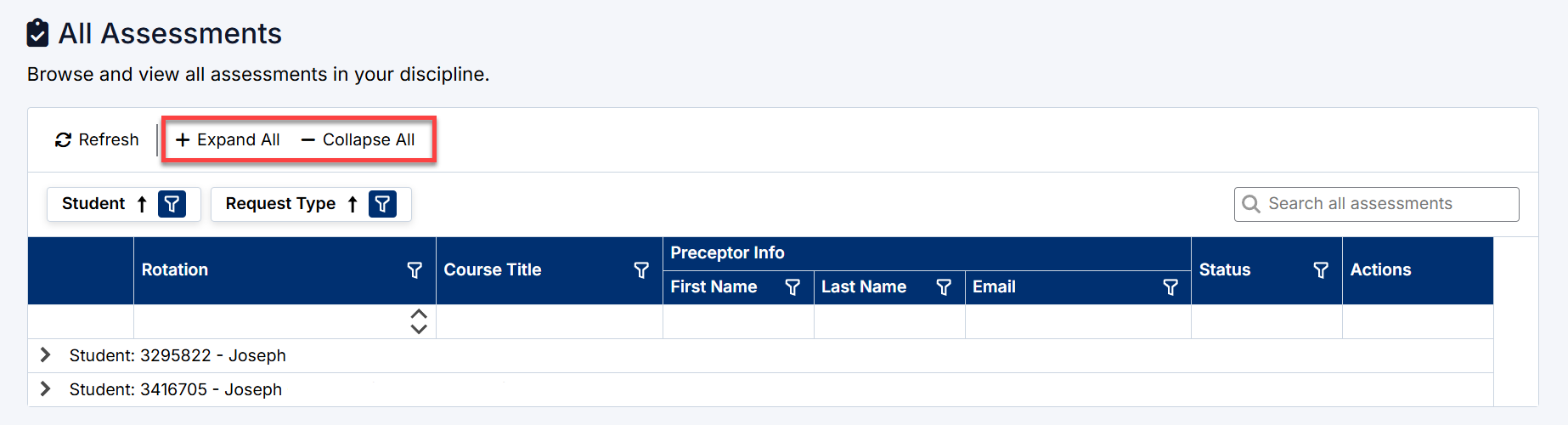
The page supports expandable sections for easier navigation.
Expand All
Select Expand All to open all assessment sections.
Collapse All
Select Collapse All to minimize all sections.
Individual Expansion
Use the arrow icons beside individual rows to expand or collapse specific sections.
Refreshing the Assessment List
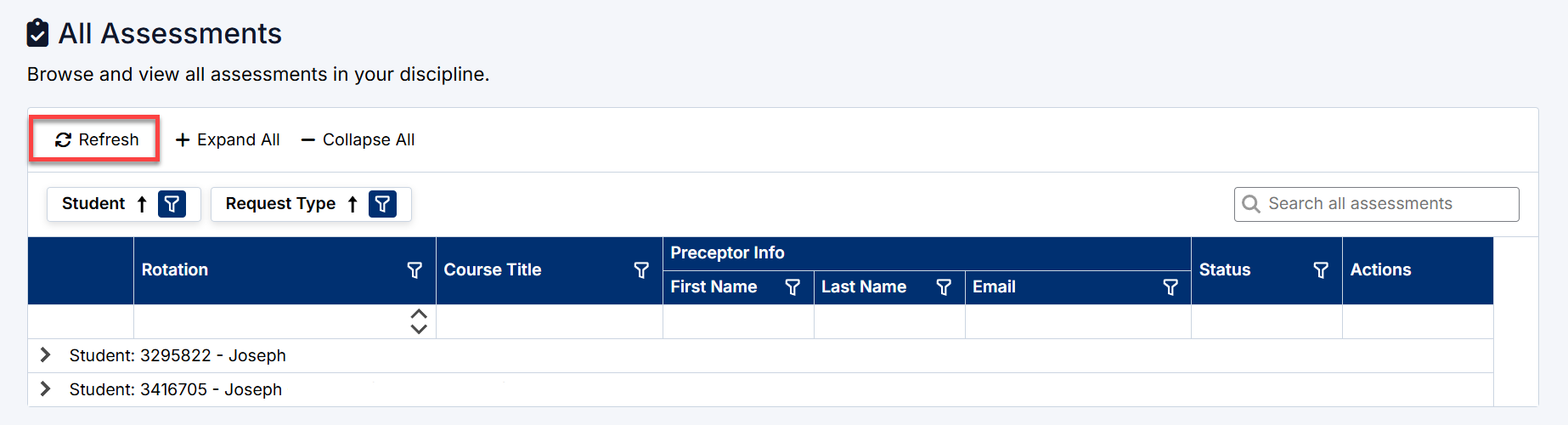
Select Refresh to reload the latest assessment information.
This is useful when:
- New assessments have been submitted
- Workflow statuses have changed
- Feedback has been completed
- Additional assessment activity has occurred
Best Practices
To effectively manage assessment workflows:
- Review assessment statuses regularly
- Monitor Pending Faculty items closely
- Use filters and search to quickly locate records
- Review completed feedback throughout the rotation
- Refresh the page periodically for updated workflow activity
The All Assessments page acts as the primary location for reviewing and monitoring all clerkship assessment activity within the Clerkship Director Portal.
Created with the Personal Edition of HelpNDoc: Free HTML Help documentation generator