Patient Logs

Patient Logs
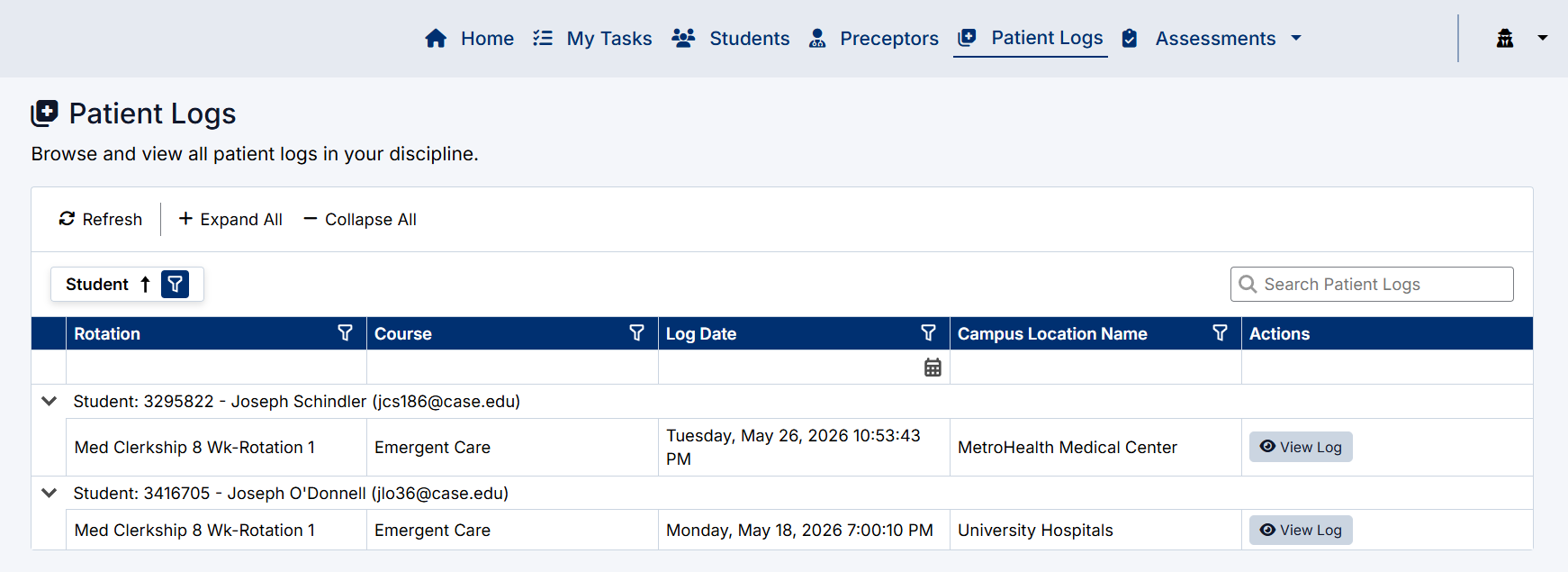
The Patient Logs page allows Clerkship Directors to browse and review patient encounter logs submitted by students within their assigned discipline or rotation.
Patient Logs are used to track:
- Clinical encounters
- Patient exposure
- Student participation
- Preceptor involvement
- Clinical conditions and observed activities
The Patient Logs page provides centralized oversight of student clinical experience documentation.
Accessing the Patient Logs Page
To access the Patient Logs page:
- Sign in to the Clerkship Director Portal.
- Select Patient Logs from the top navigation menu.
The Patient Logs screen will open displaying all available patient log submissions.

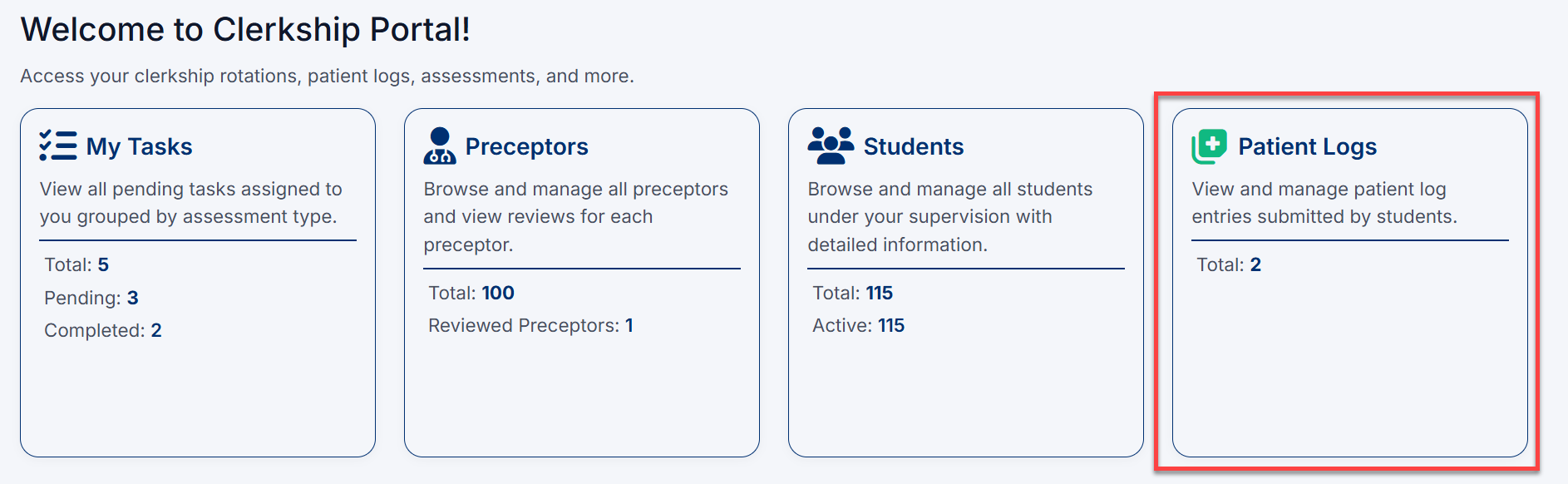
The Patient Logs page can also be accessed directly from the Patient Logs tile on the main dashboard.
Understanding the Patient Logs Page
Patient Logs are grouped by student and display summary information for each submitted encounter.
Patient Log Information
The Patient Logs page may display:
- Student name and ID
- Rotation
- Course or discipline
- Log date
- Campus location
- Associated clinical site
Each row represents an individual patient encounter log submitted by a student.
Viewing a Patient Log
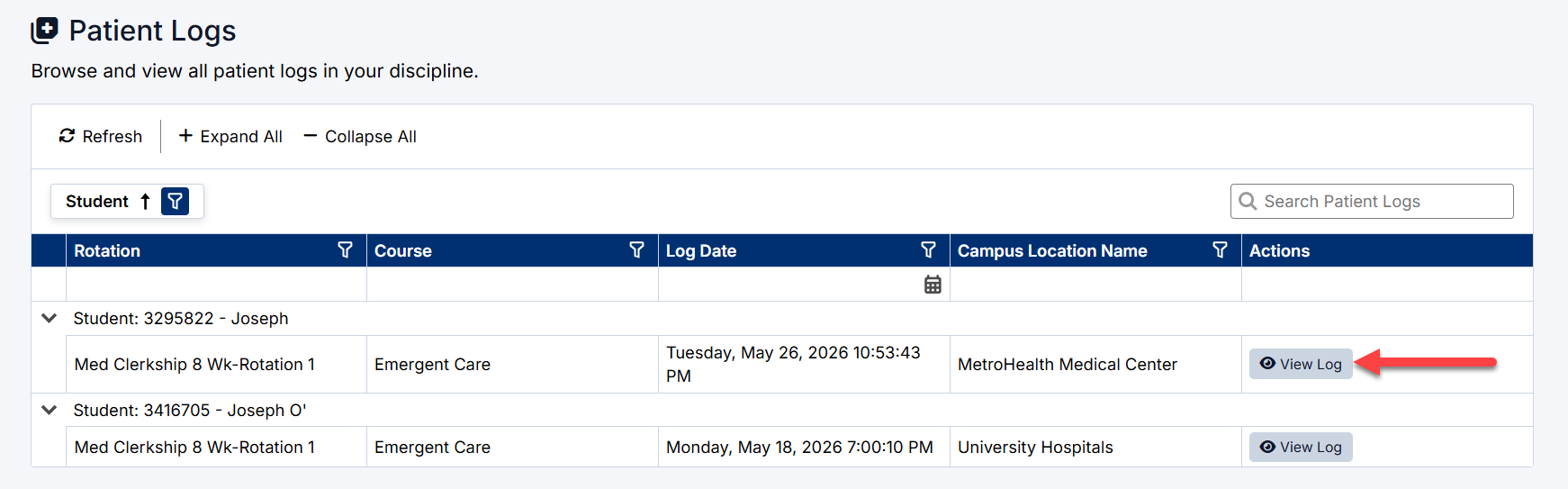
To open a patient log:
- Locate the required patient log entry.
- Select View Log.
The Patient Log Details window will open.
Patient Log Details
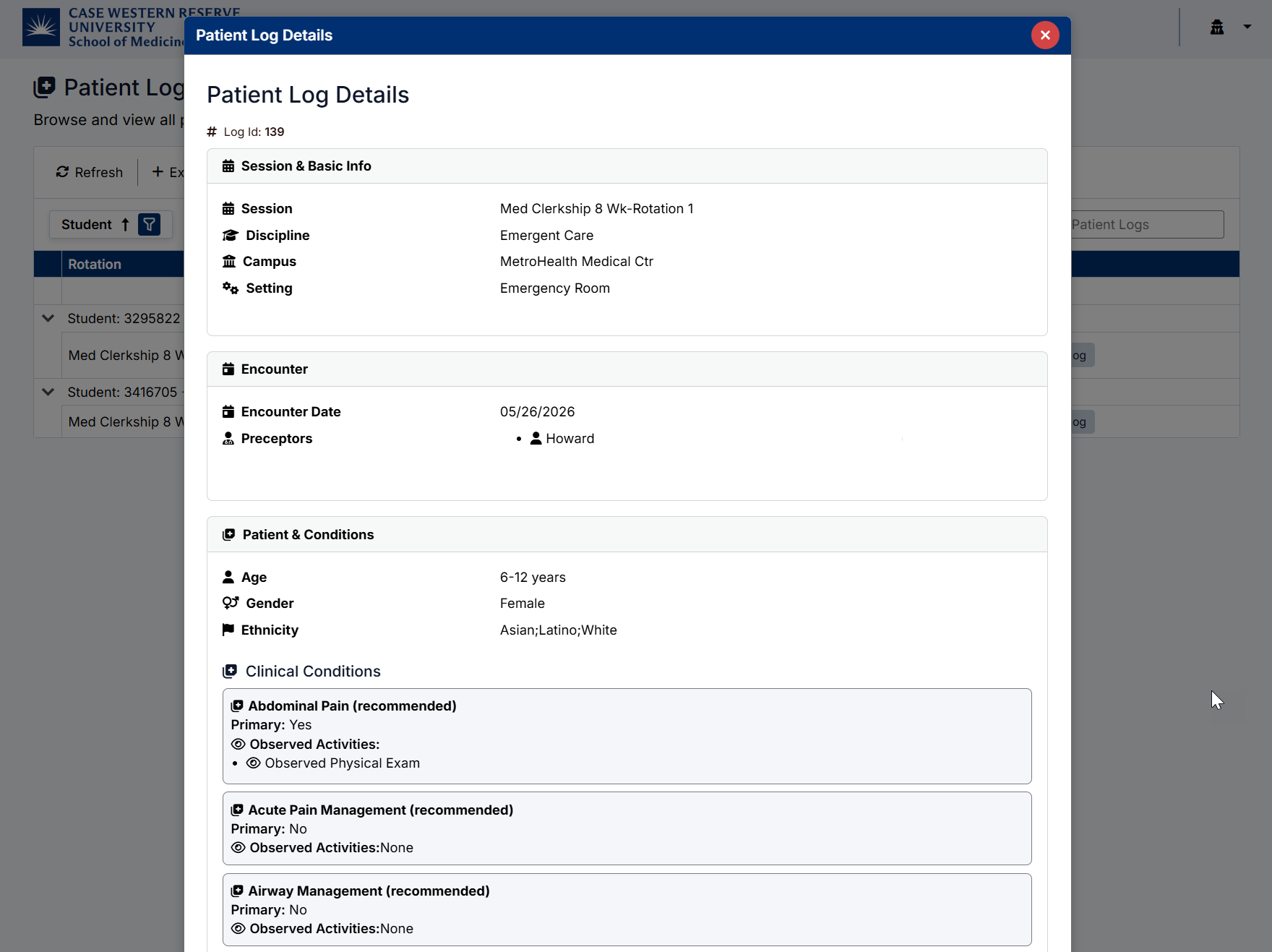
The Patient Log Details screen provides detailed information about the clinical encounter.
The information displayed may vary depending on institutional configuration and discipline requirements.
Session & Basic Information
The Session & Basic Info section contains:
- Rotation or session name
- Discipline
- Campus
- Clinical setting or environment
Examples of settings may include:
- Emergency Room
- Inpatient
- Outpatient Clinic
- Operating Room
Encounter Information
The Encounter section provides details related to the clinical interaction.
This may include:
- Encounter date
- Associated preceptors
- Clinical supervision information
Patient & Conditions
The Patient & Conditions section captures demographic and clinical information associated with the encounter.
This may include:
- Age group
- Gender
- Ethnicity
- Clinical conditions addressed during the encounter
Clinical Conditions and Activities
Patient Logs may contain one or more clinical conditions associated with the encounter.
Each condition may include:
- Whether the condition was primary
- Observed activities
- Participated procedures
- Clinical exposure information
Examples of activities may include:
- Physical examinations
- Observations
- Procedures
- Clinical management activities
Searching Patient Logs
Use the Search Patient Logs field to quickly locate specific entries.
The search can help filter logs by:
- Student name
- Rotation
- Course
- Campus location
- Patient log details
Expanding and Collapsing Sections
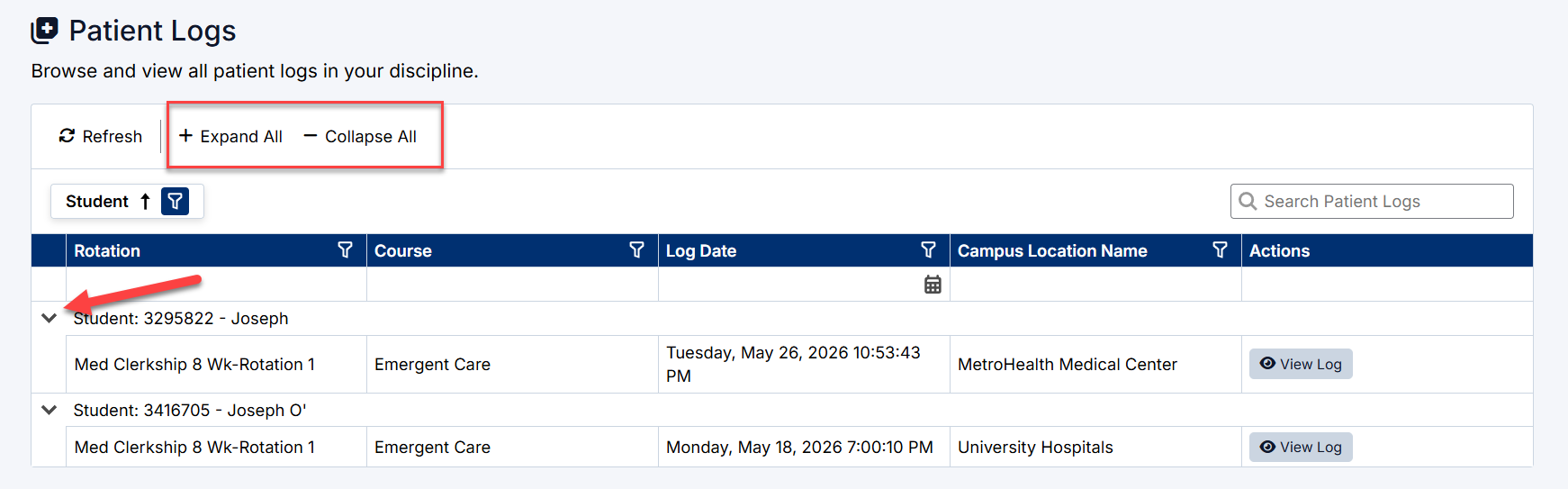
The Patient Logs page supports expandable sections for easier navigation.
Expand All
Select Expand All to open all student sections.
Collapse All
Select Collapse All to minimize all sections.
Individual Expansion
Use the arrow icons beside each student section to expand or collapse individual records.
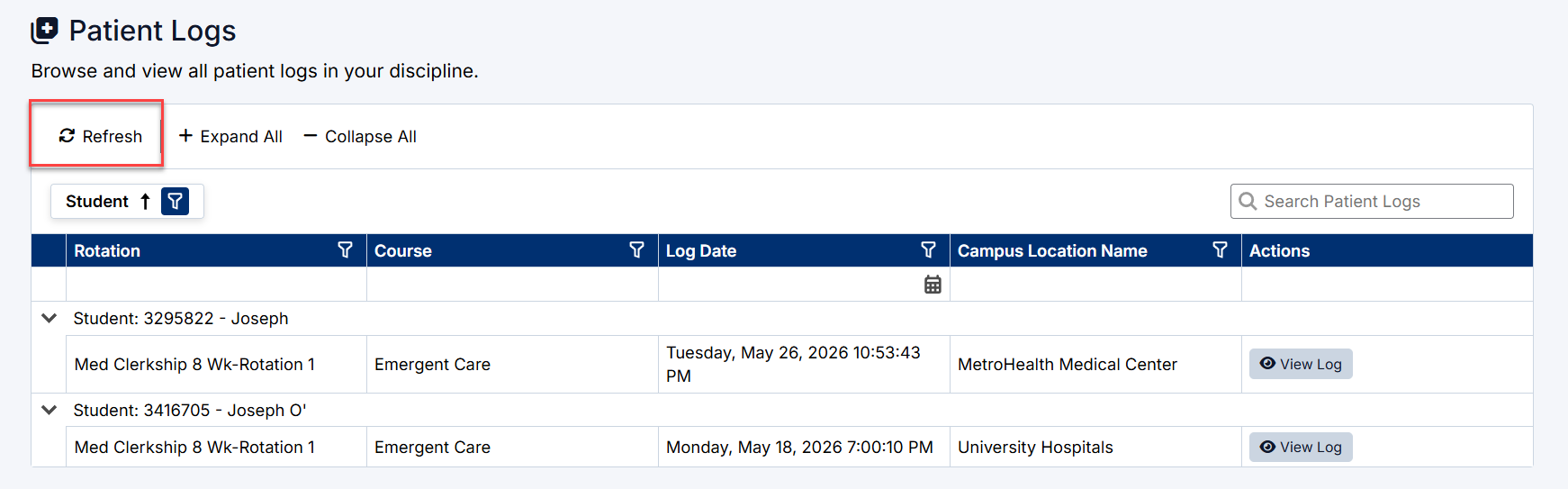
Refreshing the Patient Logs Page
Select Refresh to reload the latest patient log information.
This is useful when:
- New patient logs have been submitted
- Updated encounter information is available
- Workflow activity has changed
Reviewing Clinical Activity
The Patient Logs page helps Clerkship Directors:
- Monitor student clinical exposure
- Review participation across settings
- Verify encounter activity
- Track patient care experiences
- Support clerkship oversight and compliance
Best Practices
To effectively review patient logs:
- Review submissions regularly throughout the rotation
- Monitor variety and completeness of clinical encounters
- Verify preceptor participation where required
- Use search and filters to locate specific records quickly
- Refresh the page periodically to display the latest submissions
The Patient Logs page acts as the primary location for reviewing student clinical encounter activity within the Clerkship Director Portal.
Created with the Personal Edition of HelpNDoc: Effortlessly upgrade your WinHelp HLP help files to CHM with HelpNDoc