Preceptors

Preceptors
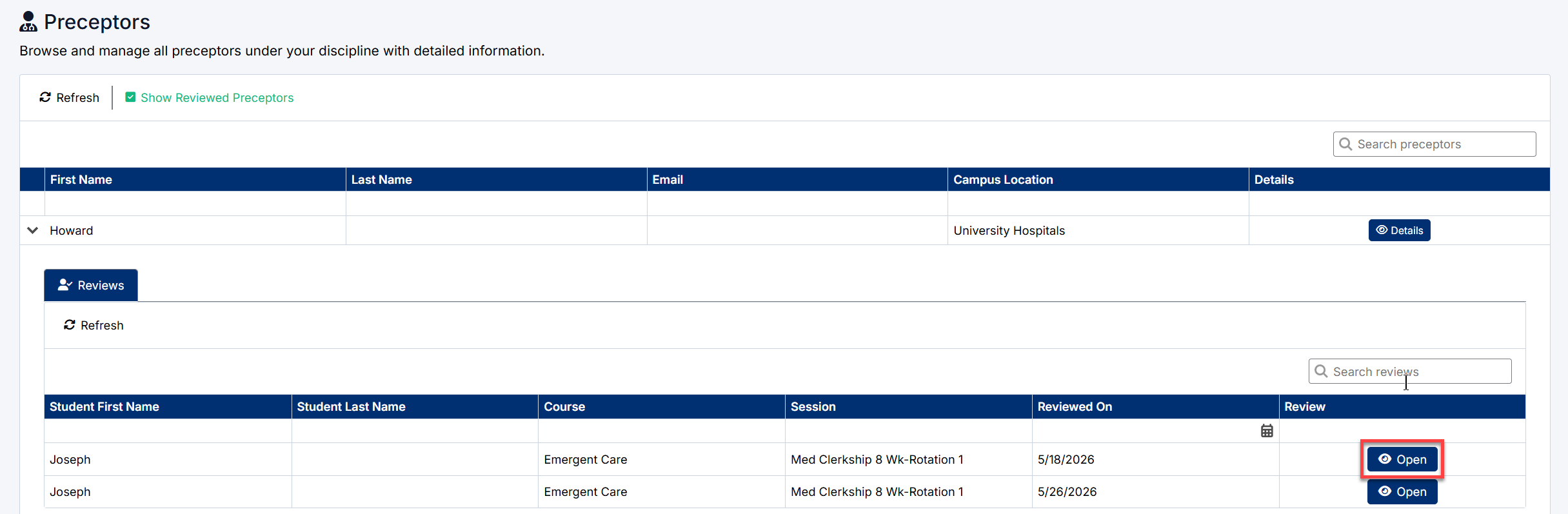
The Preceptors page allows Clerkship Directors to view all preceptors assigned to their discipline and review feedback submitted by students. This page provides a centralized location for monitoring preceptor evaluations and reviewing student comments regarding teaching, communication, supervision, and feedback skills.
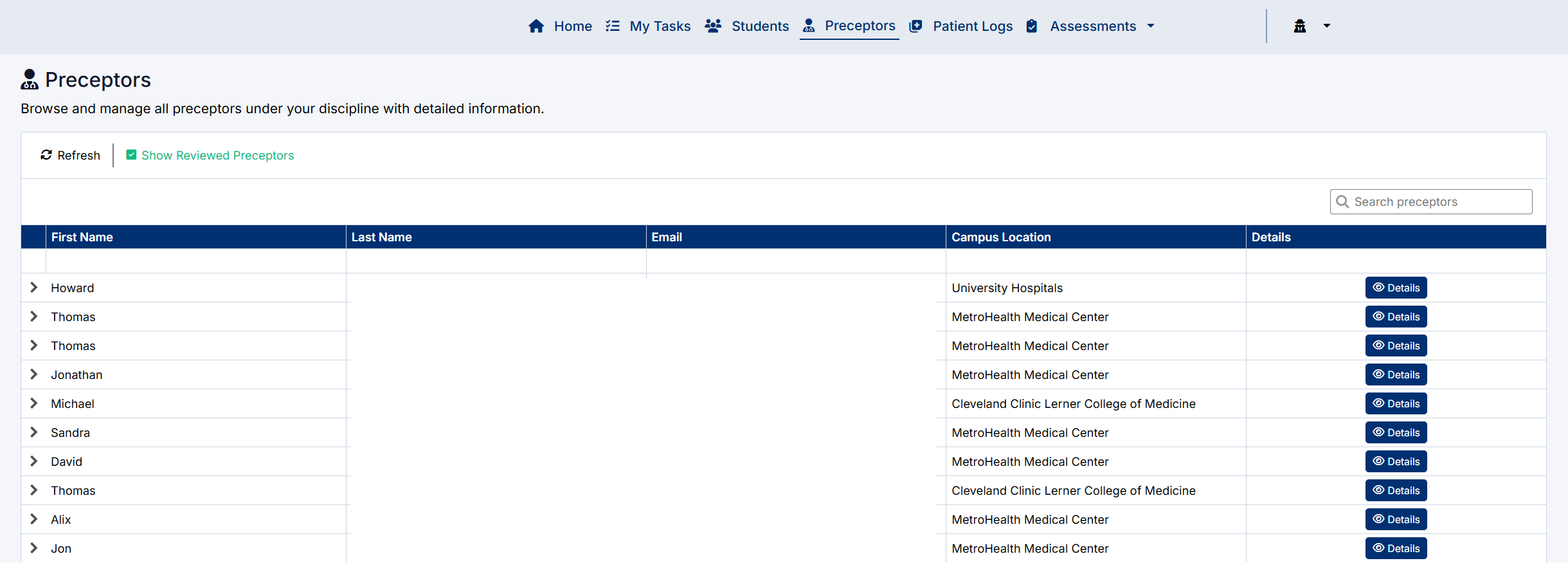
Accessing Preceptors
To open the Preceptors page:
- From the navigation menu, select Preceptors.
OR
- From the Home page, select the Preceptors card.
The Preceptors page displays all preceptors associated with your discipline.

Preceptors Page Overview
The page contains a searchable list of preceptors and their associated information.
Available columns include:
- First Name
- Last Name
- Campus Location
- Details
Each preceptor can be expanded to view student evaluation records.
Searching for Preceptors
Use the Search Preceptors field in the upper-right corner of the page to quickly locate a specific preceptor.
The search can be used to find preceptors by:
- Name
- Email address
- Campus location
Results update automatically as you type.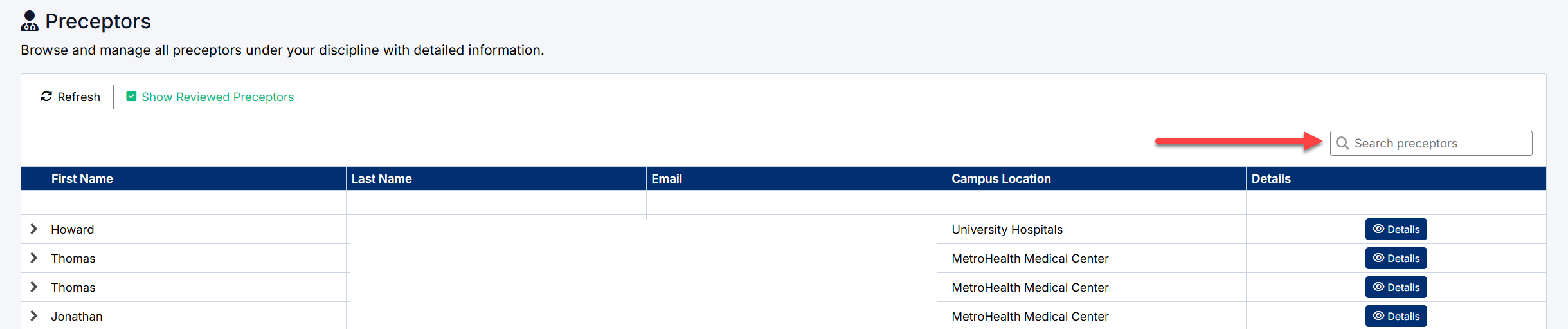
Show Reviewed Preceptors
The Show Reviewed Preceptors option controls whether preceptors with completed evaluations are displayed.
Enabled (Green Checkmark)
Displays preceptors who have received one or more student evaluations.
Disabled (Red X)
Hides preceptors who already have completed evaluations, allowing you to focus on outstanding reviews.
This option is useful when monitoring evaluation completion throughout a rotation.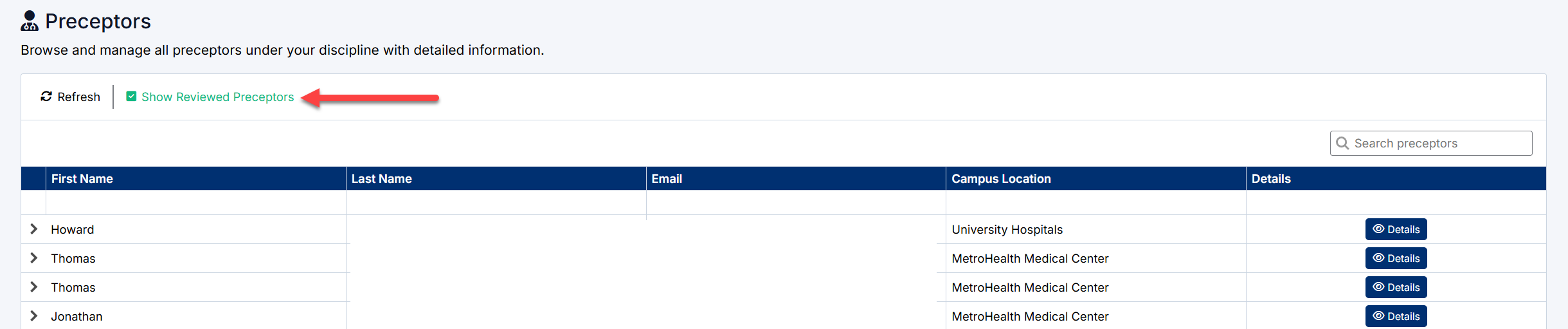
Viewing Preceptor Reviews
To view evaluations submitted for a preceptor:
- Locate the preceptor in the list.
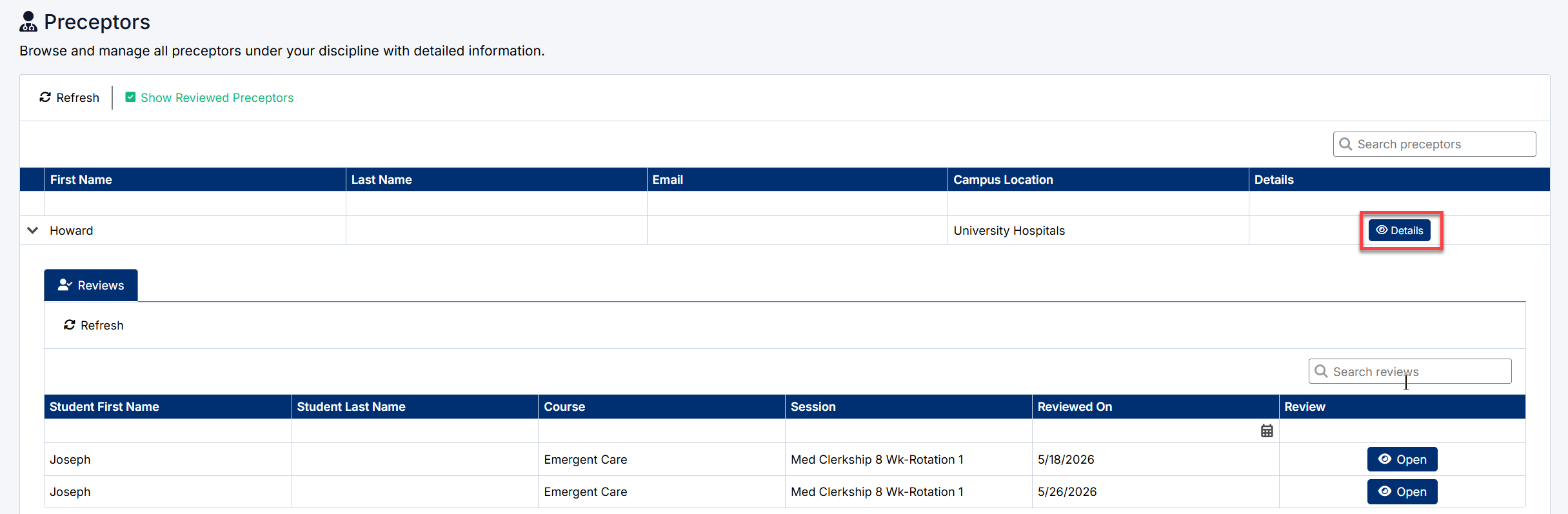
- Select the expand arrow beside the preceptor name.
The Reviews section displays all evaluations submitted by students for that preceptor.
Available information includes:
- Student First Name
- Student Last Name
- Course
- Rotation Session
- Reviewed On date
- Review action
Searching Reviews
Within the Reviews section, use the Search Reviews field to locate specific evaluation records.
Searches may include:
- Student names
- Course names
- Rotation sessions
- Review dates
Opening an Evaluation
To view a completed evaluation:
- Locate the desired review.
- Select Open.
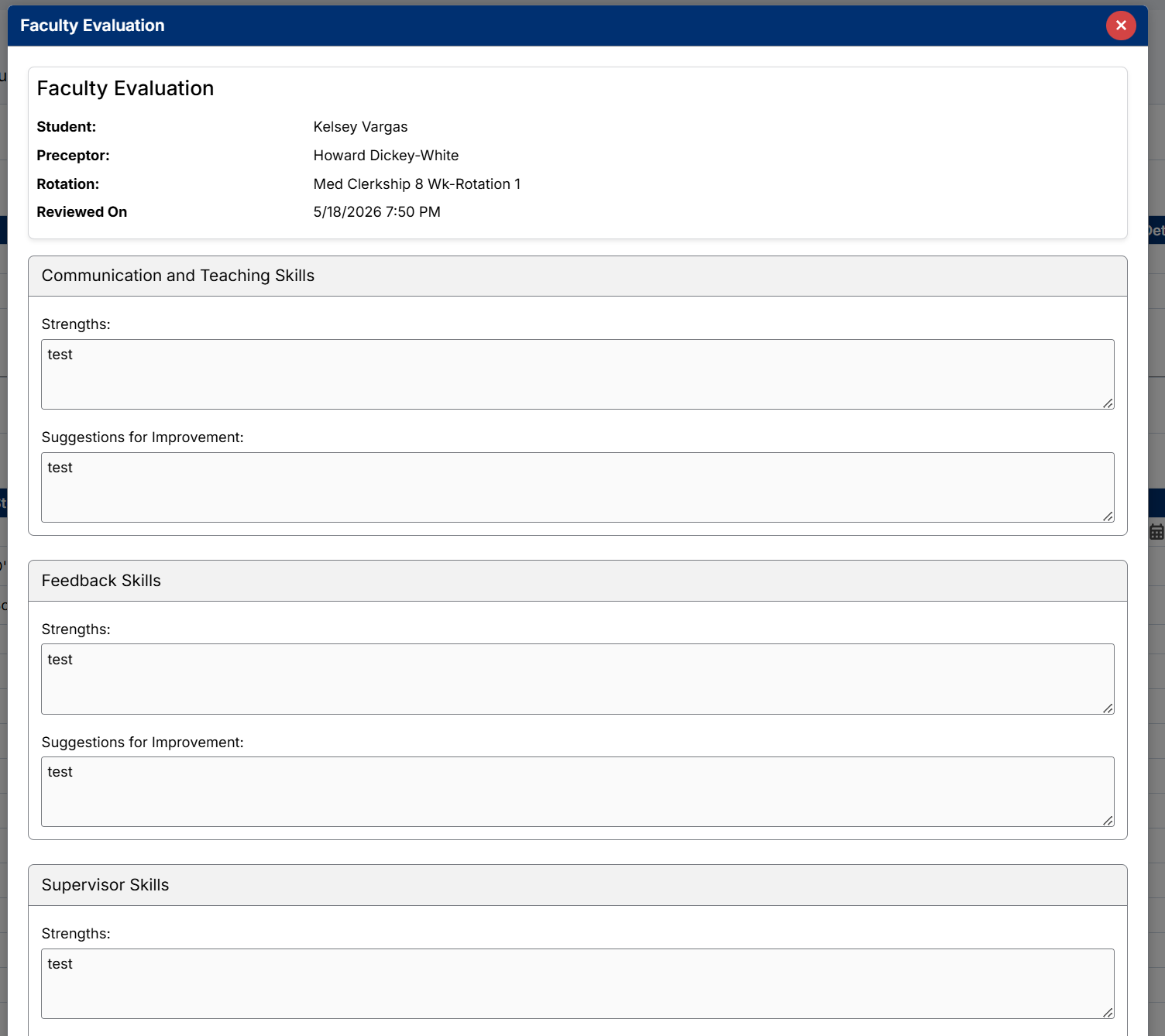
The Faculty Evaluation window opens and displays the student's submitted feedback.
Faculty Evaluation Details
The Faculty Evaluation screen provides a detailed view of student feedback for the selected preceptor.
Evaluation details include:
- Student name
- Preceptor name
- Rotation
- Date reviewed
Feedback is organized into evaluation categories.
Typical categories may include:
- Communication and Teaching Skills
- Feedback Skills
- Supervisor Skills
- Professionalism
- Mentorship
- Clinical Teaching Effectiveness
Each category contains:
Strengths
Positive feedback describing areas where the preceptor performed well.
Suggestions for Improvement
Constructive feedback identifying opportunities for growth and enhancement.
Viewing Evaluation Feedback
When reviewing evaluations, Clerkship Directors can:
- Identify common strengths across multiple students
- Monitor teaching effectiveness
- Recognize outstanding preceptors
- Identify recurring areas for improvement
- Support faculty development initiatives
Evaluations are presented in a read-only format and cannot be modified from this screen.
Refreshing Data
Select Refresh at any time to retrieve the latest preceptor and evaluation information from the system.
Tips
- Use the search field to quickly locate a specific preceptor.
- Expand a preceptor record to review all student evaluations submitted for that individual.
- Review feedback across multiple students to identify recurring trends.
- Use the Show Reviewed Preceptors option to focus on completed or outstanding evaluations.
Created with the Personal Edition of HelpNDoc: Make Your PDFs More Secure with Encryption and Password Protection