Students

Students
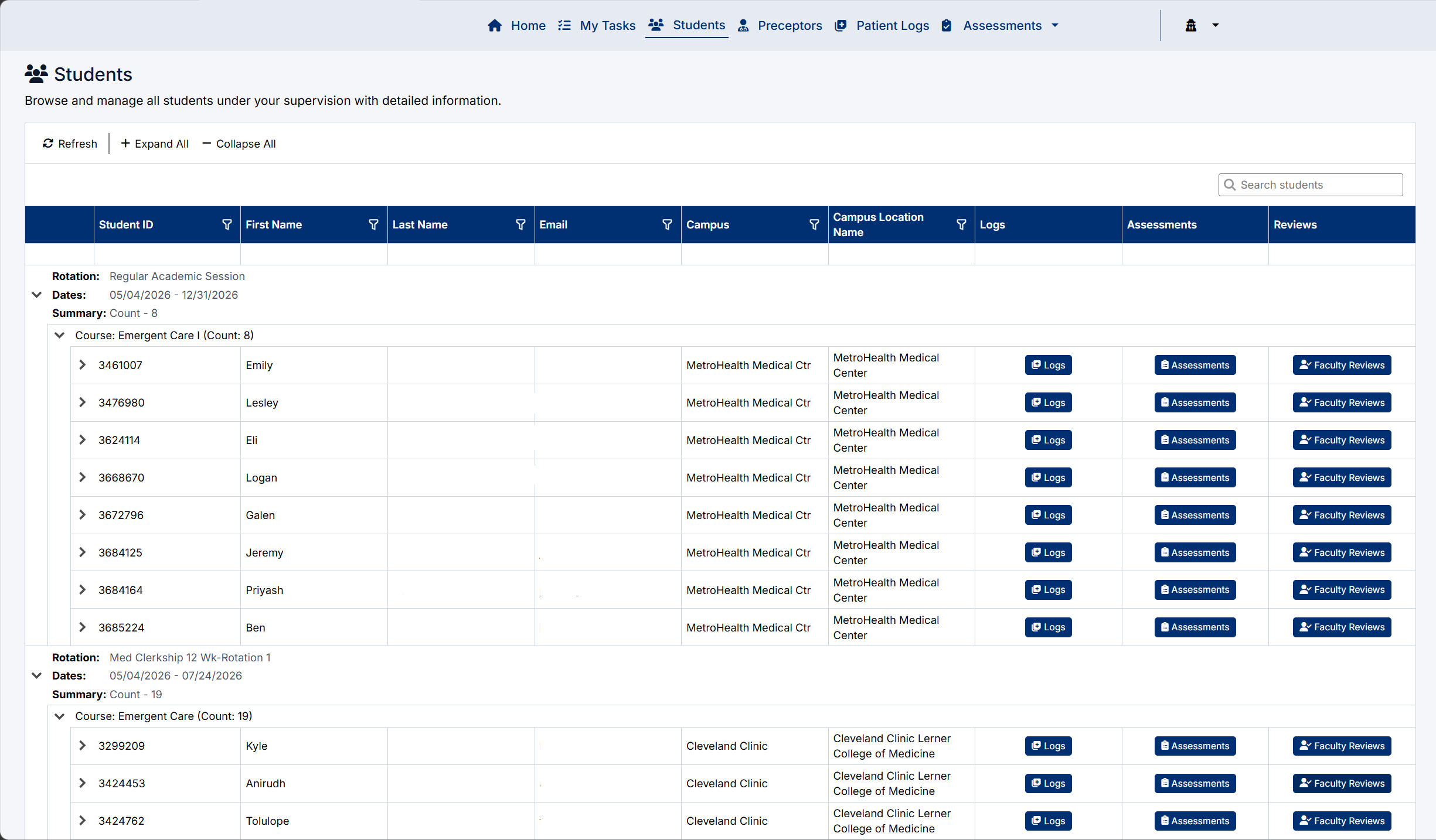
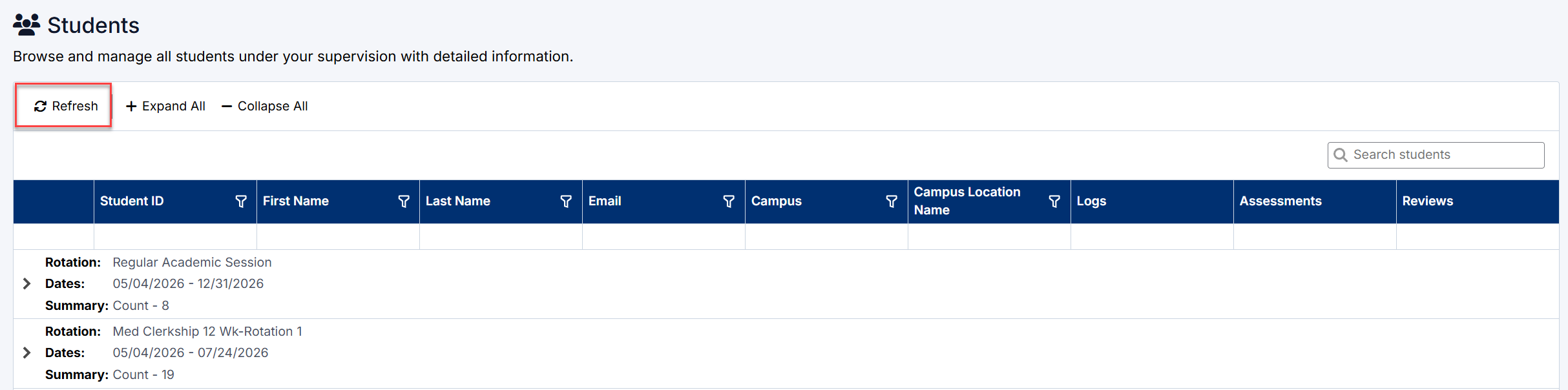
The Students page allows Clerkship Directors to browse, search, and review students associated with their clerkships and rotations.
This page provides centralized access to:
- Student information
- Rotation assignments
- Patient Logs
- Assessment activity
- Preceptor Reviews
The Students page is designed to provide quick visibility into student participation and clinical assessment progress.
Accessing the Students Page
To access the Students page:
- Sign in to the Clerkship Director Portal.
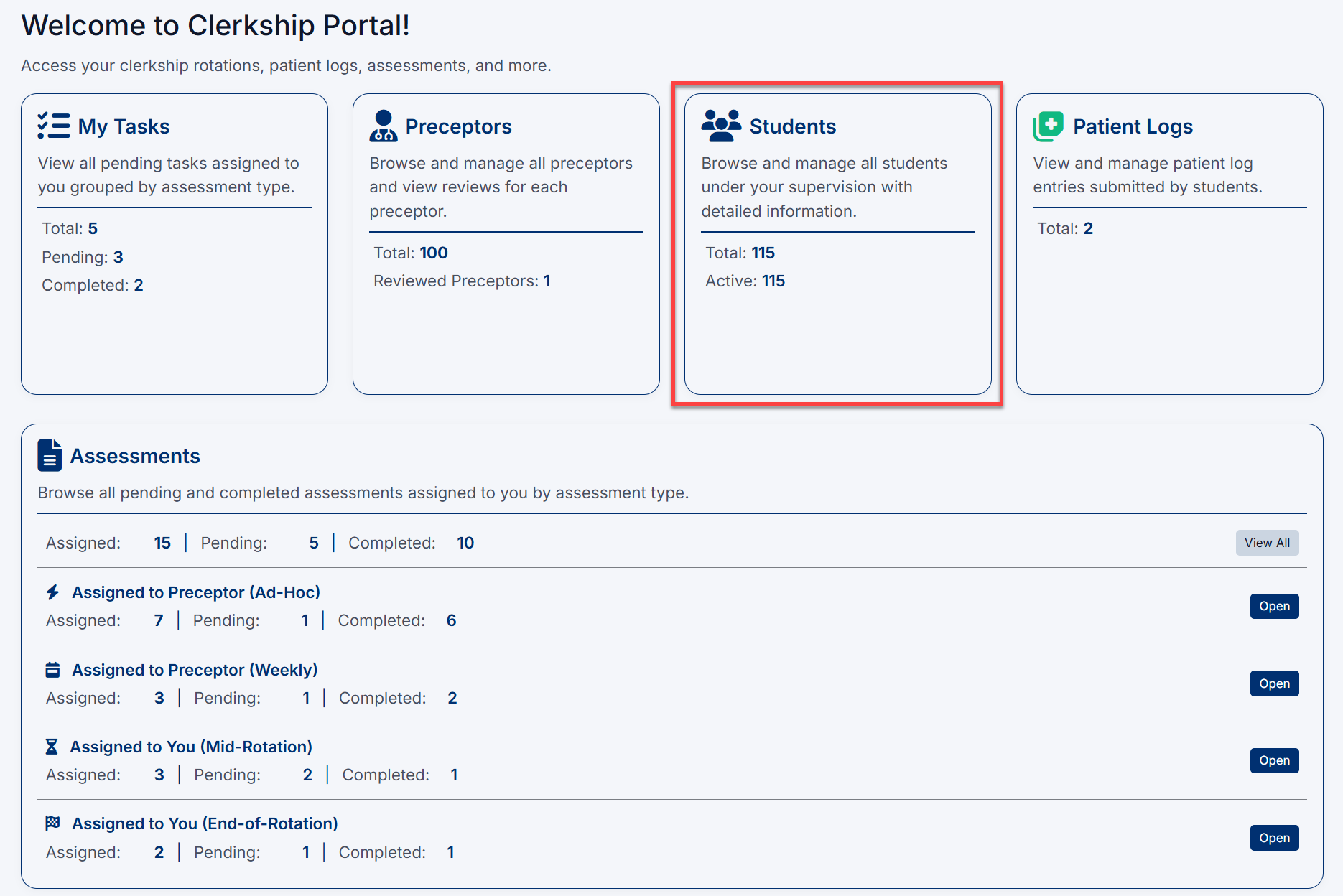
- Select Students from the top navigation menu.
The Students screen will open displaying students grouped by rotation and course.

The Students page can also be accessed directly from the Students tile on the main dashboard.
Understanding the Students Page
Students are grouped by:
- Rotation
- Rotation Dates
- Course
Each section can be expanded or collapsed to simplify navigation.
Student Information Columns
The Students page displays the following information:
|
Column |
Description |
|
Student ID |
Unique identifier for the student |
|
First Name |
Student first name |
|
Last Name |
Student last name |
|
|
Student email address |
|
Campus |
Assigned campus |
|
Campus Location Name |
Clinical site or location |
|
Logs |
Opens student patient logs |
|
Assessments |
Opens student assessment activity |
|
Reviews |
Opens preceptor review information |
Searching for Students
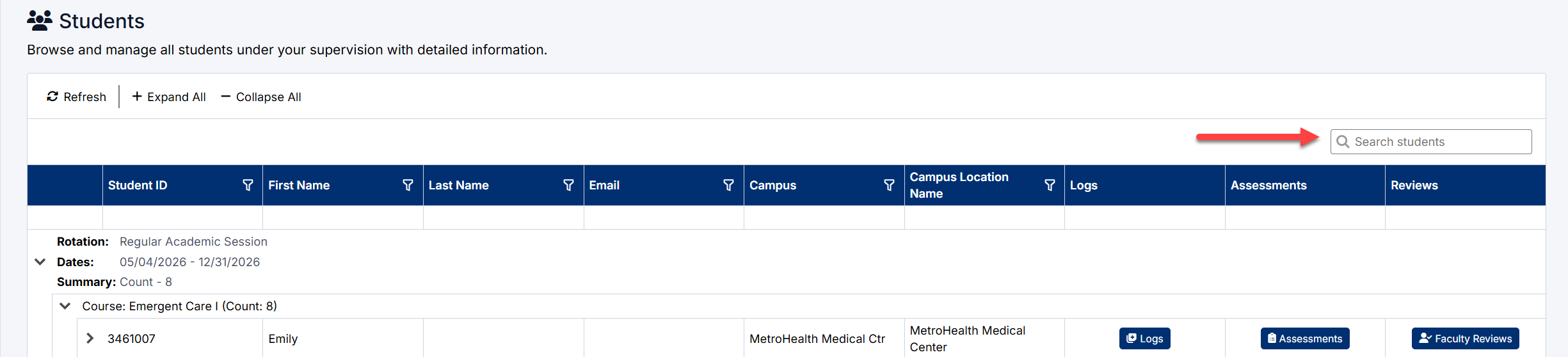
Use the Search Students field to quickly locate a student.
The search can filter by:
- Student name
- Student ID
- Email address
- Rotation information
As text is entered, the list automatically filters to matching students.
Expanding Student Records
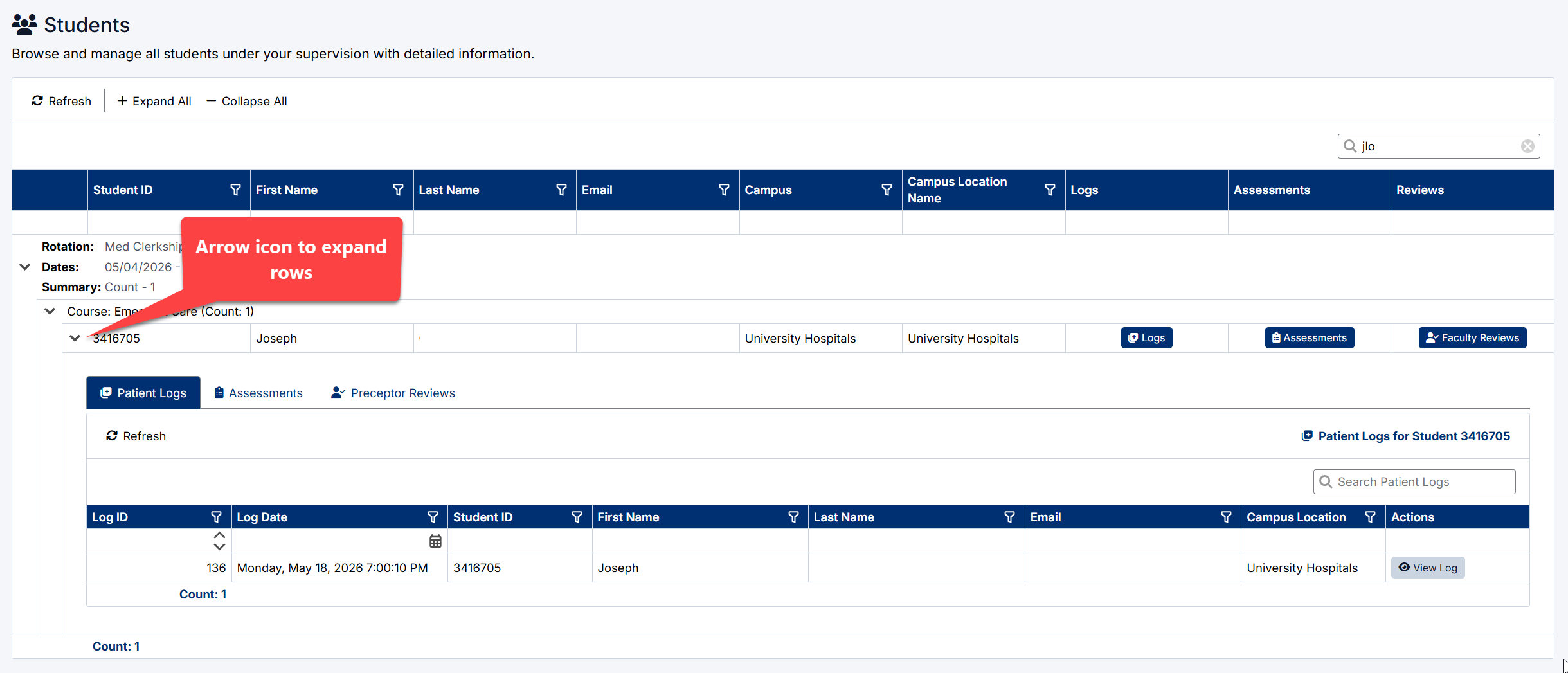
Each student row can be expanded to display additional detail sections.
To expand a student record:
- Select the arrow icon beside the student row.
- Additional tabs and information panels will appear.
Available tabs may include:
- Patient Logs
- Assessments
- Preceptor Reviews
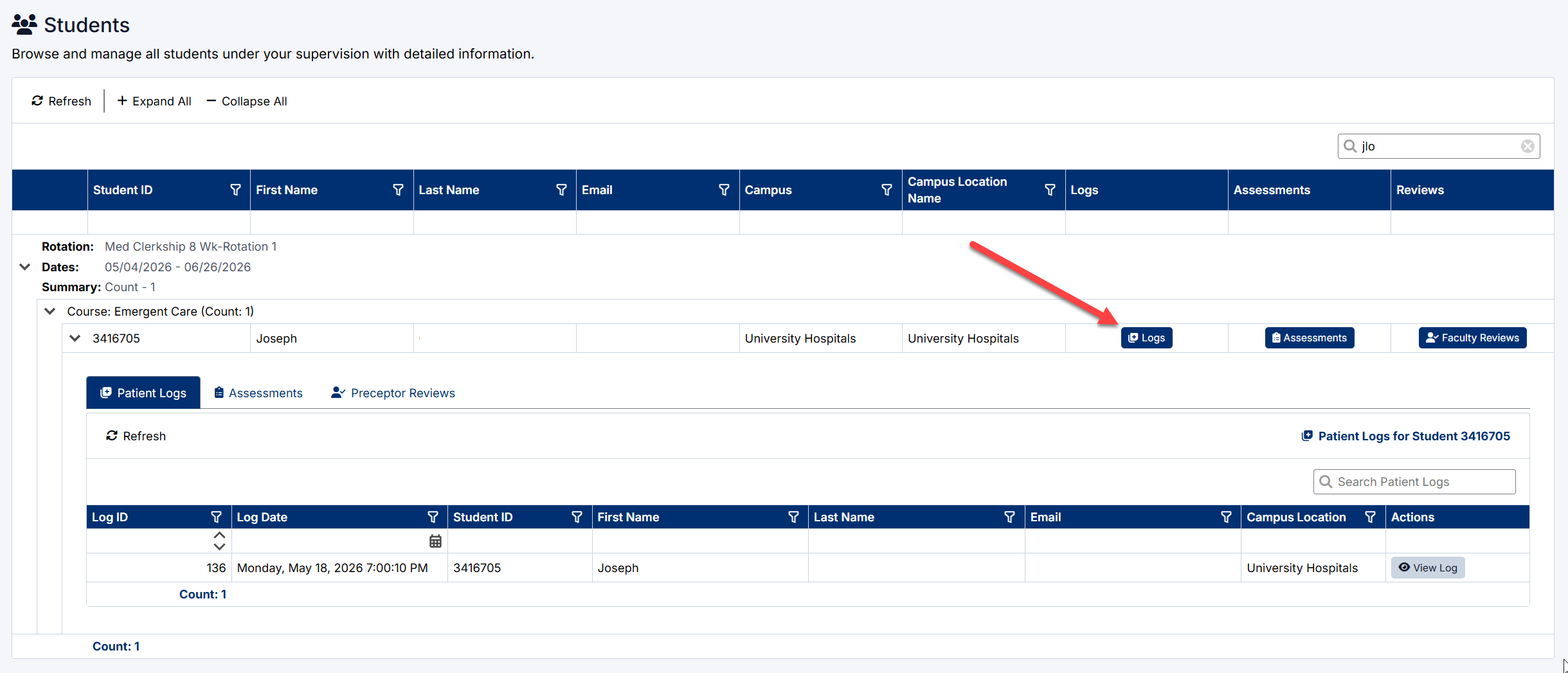
Patient Logs
The Patient Logs tab displays patient encounters submitted by the selected student.
This section allows Clerkship Directors to:
- Review submitted patient logs
- Monitor clinical activity
- Review encounter dates
- Access individual patient log records
Patient Log Information
The Patient Logs section may display:
- Log ID
- Log Date
- Student information
- Campus location
- Submission details
To open a patient log:
- Locate the required log entry.
- Select View Log.
Assessments
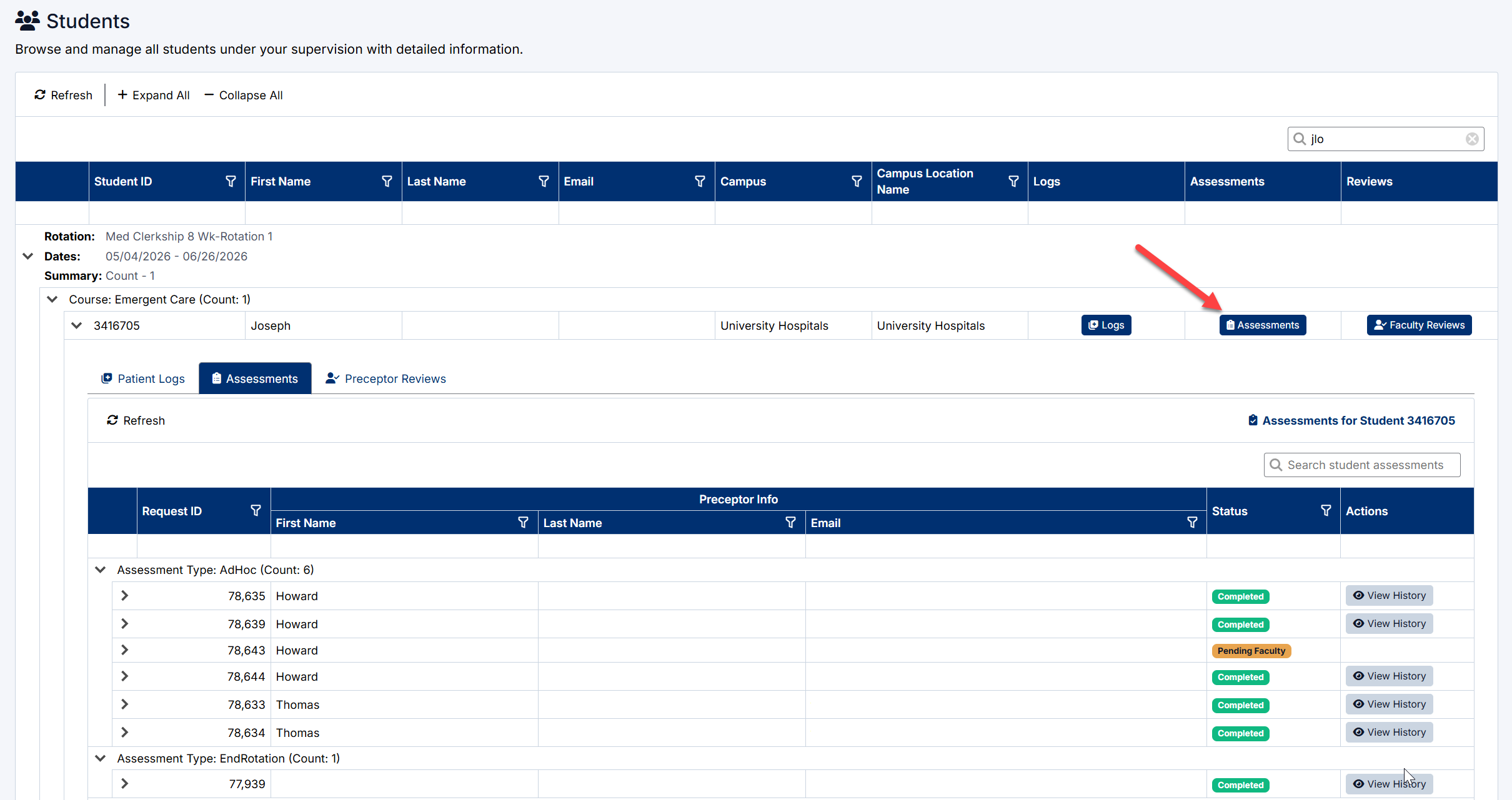
The Assessments tab displays assessment activity associated with the selected student.
Assessments are grouped by assessment type and may include:
- Ad-Hoc Assessments
- Mid-Rotation Assessments
- End-of-Rotation Assessments
- Other assessment workflows
Assessment Information
The Assessments section may display:
- Request ID
- Preceptor information
- Assessment status
- Workflow history
Assessment Statuses
Common assessment statuses include:
- Pending Faculty
- Completed
- In Progress
Viewing Assessment History
To review assessment workflow activity:
- Locate the assessment record.
- Select View History.
The history view may include:
- Submission activity
- Status changes
- Workflow progression
- Previous reviewer actions
Preceptor Reviews
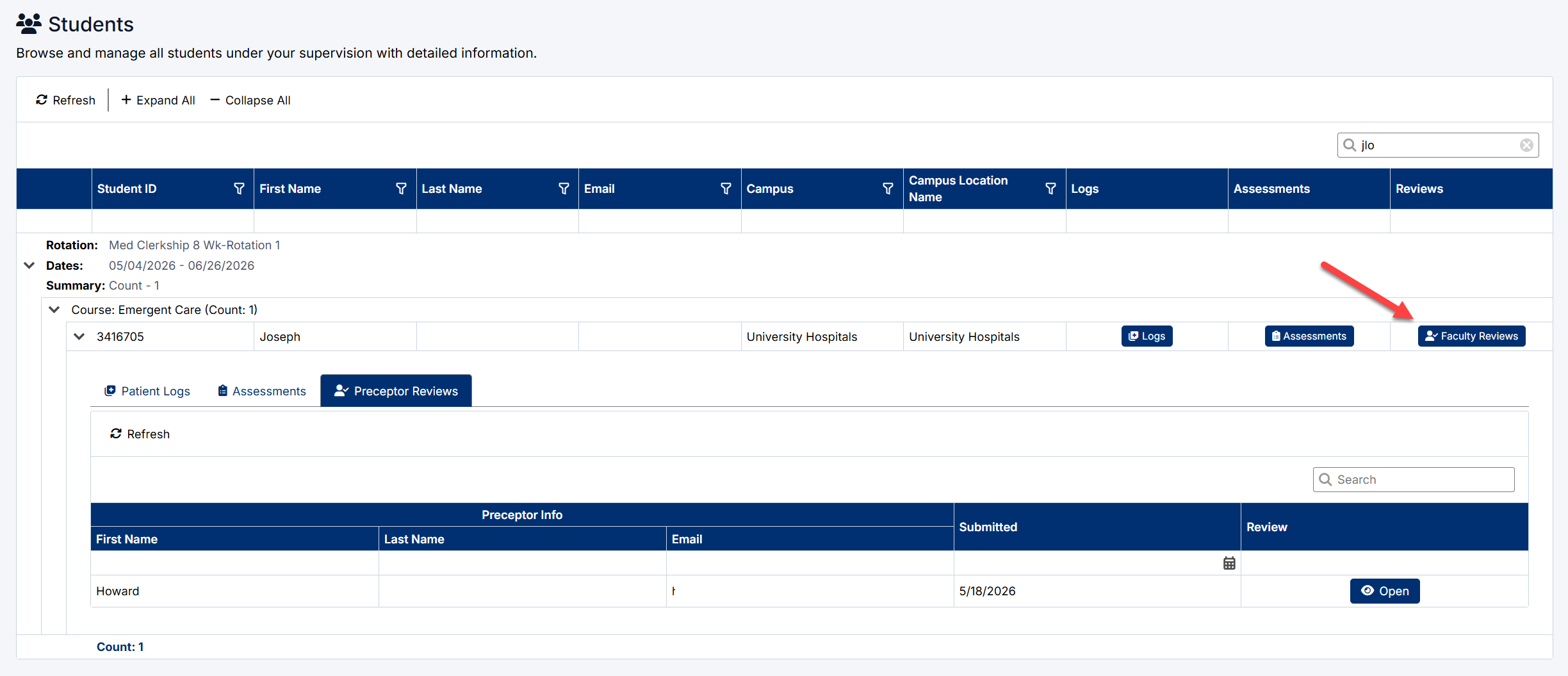
The Preceptor Reviews tab displays reviews and feedback submitted by preceptors associated with the student.
This section allows Clerkship Directors to:
- Review submitted evaluations
- Monitor preceptor participation
- Access completed review forms
Preceptor Review Information
The Preceptor Reviews section may display:
- Preceptor name
- Email address
- Submission date
- Review access options
To open a review:
- Locate the review record.
- Select Open.
Expand and Collapse Options
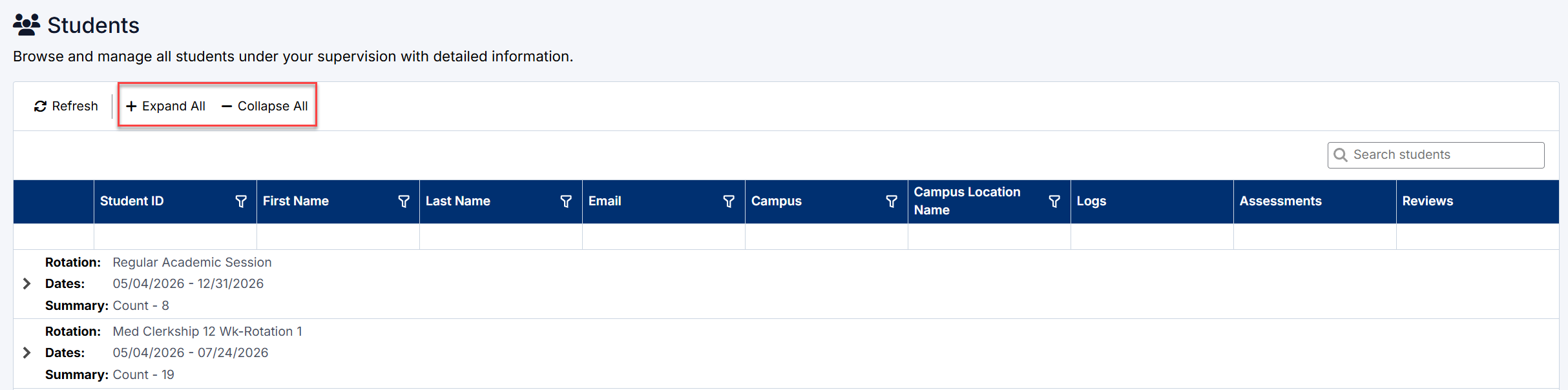
The Students page supports expandable sections for easier navigation.
Expand All
Select Expand All to open all rotation and student sections.
Collapse All
Select Collapse All to minimize all sections.
Individual Expansion
Use the arrow icons beside each section to expand or collapse individual groups or student records.
Refreshing the Students Page
Select Refresh to reload the latest student, assessment, and patient log information.
This is useful when:
- New submissions have been received
- Assessment activity has changed
- Workflow updates have occurred
Best Practices
To manage student oversight effectively:
- Review assessment activity regularly
- Monitor patient log submissions
- Use search to quickly locate students
- Review preceptor feedback throughout the rotation
- Refresh the page periodically for updated workflow information
The Students page acts as the primary location for reviewing student clinical activity and assessment progress within the Clerkship Director Portal.
Created with the Personal Edition of HelpNDoc: Streamline Your Documentation Process with HelpNDoc's Project Analyzer