My Tasks

My Tasks
The My Tasks page provides a centralized location for viewing and completing all assessment tasks assigned to you within the Clerkship Director Portal.
Tasks are grouped by:
- Rotation
- Course
- Assessment Type
This allows Clerkship Directors to quickly identify pending assessments and manage workflow activity efficiently.
The My Tasks page may include:
- Mid-Rotation Assessments
- End-of-Rotation Assessments
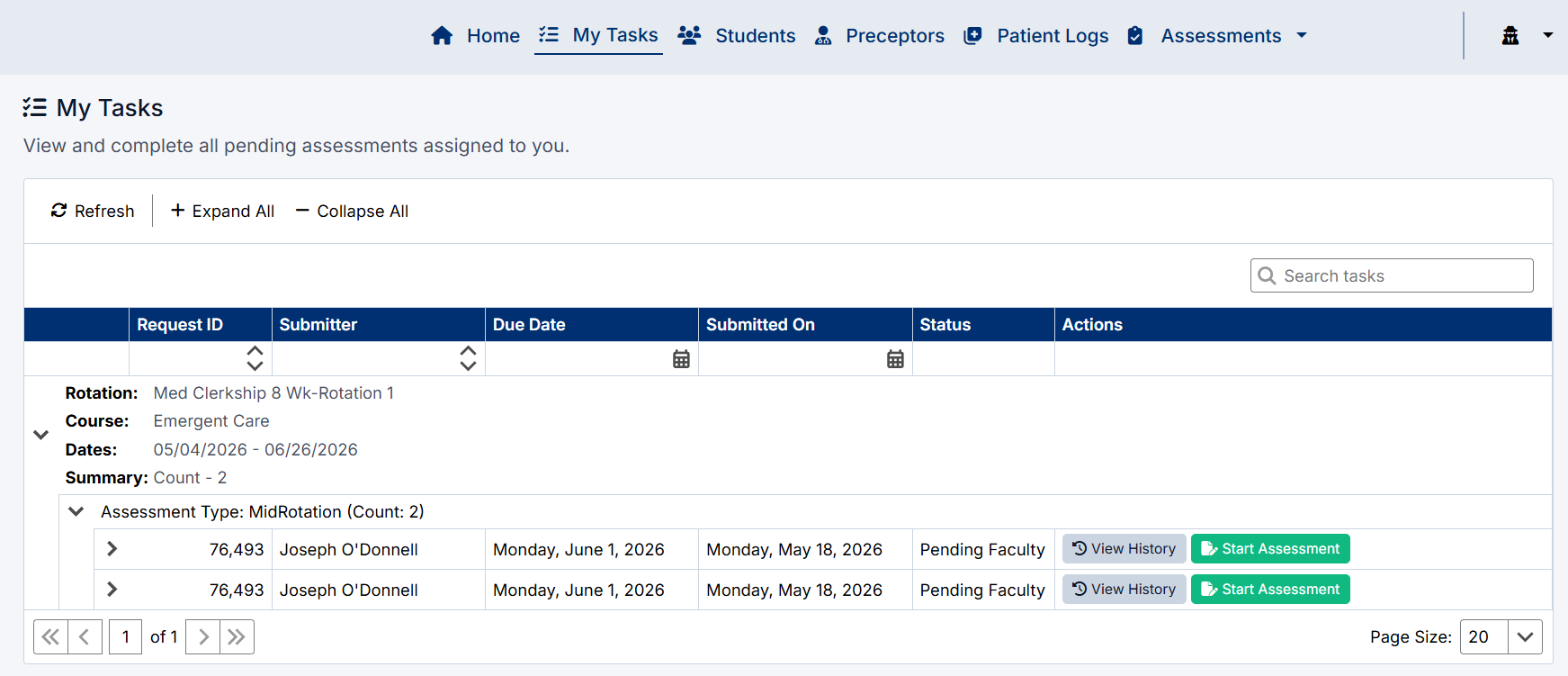
Accessing My Tasks
To access the My Tasks page:
- Sign in to the Clerkship Director Portal.
- Select My Tasks from the top navigation menu.
The My Tasks screen will open displaying all pending and assigned assessment tasks.

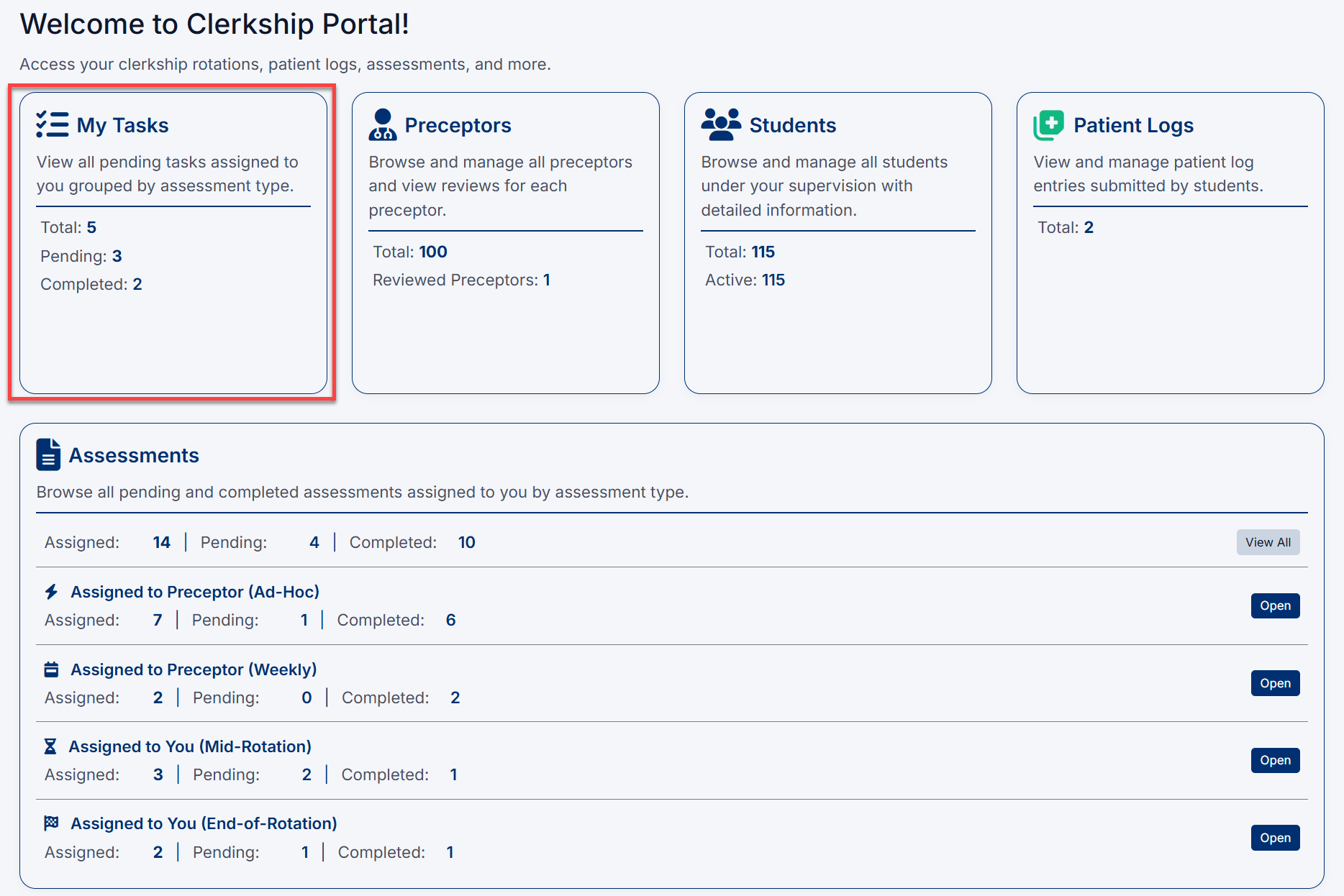
The My Tasks page can also be accessed directly from the My Tasks tile on the main dashboard. The dashboard tile displays a summary of pending and completed assessment activity assigned to the current user. Selecting the tile opens the full My Tasks page where all assigned assessments and workflow activities can be reviewed and completed.
Understanding the My Tasks Page
The My Tasks page is organized into expandable sections that group assessments by rotation and assessment type.
Rotation Information
Each task group displays rotation-level information including:
- Rotation – The name of the clinical rotation
- Course – The associated course or discipline
- Dates – The rotation date range
- Summary Count – Total number of assessments within the group
Assessment Type Groups
Within each rotation, assessments are grouped by assessment type.
Examples may include:
- MidRotation
- End-of-Rotation
Each section displays the number of assessments currently assigned within that category.
Assessment Task Columns
Each assessment row contains important task information.
Request ID
Displays the unique assessment request identifier.
Submitter
Displays the student associated with the assessment.
Due Date
Displays the date by which the assessment should be completed.
Submitted On
Displays the date the assessment request was submitted.
Status
Displays the current workflow status of the assessment.
Examples may include:
- Pending Faculty
- Completed
- In Progress
Actions
Provides buttons for interacting with the assessment.
Available actions may include:
- Start Assessment
- View History
Starting an Assessment
To begin an assigned assessment:
- Locate the assessment task in the list.
- Select Start Assessment.
The assessment form will open, allowing you to:
- Review student information
- Complete evaluation sections
- Enter comments and feedback
- Submit the assessment
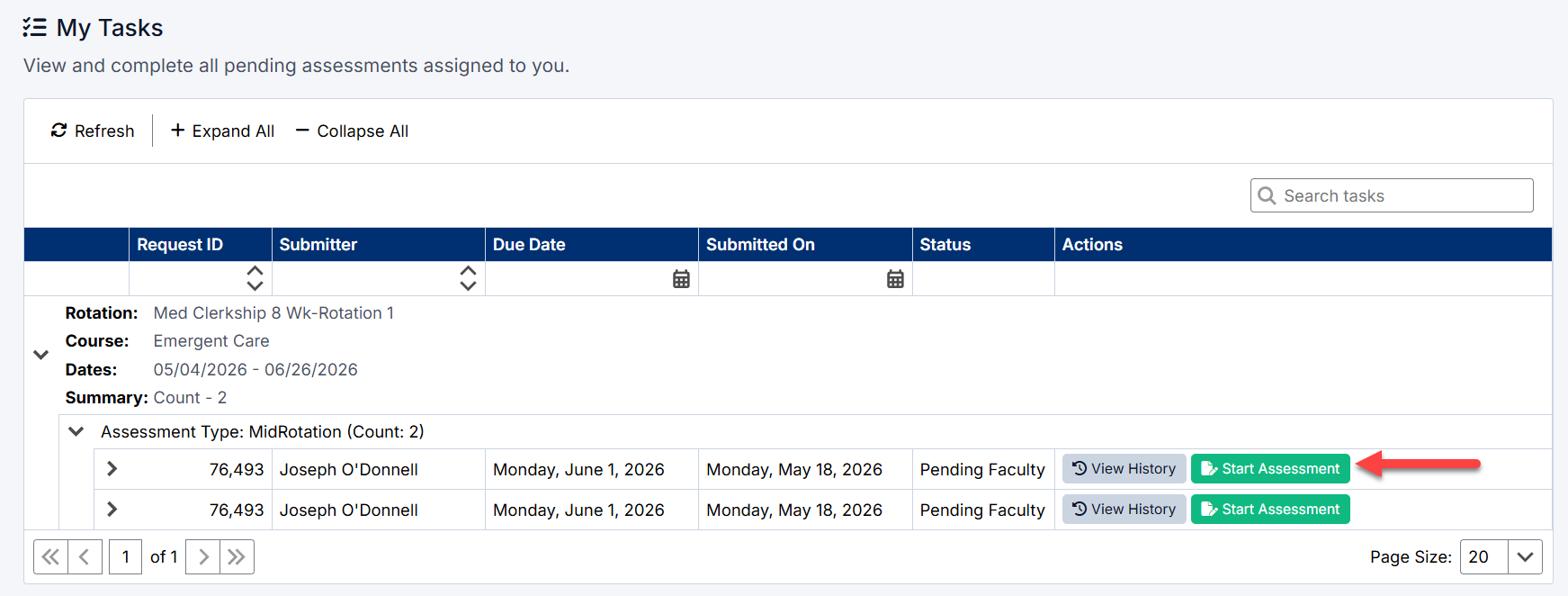
Completing Mid‑Rotation Feedback
The Mid‑Rotation Feedback assessment allows you to provide formative input on each student’s progress halfway through their rotation.
As Clerkship Director, these tasks appear automatically in your My Tasks list once a student has submitted their mid‑rotation self assessemnt.
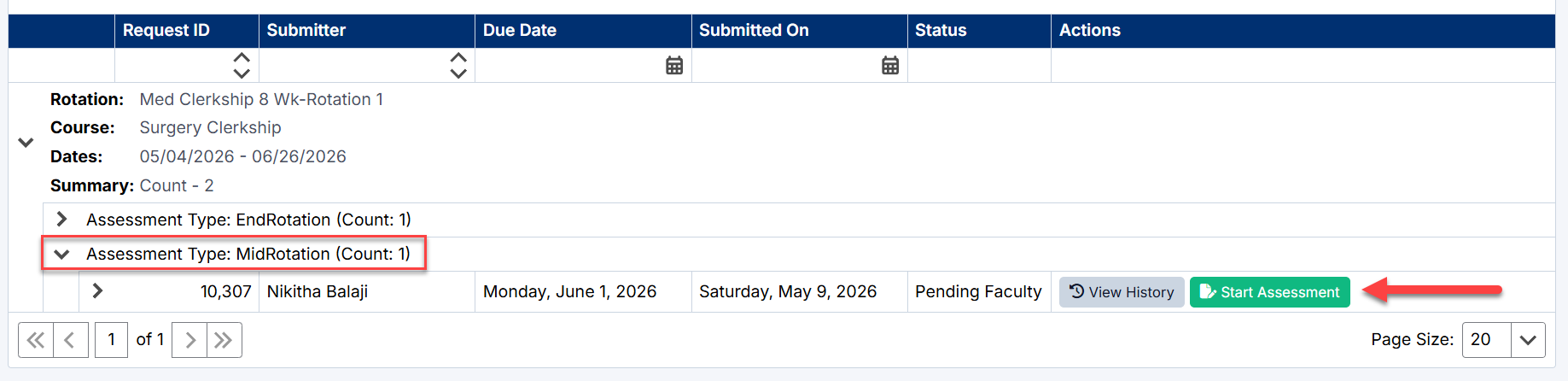
My Tasks page screenshot filtered to show a Mid‑Rotation assessments due
You will complete the detailed Mid‑Rotation Feedback process in the Mid‑Rotation Assessments section of this guide.
See: Mid‑Rotation Assessments for more details
Completing End‑of‑Rotation Assessments
The End‑of‑Rotation Assessment summarizes a student’s overall performance at the conclusion of their clerkship. This assessment becomes available in My Tasks only after the following requirements are met:
- The student has completed the required number of patient logs for their discipline.
- All weekly and ad‑hoc assessments requested by preceptors have been submitted.
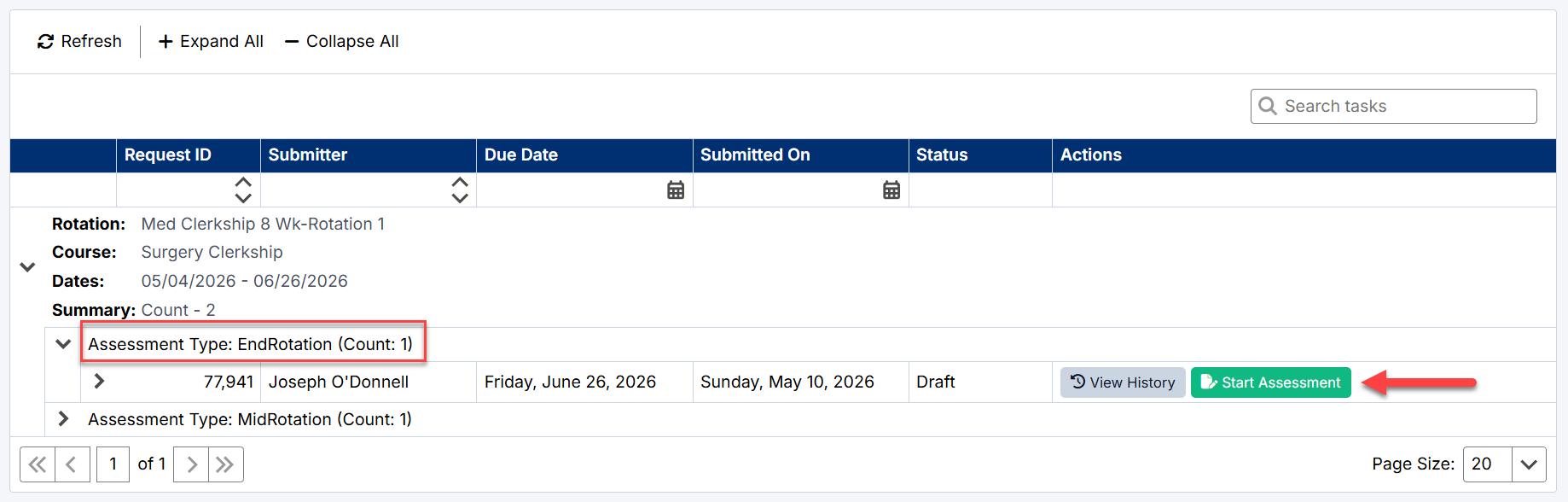
My Tasks page showing an End‑of‑Rotation assessment item marked Pending
Once those conditions are met, the End‑of‑Rotation task will appear in your list and can be completed through the portal.
Detailed instructions are provided later in the End‑of‑Rotation Assessments section.
See: End‑of‑Rotation Assessments for more details
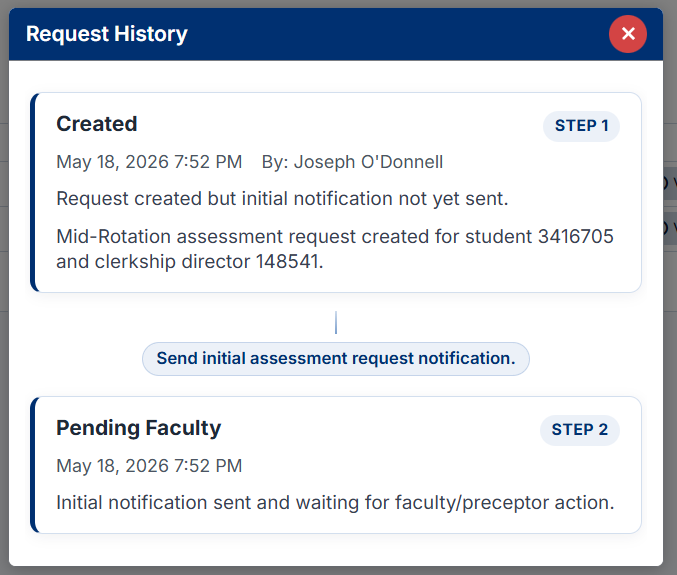
Viewing Assessment History
To review workflow history for an assessment:
- Locate the assessment task.
- Select View History.
The history view may include:
- Assessment workflow activity
- Submission timestamps
- Status changes
- Previous reviewer activity
Expanding and Collapsing Task Groups
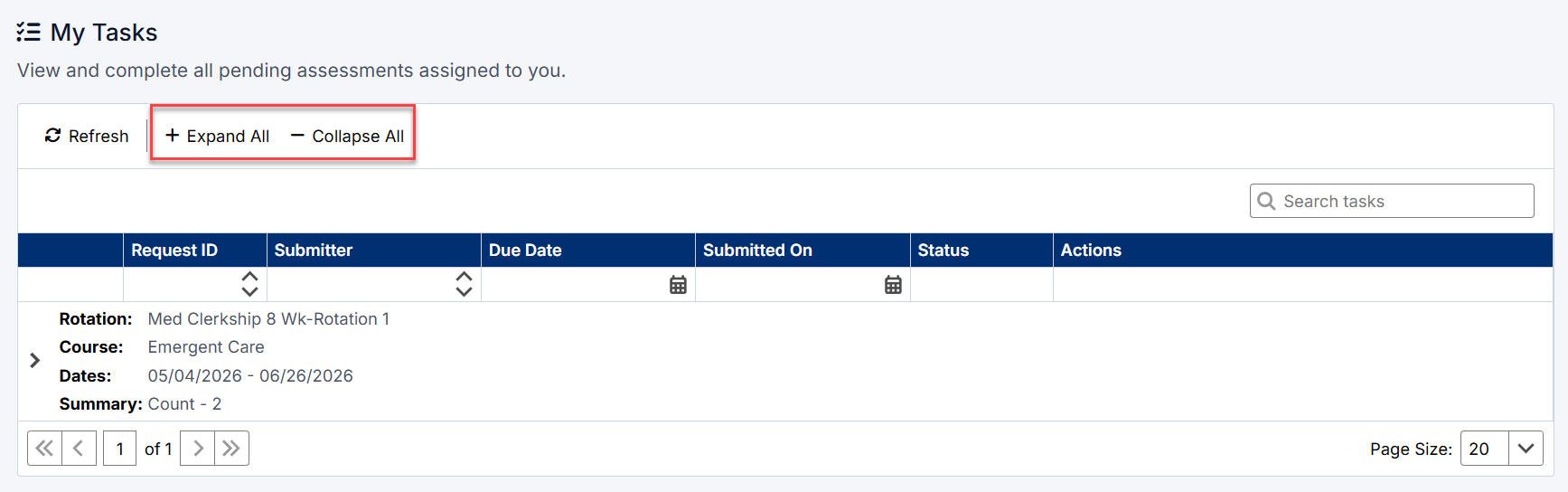
The My Tasks page supports expandable task groups for easier navigation.
Expand All
Select Expand All to open all rotation and assessment sections.
Collapse All
Select Collapse All to collapse all sections and simplify the view.
Individual Expansion
Use the arrow icons beside each section to expand or collapse individual groups.
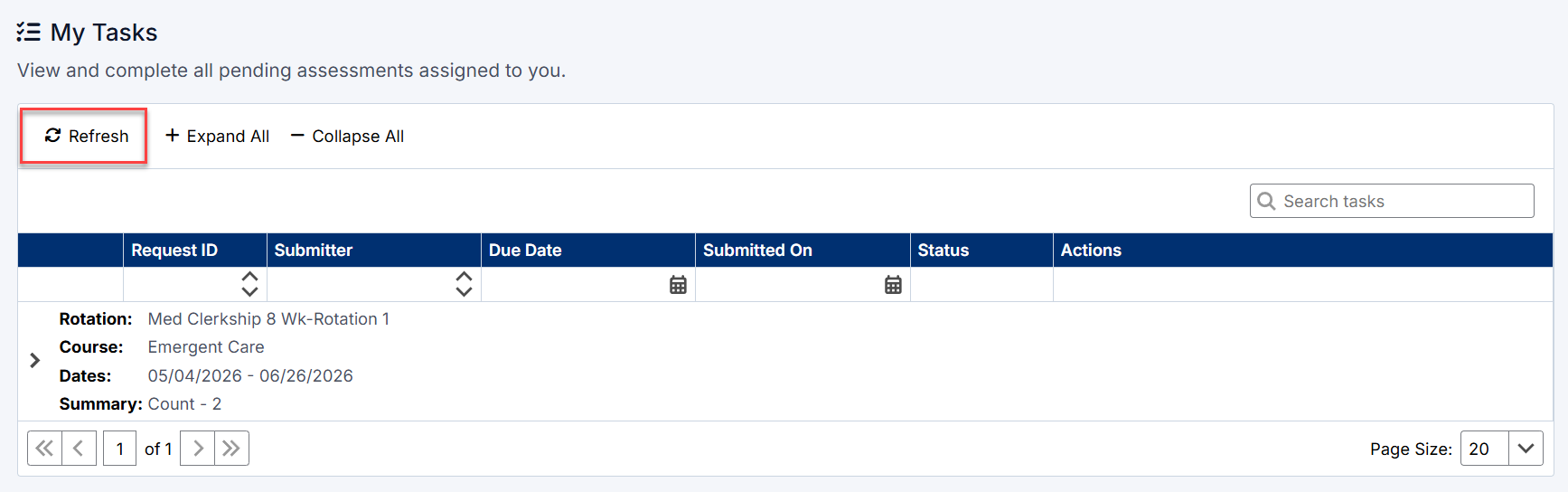
Refreshing the Task List
Select Refresh to reload the page and display the latest task and workflow information.
This is useful when:
- New tasks have been assigned
- Assessment statuses have changed
- Workflow activity has been updated
Searching for Tasks
Use the Search Tasks field to quickly locate specific assessments.
The search can help filter tasks by:
- Student name
- Rotation information
- Request ID
- Assessment details
Task Statuses
Assessment tasks move through workflow statuses as they progress through the review process.
Common statuses may include:
|
Status |
Description |
|
Pending Faculty |
Waiting for faculty or Clerkship Director completion |
|
In Progress |
Assessment has been started but not submitted |
|
Completed |
Assessment has been submitted |
|
Returned |
Assessment requires additional review or updates |
Available statuses may vary depending on institutional workflow configuration.
Best Practices
To manage assessment workflows efficiently:
- Review the My Tasks page regularly
- Complete assessments before the due date
- Use View History to review workflow activity when needed
- Refresh the page periodically to view updated information
- Collapse completed sections to focus on pending work
The My Tasks page acts as the primary workspace for completing assigned clerkship assessment activities.
Created with the Personal Edition of HelpNDoc: Easily create EBooks